What are Tags?
On this page
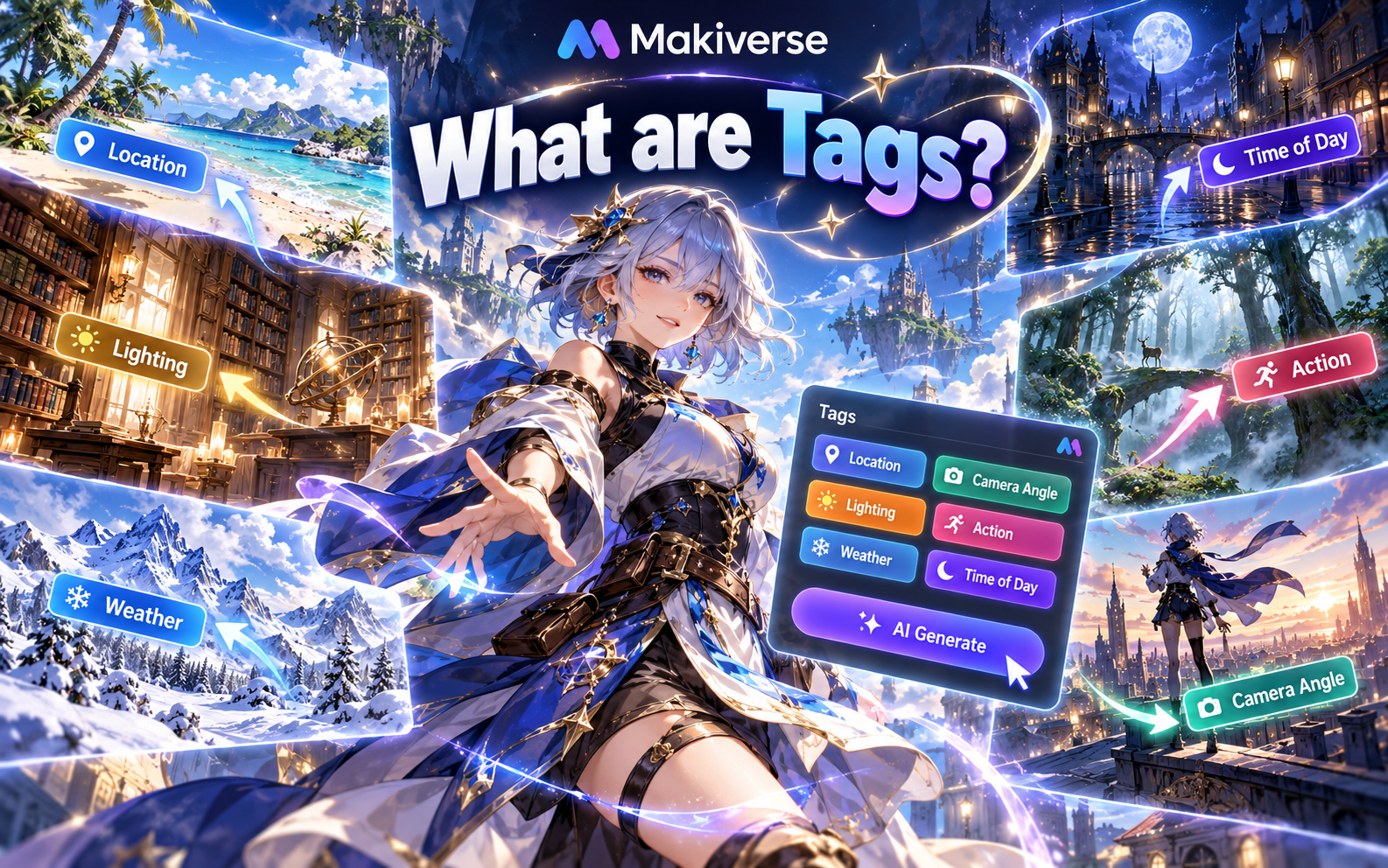
Tags are preset options that help guide your generations without requiring a long Prompt.
By selecting Tags, you can quickly tell Makiverse what should appear in your Image, GIF, Manga scene, or Character.
Tags can help define details such as:
- Location
- Camera angle
- Lighting
- Action
- Weather
- Time of day
You can use Tags on their own or combine them with a Prompt for more control.
Why Use Tags?
Tags make it easier to set up a generation by letting you select common visual details with a click.
Instead of describing every detail in your Prompt, choose the Tags that match the scene you want to create.
Tags are useful for:
- Setting up generations faster
- Building common scenes
- Adding visual details quickly
- Keeping similar details across multiple generations
- Getting started if you are new to writing Prompts
Tags and Prompts
Prompts let you describe your idea in your own words and are useful when you want more control or have something specific in mind.
Prompts are useful for:
- Unique ideas
- Detailed scenes
- Storytelling
- Specific instructions
- Additional customization
For more control, use a Prompt for the main idea and Tags for supporting scene details.
Example
Prompt:
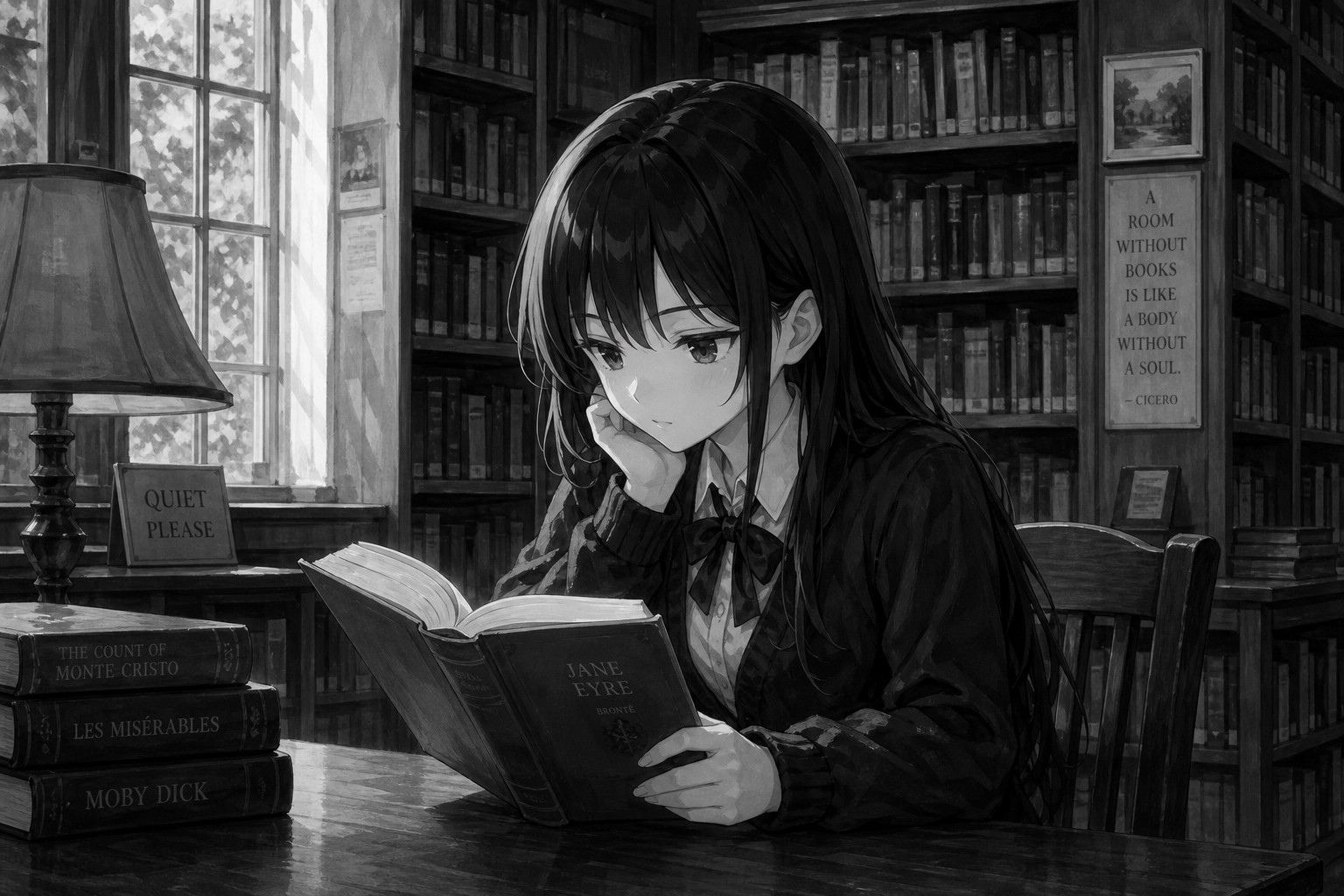
Anime girl reading a book in a quiet library.
Tags:
- Library
- Sitting Down
- Soft Light
- Close Up
In this example, the Prompt describes the main scene, while the Tags help define the location, pose, lighting, and framing.
How to Use Tags
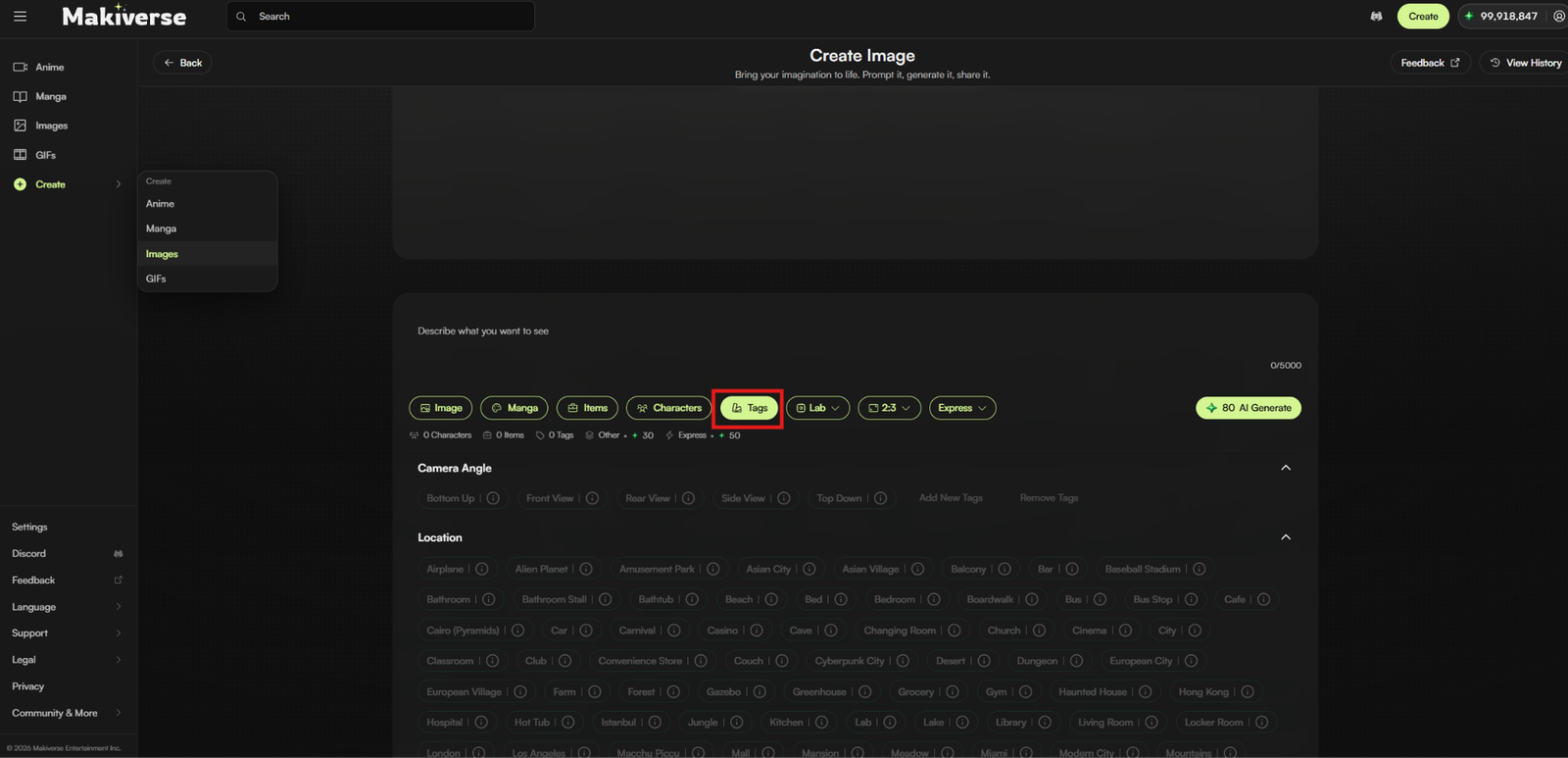
- Open a creation tool that supports Tags, such as Image Generation, GIF Generation, Manga Generation, or Character Creation.
- Click Tags to view the available Tag Groups.
- Choose the Tags that match the scene you want to create.
- Add or adjust your Prompt if needed.
- Click AI Generate.
- Review the result and refine your Tags or Prompt as needed.
Available Tag Categories
Makiverse includes Tags across several categories:
| Tag Group | What it Does | Examples |
|---|---|---|
| Camera Angle | Controls how the scene is viewed. | Front View, Side View, Rear View, Top Down |
| Location | Defines where the scene takes place. | Bedroom, Classroom, Library, Rooftop, Forest, Beach, Office |
| Subject Modifier | Adds visual details to the Character or scene. | Wind in Hair, Wet Clothes, Leaves Falling, Rain on Face, Frost on Hair |
| Number of People | Controls how many Characters appear in the scene. | 1 Person, 2 People, 3 People |
| Time of Day | Defines the time setting. | Dawn, Noon, Sunset, Night |
| Viewing Distance | Controls how close the camera is to the subject. | Close Up, Bust Shot, Waist Shot, Full Body |
| Weather | Adds environmental conditions to the scene. | Sunny, Cloudy, Foggy, Raining, Snowing |
| Image Lighting | Controls the lighting style of the scene. | Soft Light, Cinematic, Rim Lighting, Neon, Noir |
| Frame | Adds visual effects or motion-style elements to the image. | Motion Blur, Wind Lines, Radial Burst Lines |
| Action | Defines what the Character is doing. | Standing, Sitting Down, Arms Crossed, Hands on Hips, Kneeling |
Tips
Start with a Few Tags
Choose a small number of Tags first, then add more if needed.
Use Tags to Build the Scene
Use Tags for common scene details, then use your Prompt for anything more specific.
Avoid Too Many Tags
Selecting too many Tags at once can make the result harder to control.
Reuse Tags for Similar Scenes
Using the same Tags can help keep recurring scene details more consistent across generations.
Combine Tags with Other Tools
For more control, combine Prompts, Characters, Items, and Tags when they apply to your generation.
Need Help?
If your result does not match the Tags you selected, try:
- Using fewer Tags
- Making your Prompt clearer
- Choosing Tags that work well together
- Generating another variation
Start simple, review the result, and refine your scene over additional generations.
If the issue continues, contact Makiverse Support.