Creating Anime in Makiverse
On this page
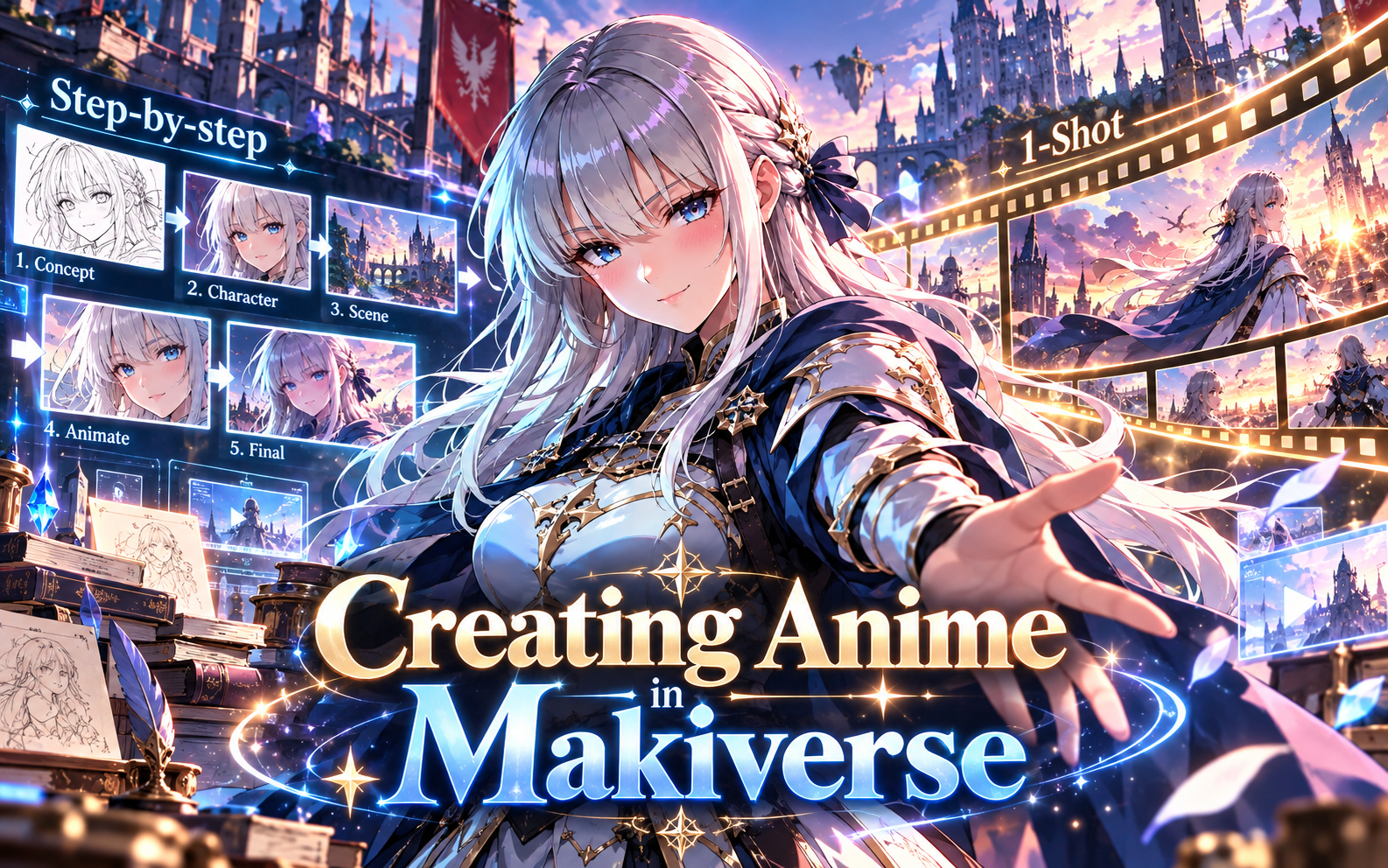
Anime lets you create animated story content in Makiverse.
You can use Anime to turn story ideas into animated scenes, build character-driven moments, and create episode-based content.
Makiverse gives you flexible ways to create. You can guide the process one clip at a time or let Makiverse handle more of the episode creation for you.
This guide walks you through how to start a new Anime, choose your setup, create and refine your episode, and manage your saved Anime.
What You Can Use Anime For
Anime is useful for creating:
- Animated stories
- Character-driven scenes
- Story sequences
- Anime-style creations
- Scene-based storytelling
- Visual story experiments
How to Create an Anime
Step 1: Open Anime
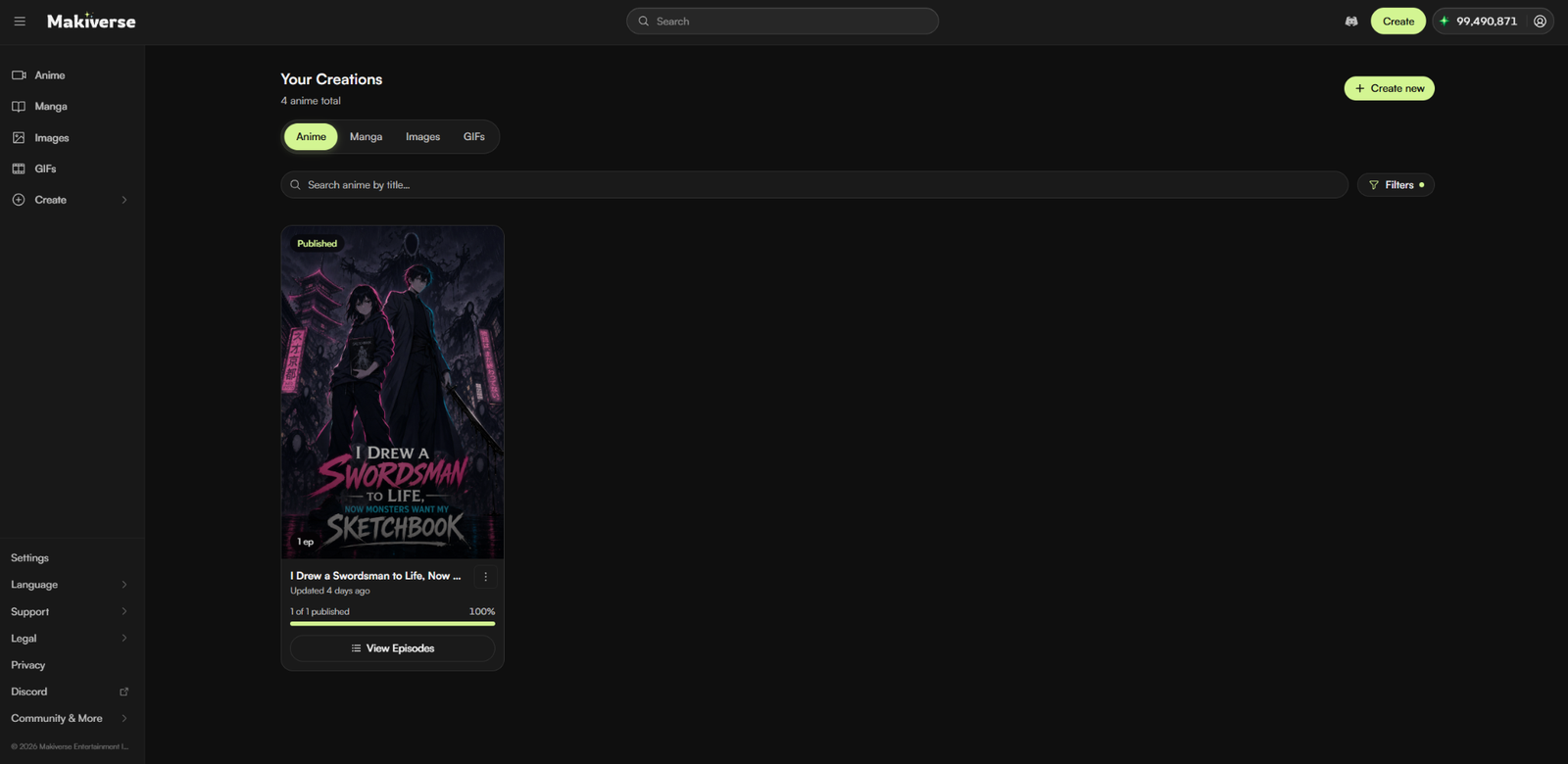
From the left sidebar, click Create, then select Anime.
You can also open Anime from the main navigation and click Create new.
This opens the Anime setup flow, where you can start a new creation.
Step 2: Add your Anime Title and Story Idea

Enter a Title for your Anime.
Then, in What’s it about?, add a short description of your story, scene, or concept.
This gives Makiverse a starting point for planning your Anime.
For better results, include details such as:
- Main idea
- Story premise
- Genre or mood
- Main Character
- Conflict or story direction
A short description is enough, but adding more context can help Makiverse create a result that is closer to your idea.
Change the Language Using Your Prompt
You can also use your prompt to tell Makiverse which language you want the Anime to use.
Include the language directly in your story description or prompt.
For example:
- Create the dialogue in Japanese
- Write all dialogue in Spanish
- Use English for narration and Korean for Character dialogue
- Make the episode fully in French
Be clear about where you want the selected language to apply, especially if you are using more than one language.
Click Next when you’re ready.
Step 3: Pick Your Genres
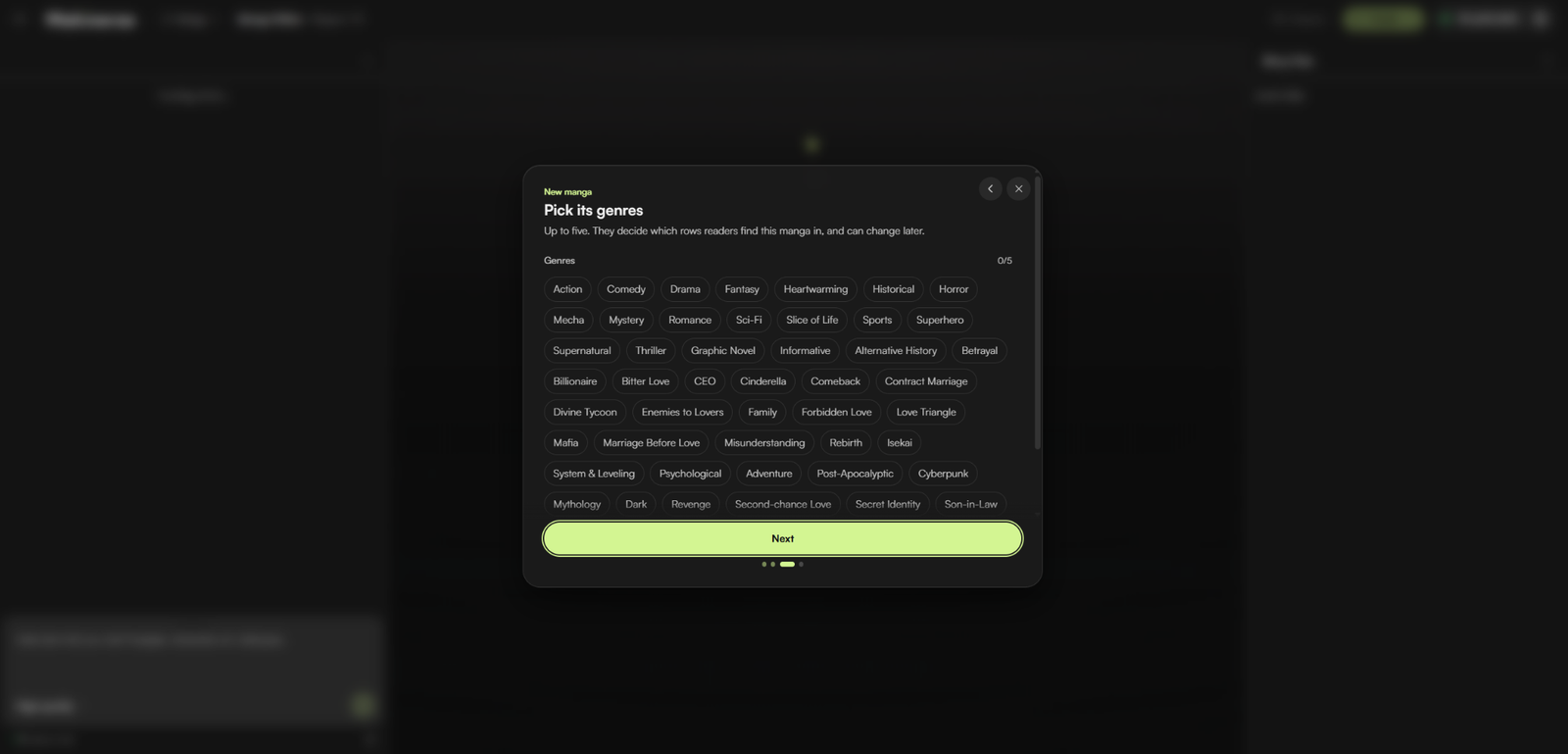
Choose the Genres that best match your Anime.
Genres help Makiverse understand the type of story you want to create and how it should be presented.
You can select multiple Genres depending on your concept.
Examples may include:
- Action
- Comedy
- Drama
- Fantasy
- Mystery
- Romance
- Sci-Fi
- Slice of Life
- Supernatural
- Thriller
Choose the Genres that best fit your story, then click Next.
Step 4: Choose Your Models
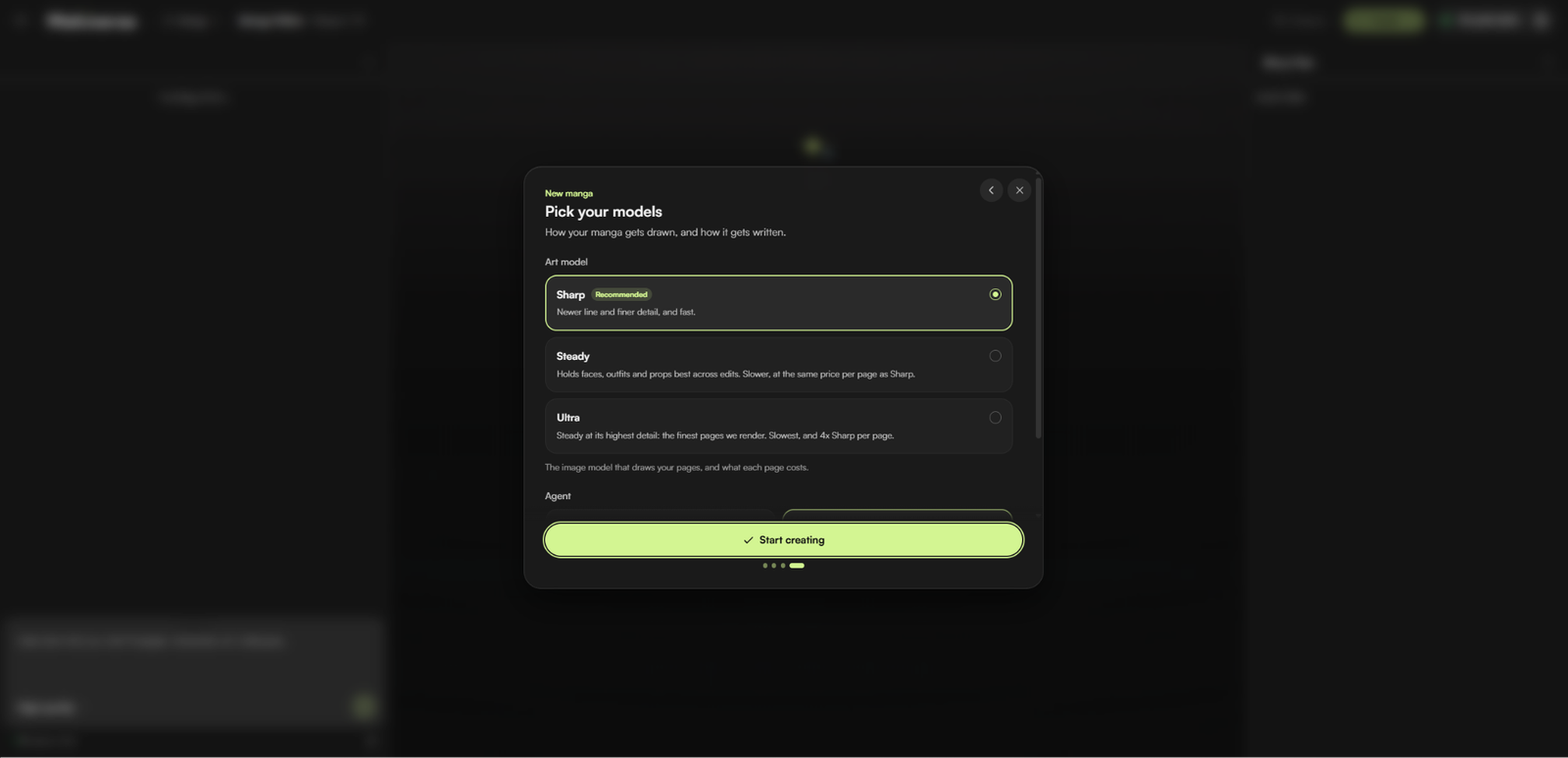
Next, choose the model settings for your Anime.
Depending on the available options, you can select an Art Model and an Agent.
The Art Model determines how your Anime is visually rendered.
The Agent handles writing, planning, and story continuity during creation.
Available Art Model options may include:
- Sharp
- Steady
- Ultra
Available Agent options may include:
- Low cost
- High quality
Choose the settings that best match the quality, speed, and cost you want for your Anime.
Continue to the next step when your selections are ready.
Step 5: Choose How You Want to Create Your Anime
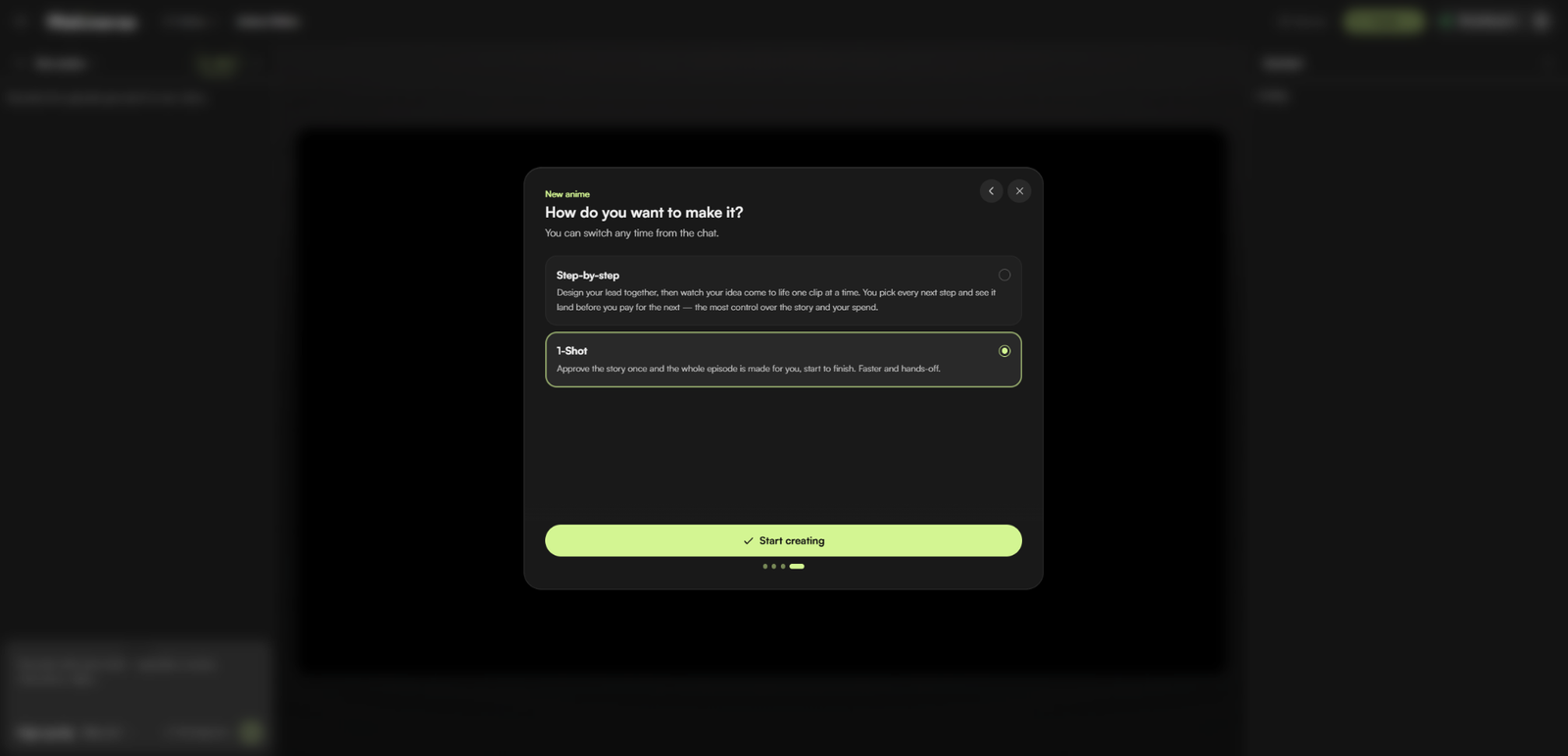
Before generation begins, choose how you want Makiverse to build your Anime.
You can select:
- Step-by-step — create your Anime one clip at a time, review each result, and decide what happens next before continuing.
- 1-Shot — approve the story once and let Makiverse create the full episode from start to finish.
When to Use Step-by-step
Use Step-by-step when you want more control over the creative process.
This option is useful when you want to:
- Review each clip before continuing
- Guide the story one step at a time
- Make adjustments as you go
- Control your spending more closely
When to Use 1-Shot
Use 1-Shot when you want a faster, more hands-off workflow.
This option is useful when you want to:
- Approve the story once
- Let Makiverse build the full episode for you
- Move from idea to result with less manual input
Note: 1-Shot may not be available for all users. It can be disabled for accounts that have not purchased Emeralds yet.
Switching Between Modes
During creation, you can switch between Step-by-step and 1-Shot from the creation controls.
This gives you flexibility if you want to start with one workflow and continue with the other later.
Once your mode is selected, click Start creating.
Step 6: Continue Building Your Anime
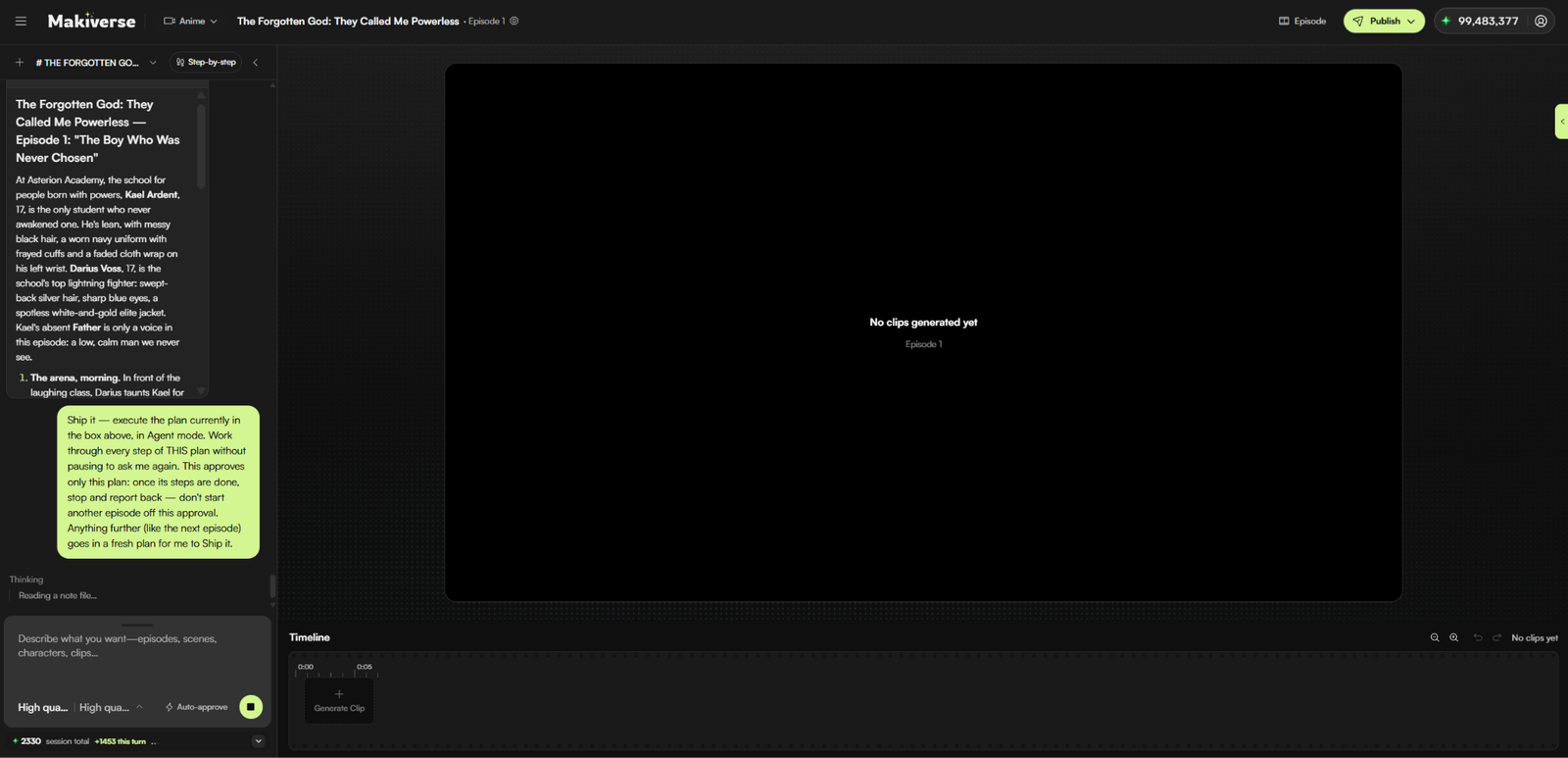
After setup is complete, Makiverse will begin creating your Anime based on the mode you selected.
As your Anime develops, review the results and refine the direction when needed.
You may want to adjust:
- Story direction
- Scene flow
- Character actions
- Tone
- Visual pacing
- Narrative clarity
Regenerate a Clip
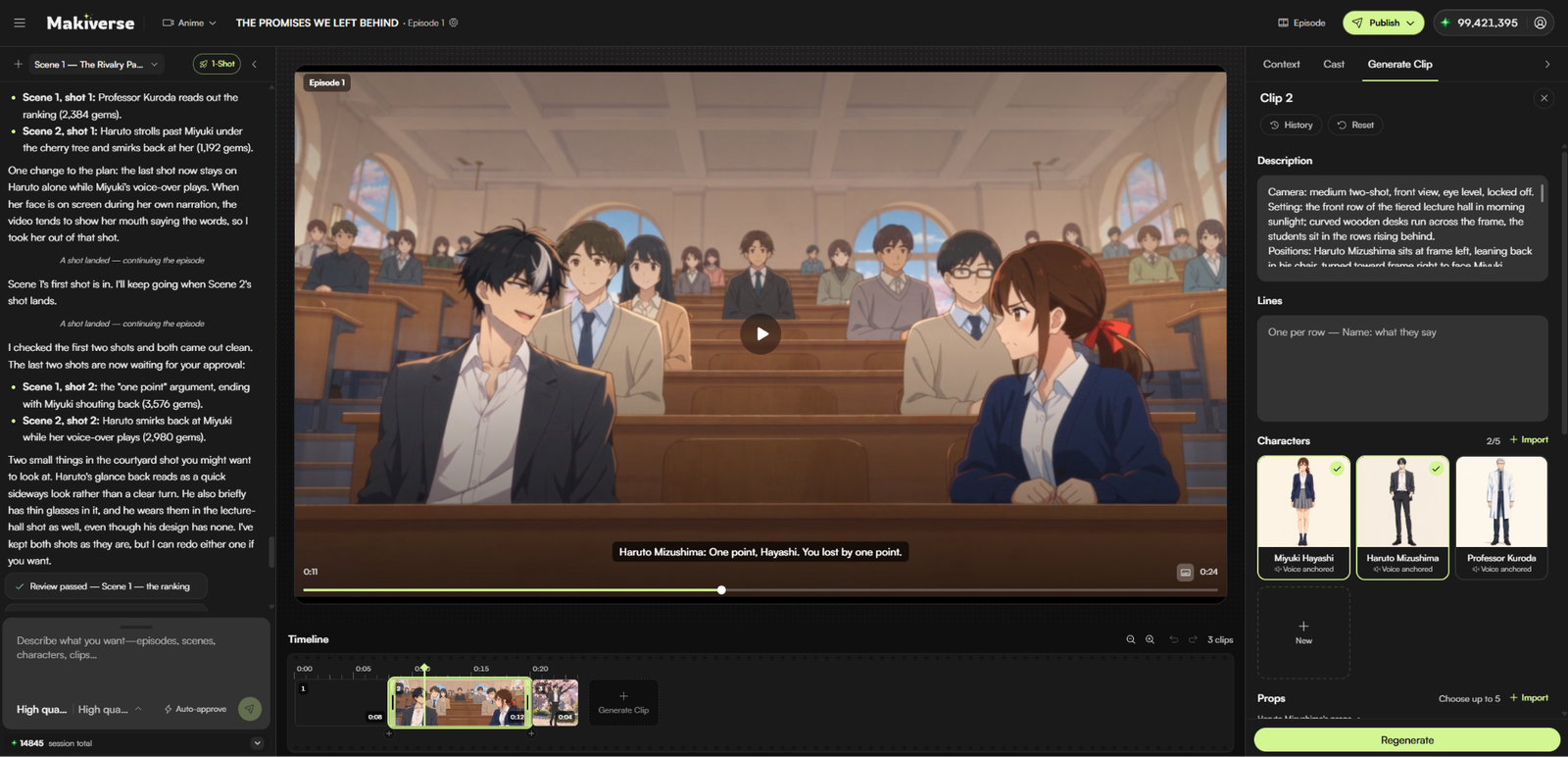
If a generated clip does not match the result you want, you can adjust its details and generate a new version.
Select the clip you want to update, then open Generate Clip from the right-side panel.
From here, you can review or adjust details such as:
- Description
- Dialogue or Lines
- Characters
- Props
Once your changes are ready, click Regenerate.
Makiverse will create a new version of the selected clip using your updated settings.
When to Use Regenerate
Use Regenerate when:
- A Character does not look or move as expected
- The scene does not match the intended story moment
- The action or composition needs adjustment
- Dialogue needs to change
- A Character or Prop needs to be added or removed
- You want to try a different version of the clip
You can also use History to review previous generations or Reset to return the clip settings to their previous state.
For better results, make your changes before clicking Regenerate, then review the new clip before continuing.
Viewing Your Saved Anime
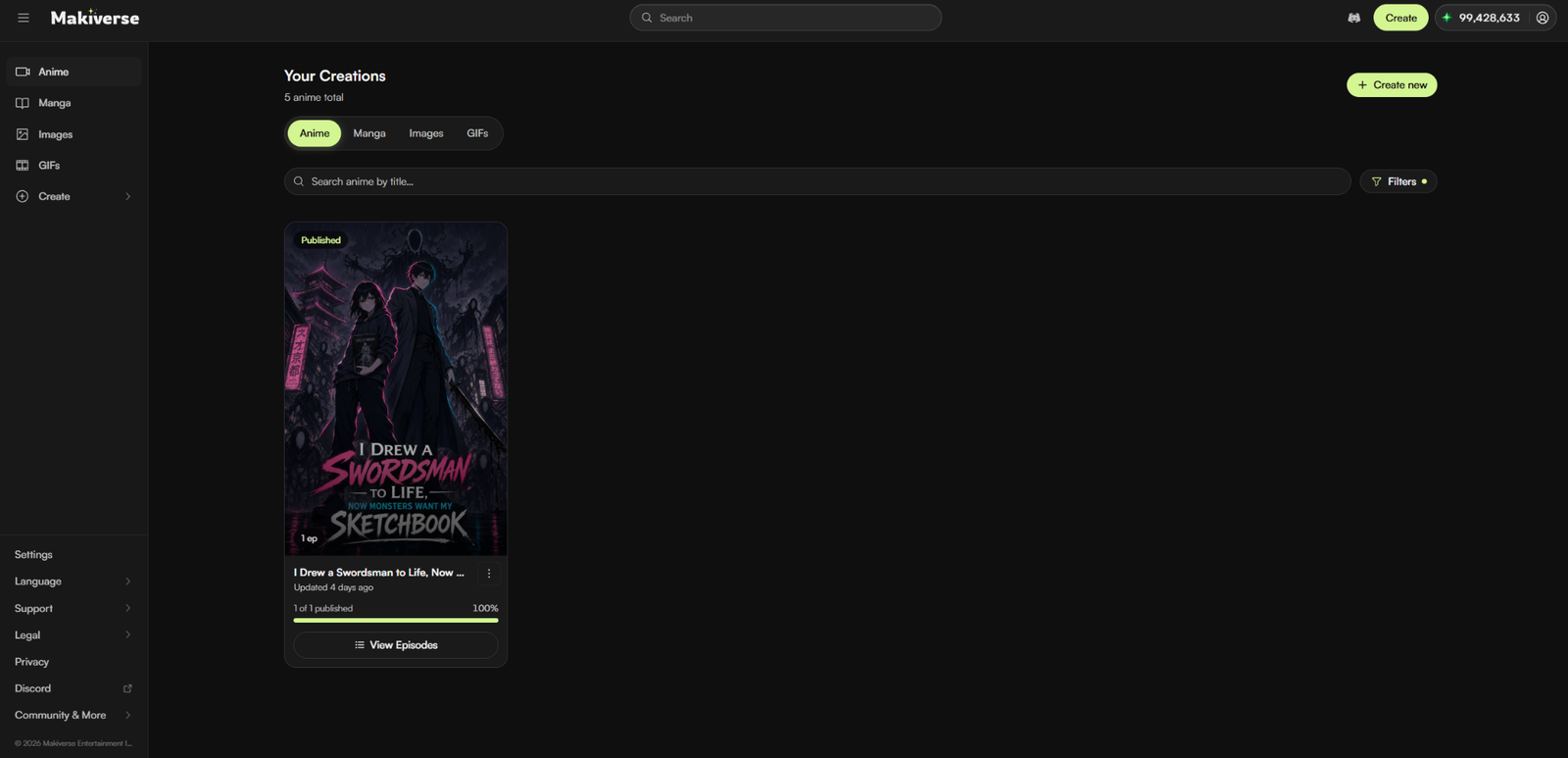
You can view your saved Anime creations in two ways.
From Anime
- Click Anime in the left navigation.
- Open Your Creations.
- Make sure the Anime tab is selected.
- Browse your saved Anime.
- Click View Episodes to open the Anime you want to review or continue.
From Your Profile
- Click the User Icon in the top-right corner.
- Select Profile.
- Open the Anime tab.
- Browse your saved Anime.
- Select the Anime you want to view.
Manage Your Saved Anime
From Your Creations, click the three-dot menu (⋮) on an Anime to view the available management options.
Depending on the Anime status, you may see options such as:
- Rename
- Duplicate
- Publish All Episodes
- Save All as Draft
- Archive
- Delete
Use these options to manage your Anime without opening the full creation workflow.
Download Saved Episodes
To download a saved Episode:
- Open Your Creations.
- Select the Anime you want to manage.
- Click View Episodes.
- Open the saved Episode you want to download.
- Open the available Options menu.
- Click Download.
The Episode will be downloaded to your device.
Filter and Sort Your Anime Creations
Use Filters to quickly find the Anime you want.
Filter by Status
Choose a Status, such as:
- All
- Drafts
- Partially Published
- Published
Sort Your Anime
Use Sort By to organize your saved Anime by:
- Last edited
- Oldest edited
- Newest created
- Oldest created
- Title A–Z
Click Reset to clear your selected filters and return to the default view.
Tips for Better Anime Results
- Start with a clear story premise.
- Choose an Art Style that matches the tone of your Anime.
- Select Genres that fit the story you want to tell.
- Choose model settings based on the quality, speed, and cost you prefer.
- Use Step-by-step when you want more creative control.
- Use 1-Shot when you want a faster, more automated workflow.
- Review your results as you go and adjust the direction when needed.
- Use Regenerate when a clip needs improvement.
- Use filters to quickly find Drafts, Published Anime, or recently edited creations.
Need Help?
If you run into a problem, visit the Help Center for guides and troubleshooting information.
If the issue continues, contact Makiverse Support.
You can also use Makiverse community and support channels for help with:
- Generation issues
- Story setup
- Prompts and Tags
- Character consistency
- Anime creation
- Feature questions
You can also join the Discord Community to connect with other creators, report bugs, share feedback, and suggest new features.