Getting Set Up as a Makiverse Affiliate
On this page
The Makiverse Affiliate Program lets you share referral links, track traffic and signups, and earn revenue from users who visit Makiverse through your links.
Your Affiliate Dashboard also lets you review performance, manage payout information, access promotional assets, and track your earnings.
This guide walks you through how to access the Affiliate Dashboard, set up your account, and use your Affiliate Links.
How to Access the Affiliate Dashboard
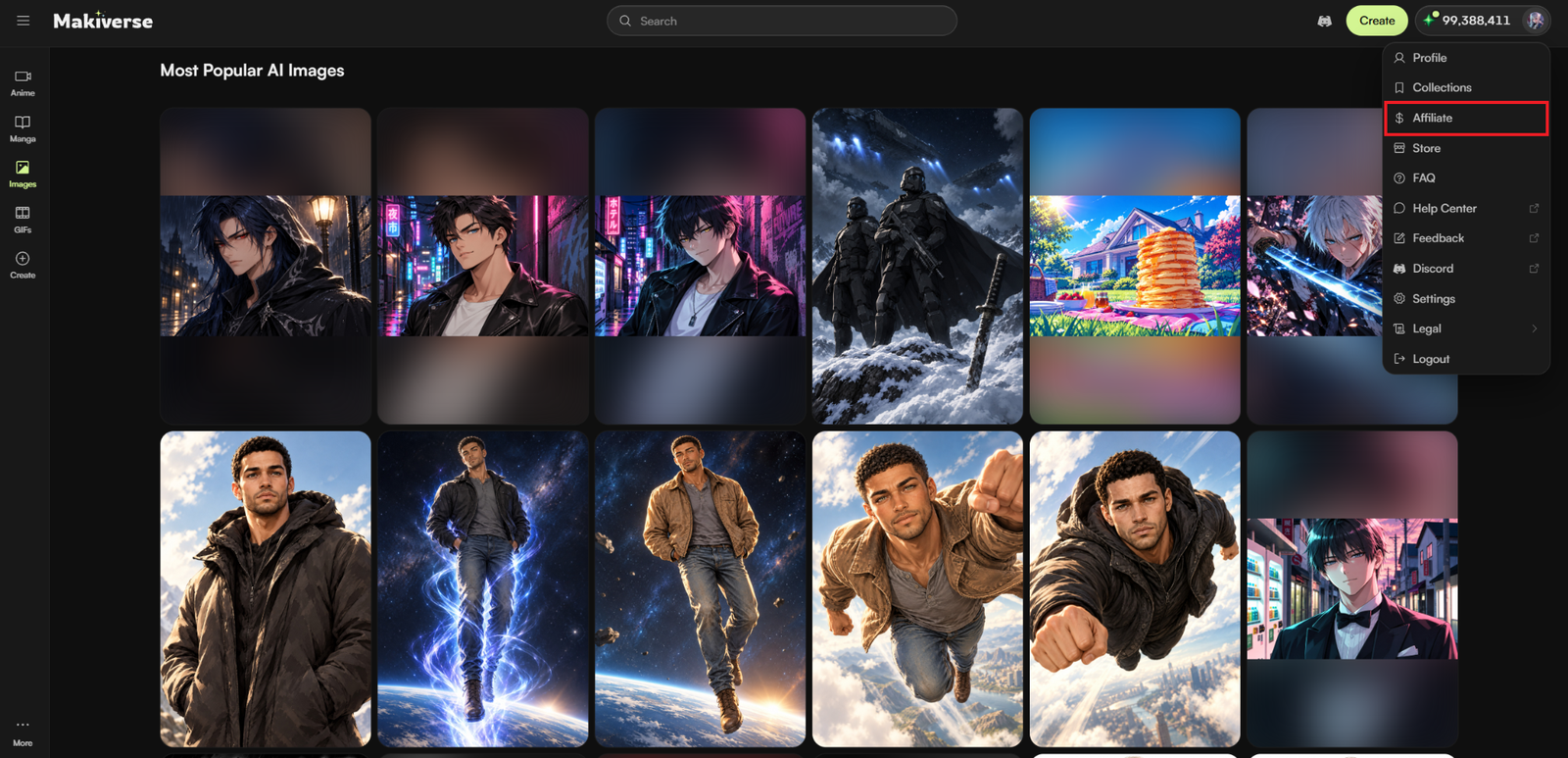
Step 1: Open Your Account Menu
Log in to Makiverse.
Click your User Icon in the top-right corner.
Step 2: Select Affiliate
From the account menu, click Affiliate.
This opens your Affiliate Dashboard.
From here, you can access:
- Dashboard
- Performance
- Geography
- Invoices
- Assets
- Creator
Understanding the Affiliate Dashboard
The Dashboard gives you an overview of your Affiliate account.
From here, you can:
- Copy your Affiliate Link
- Copy your Username Affiliate Link
- Add your Affiliate Websites
- Add your Paxum Email
- View your Lifetime Revenue Share
- Track earnings
- Track Link Clicks
- View Signups
- View Active Subscribers
- Review Earnings Per Click
- Review Earnings Per User
Using Your Affiliate Links
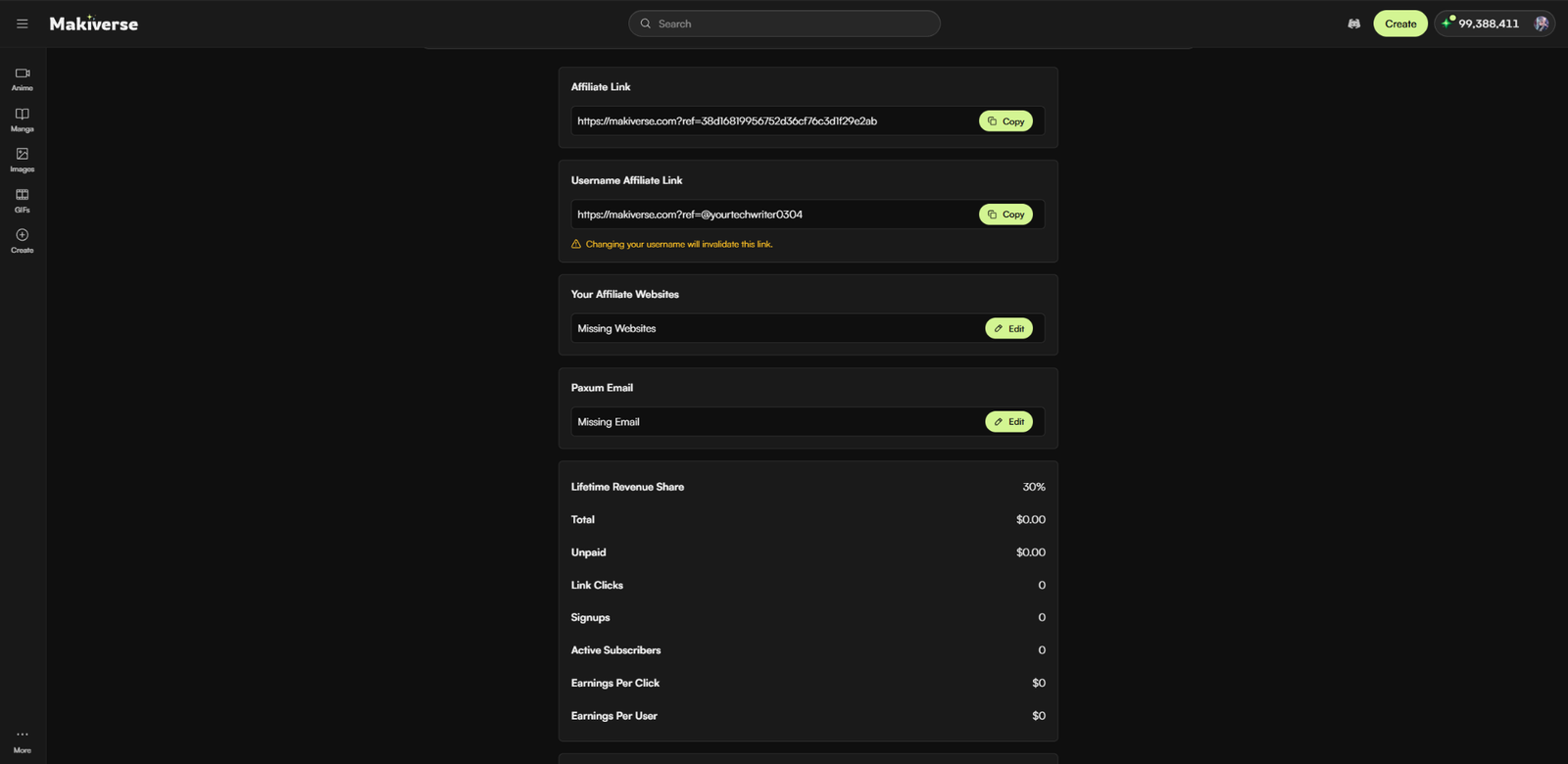
Makiverse provides two Affiliate Links that you can use when promoting the platform.
Affiliate Link

Your Affiliate Link is your unique referral link.
Click Copy next to the link, then share it with your audience.
Traffic, signups, and eligible activity generated through your Affiliate Link can be tracked through your Affiliate Dashboard.
Username Affiliate Link
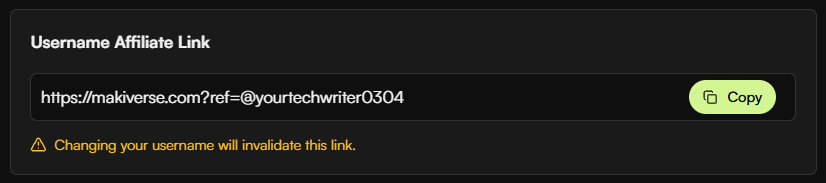
Makiverse also provides an Affiliate Link based on your username.
Click Copy to copy the link.
Important: Changing your Makiverse username will invalidate your Username Affiliate Link.
If you change your username, update any places where you previously shared the old link.
Add Your Affiliate Websites

To set up your Affiliate account for automatic payouts, add at least one website or promotional profile where you share Makiverse.
How to Add an Affiliate Website
- Go to your Affiliate Dashboard.
- Find Your Affiliate Websites.
- Click Edit.
- Add the website or profile you use to promote Makiverse.
- Save your changes.
Keep this information up to date so Makiverse can identify where your Affiliate traffic is coming from.
Add Your Paxum Email

Your Paxum Email is used for Affiliate payout information.
How to Add Your Paxum Email
- Go to your Affiliate Dashboard.
- Find Paxum Email.
- Click Edit.
- Enter the email connected to your Paxum account.
- Save your changes.
Make sure the email is correct to help prevent payout delays.
Affiliate Payout Requirements
To receive automatic payouts, your Affiliate account must include:
- At least 1 Affiliate Website
- A Paxum Email
The current minimum payout amount is $50.
The Affiliate Dashboard states that payouts from the previous month are sent on the 15th of the following month.
Understand Your Earnings
The Dashboard includes several metrics to help you track your Affiliate activity.
Lifetime Revenue Share
Shows the revenue share associated with your Affiliate account.
Total
Shows your total Affiliate earnings.
Unpaid
Shows earnings that have not yet been paid out.
Link Clicks
Shows how many times users clicked your Affiliate Links.
Signups
Shows how many users signed up through your Affiliate Links.
Active Subscribers
Shows the number of active subscribers connected to your Affiliate activity.
Earnings Per Click
Shows the average earnings generated per Affiliate Link click.
Earnings Per User
Shows the average earnings generated per referred user.
Other Affiliate Dashboard Tabs
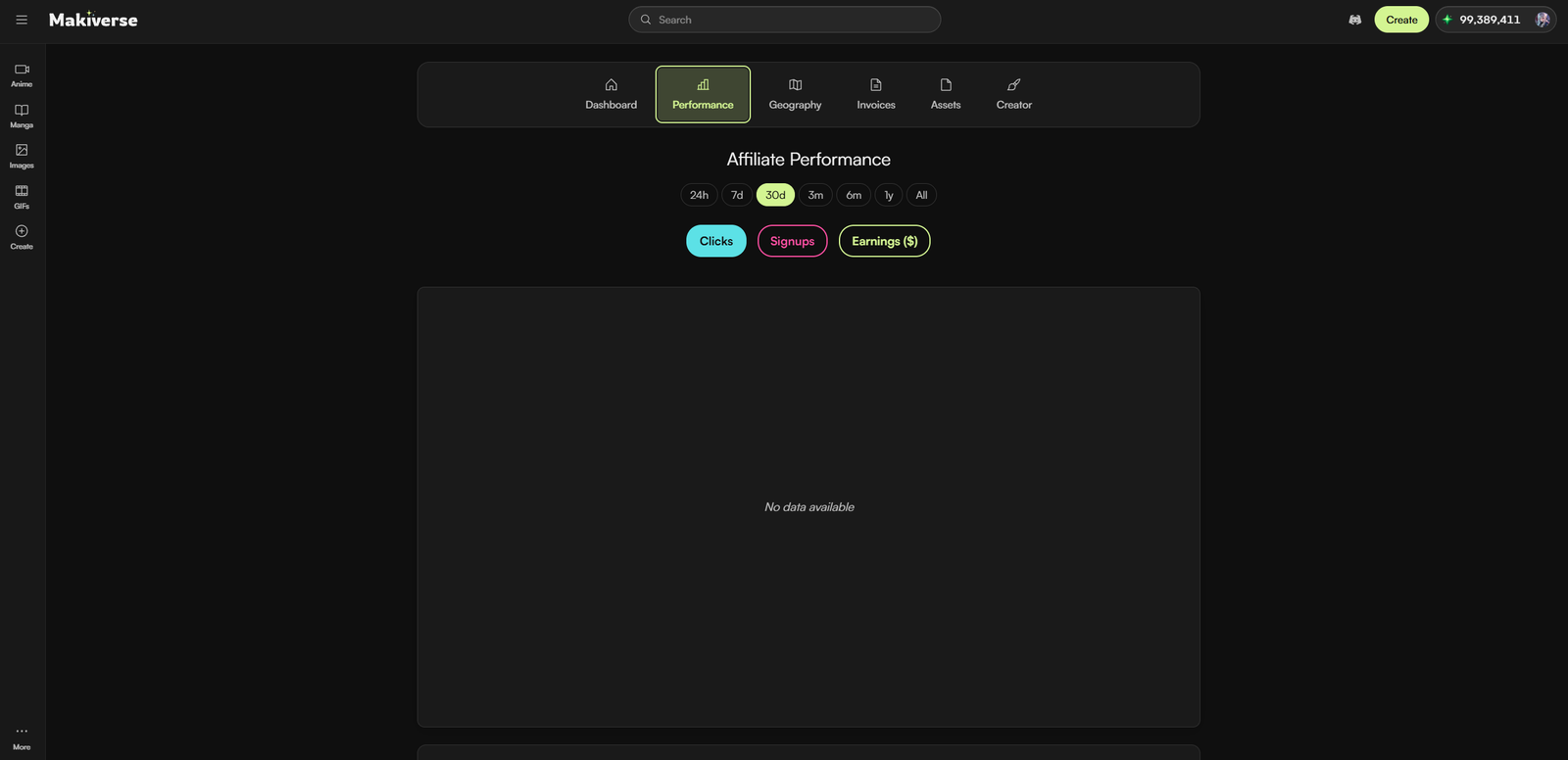
Performance
Use Performance to review your Affiliate activity and results.
This can help you track how your referral links are performing over time.
Geography
Use Geography to review where your Affiliate traffic and activity are coming from.
Invoices
Use Invoices to review available Affiliate earnings and payout information.
Assets
Use Assets to access promotional materials provided for Affiliate use.
These resources can help you promote Makiverse through your website, social media, or other channels.
Creator Earnings
The Creator tab is separate from standard Affiliate tracking and lets eligible creators earn from published Makiverse content.
Creators can earn when readers or viewers spend Emeralds to unlock their work.
How to Qualify as a Creator
You only need to complete one of the available requirements to qualify.
You can qualify by:
- Publishing 2 Anime Episodes that run longer than 60 seconds in total
- Publishing 5 Manga Chapters
- Selling an Episode or Chapter
Once you qualify, the Creator tab becomes your Creator Dashboard.
How Creator Earnings Work
- Publish your content
Publish an eligible Chapter or Episode. - Readers or viewers unlock it
Users spend Emeralds to access your published content. - You earn
You receive your share of eligible unlocks.
Update Your Affiliate Information
You can update your Affiliate Websites or Paxum Email at any time.
Return to the Affiliate Dashboard, find the information you want to change, and click Edit.
Keep your payout and promotional information accurate to help prevent tracking or payment issues.
Tips for Using the Affiliate Program
- Copy your link directly from the Dashboard
This helps make sure you are sharing the correct Affiliate Link. - Update your links after changing your username
Your Username Affiliate Link becomes invalid when your username changes. - Keep your Affiliate Websites current
Make sure the websites or profiles where you promote Makiverse are up to date. - Check your Paxum Email
Confirm that your payout email is entered correctly. - Review your performance
Use the Dashboard and Performance sections to monitor clicks, signups, subscribers, and earnings.
Need Help?
If your Affiliate Link does not work, your earnings do not appear correctly, or you have trouble updating your Affiliate information, contact Makiverse Support.
When submitting your request, include:
- Your Makiverse account email
- A short description of the issue
- The Affiliate Link involved, if relevant
- A screenshot of the Affiliate Dashboard, if available
- Any error message you received
I’d use Getting Set Up as a Makiverse Affiliate as the title instead of How to Use the Makiverse Affiliate Program. It matches the CRP guide more closely and better reflects that this article covers access, setup, payout information, tracking, and dashboard features.