Creating Your First Manga
On this page
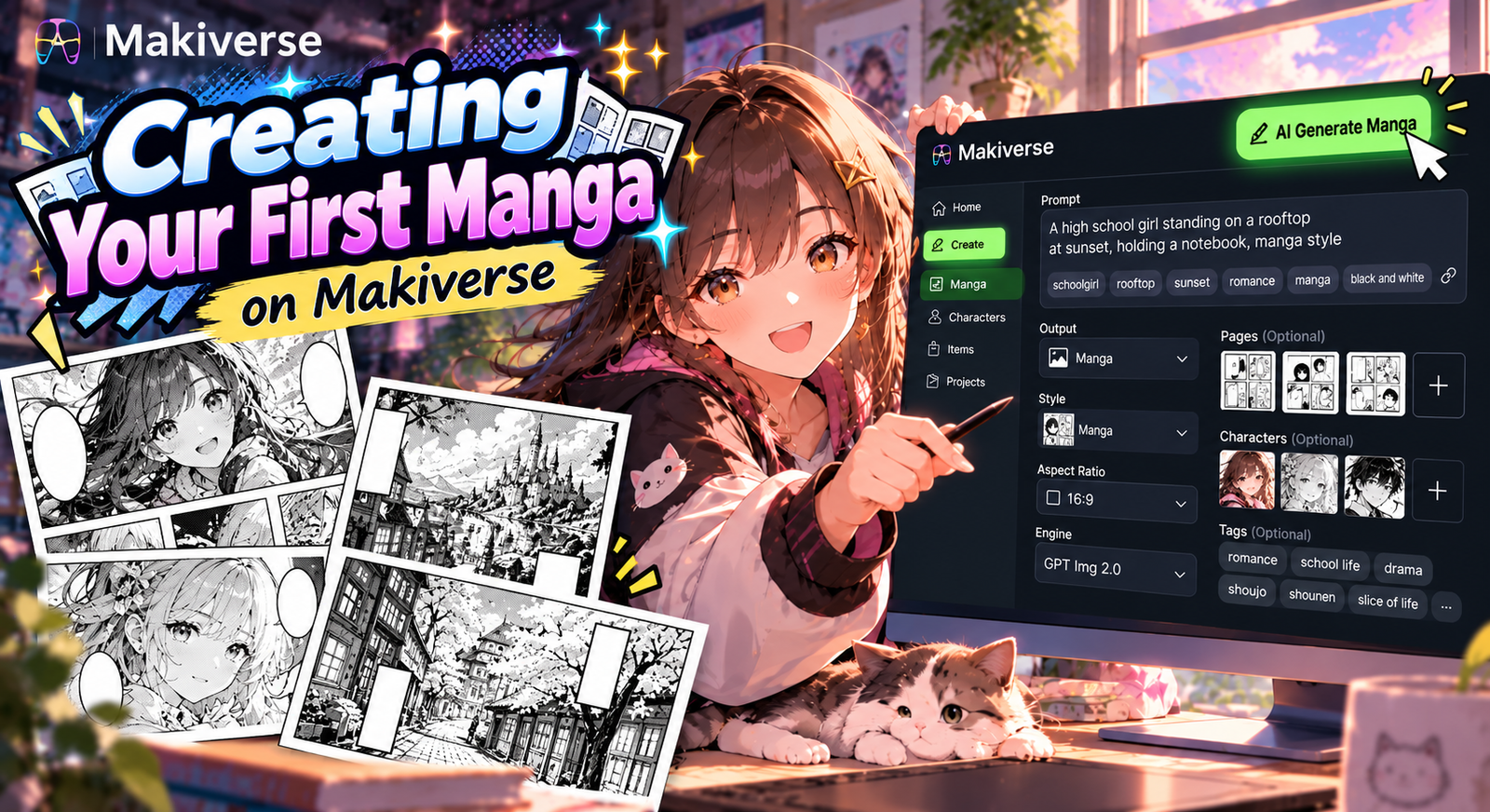
Manga Creation helps you turn an idea into a complete Manga Chapter with support from the AI Agent.
The Agent can help you develop your story, generate artwork, create Dialogue, and refine your Pages throughout the creation process.
This guide walks you through the full Manga workflow, from setting up your Manga to generating, editing, and publishing your Chapter.
Set Up Your Manga
Before you start building your story with the Agent, set up the basic details for your Manga.
This helps Makiverse understand:
- What your Manga is about
- Which visual Style to use
- Which Characters to include
- Which Props should appear
Step 1: Open Manga Creation
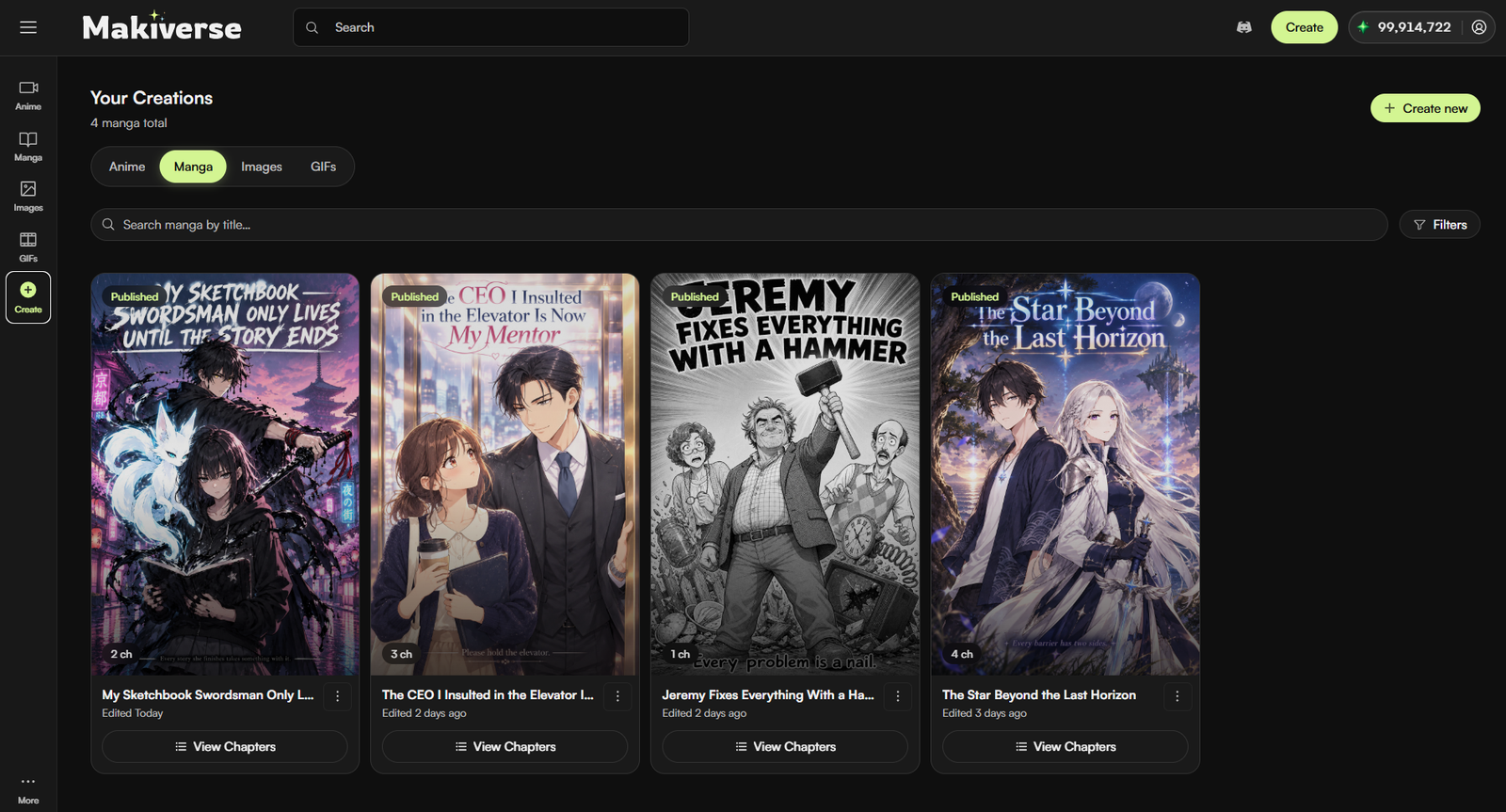
Click Create, then select Manga.
This opens the Manga creation workspace, where you can start a new Project or continue working on an existing one. Click Create New to start a new Manga Project.
From here, you can set up the key details for your Manga before you begin working with the Agent.
Step 2: Add a Name and Description
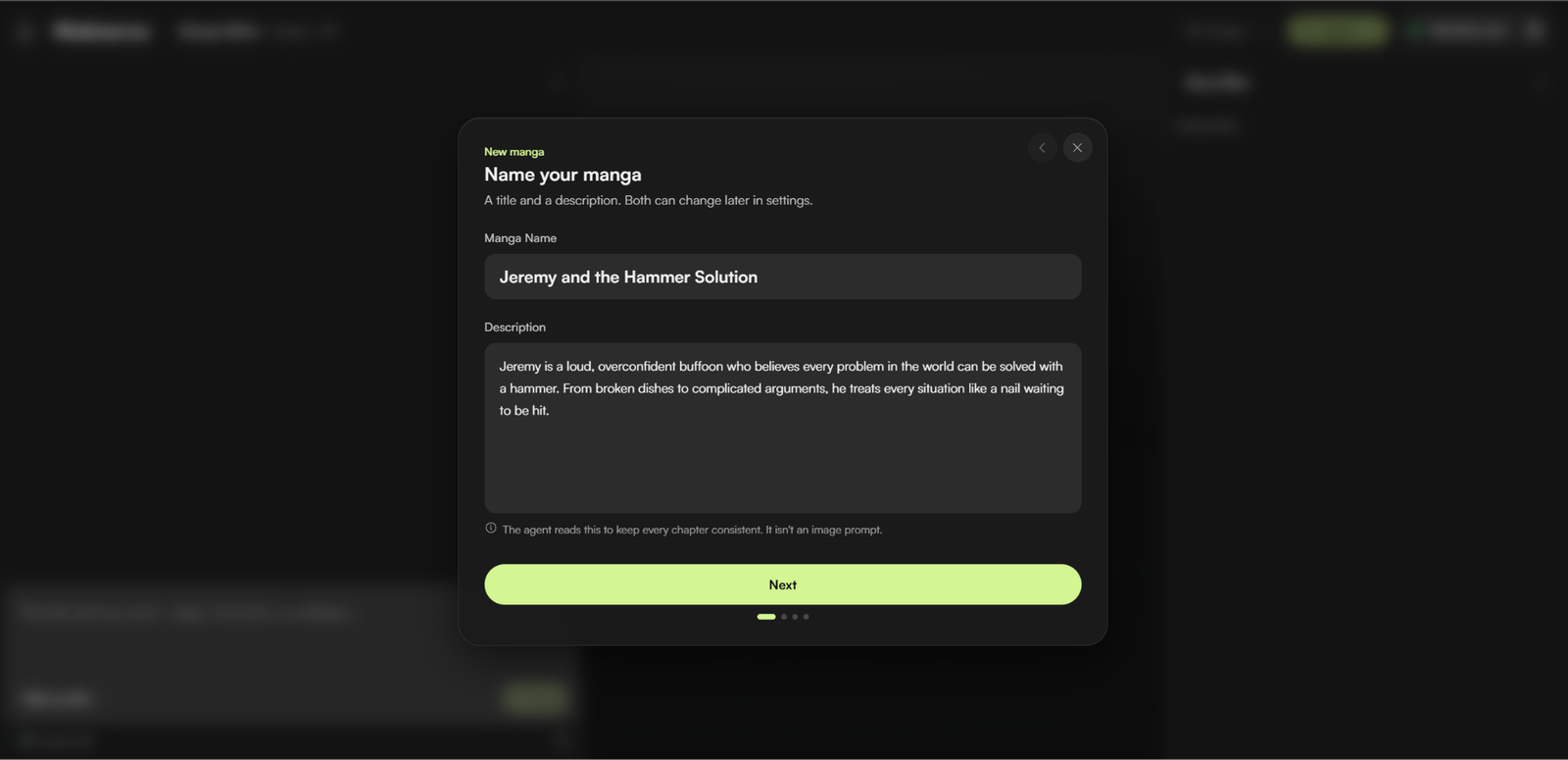
Enter a Name for your Manga, then add a short Description.
Keep the Description focused on the main idea so the Agent can quickly understand your story.
You can include details such as:
- Setting
- Main Characters
- Central conflict
- Story premise
- Overall theme
Example:
Name
Jeremy and the Hammer Solution
Description
Jeremy is a loud, overconfident man who believes every problem can be solved with a hammer. From broken dishes to complicated arguments, he treats every situation like a nail waiting to be hit.
Step 3: Select an Art Style
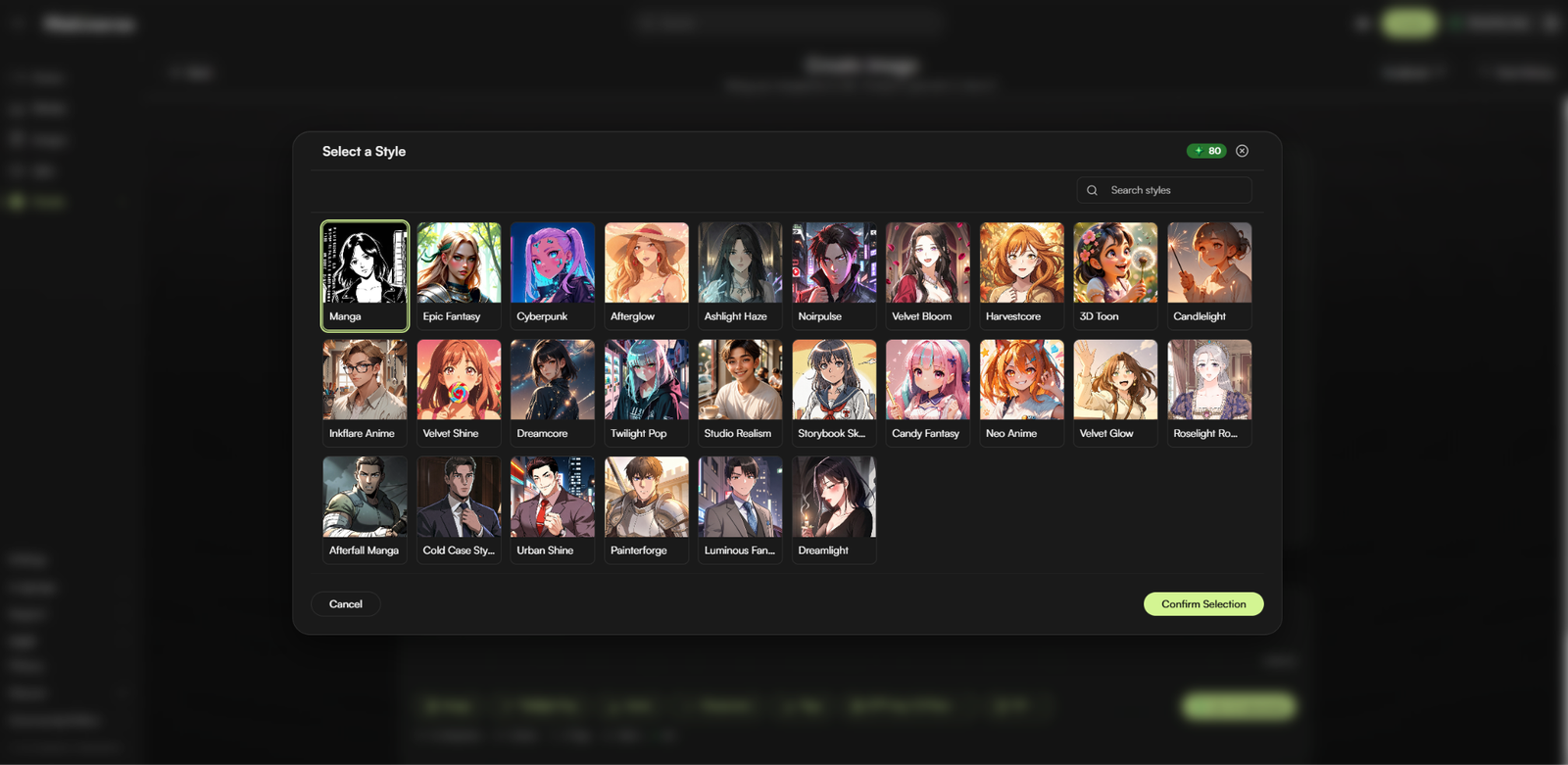
Choose the Art Style that best matches your story.
Your selected Style helps shape the overall look of the Manga, including the Character design, visual tone, and scene presentation.
For this example, we selected Black & White Manga Style.
Step 4: Add Characters and Props
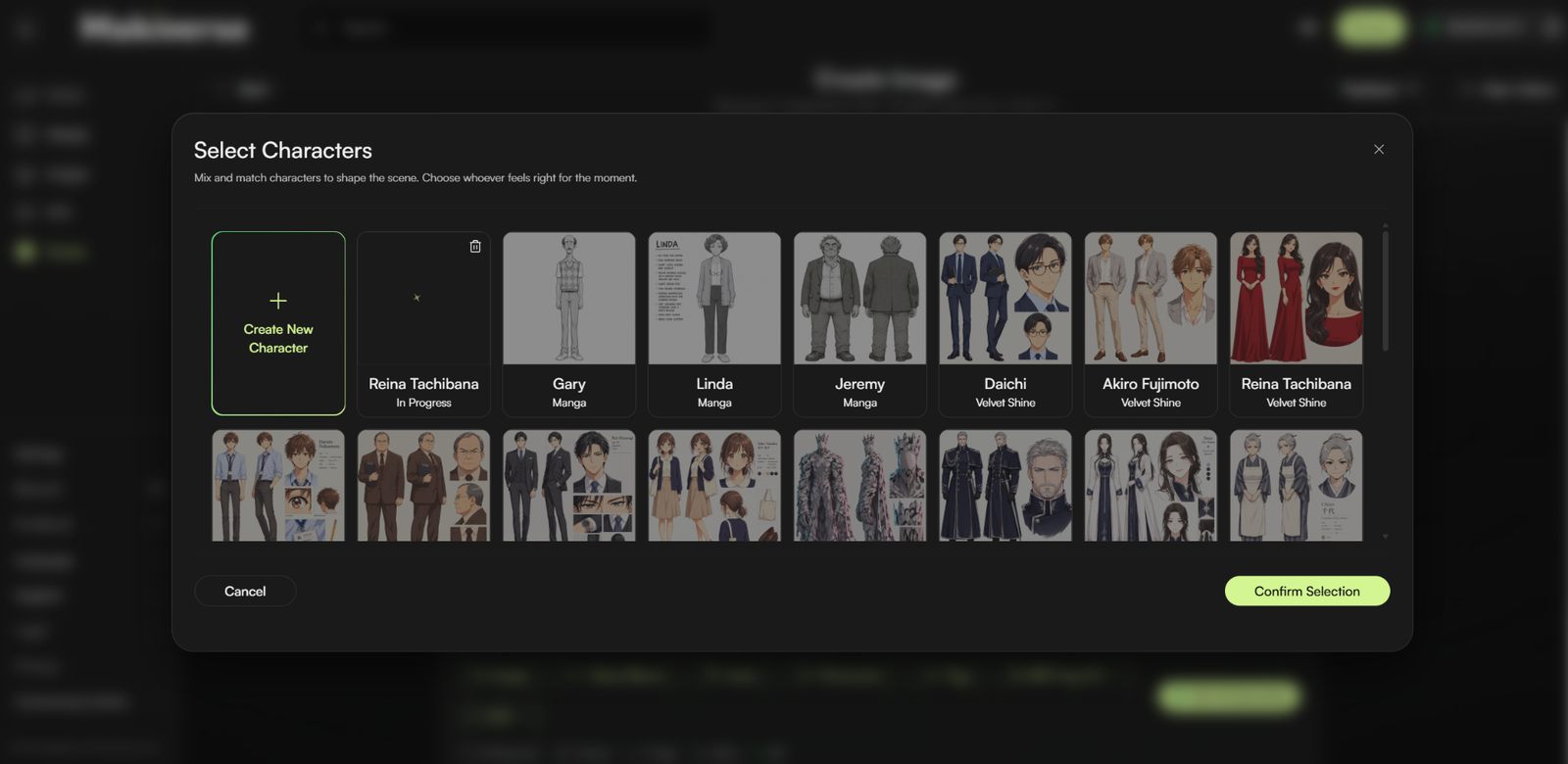
Select the Characters you want to include in your Manga.
You can add multiple Characters if your story includes more than one person. Using saved Characters can help keep their appearance more consistent across Pages and Frames.
You can also add Props such as:
- Tools
- Weapons
- Accessories
- Important story objects
Add Global Items
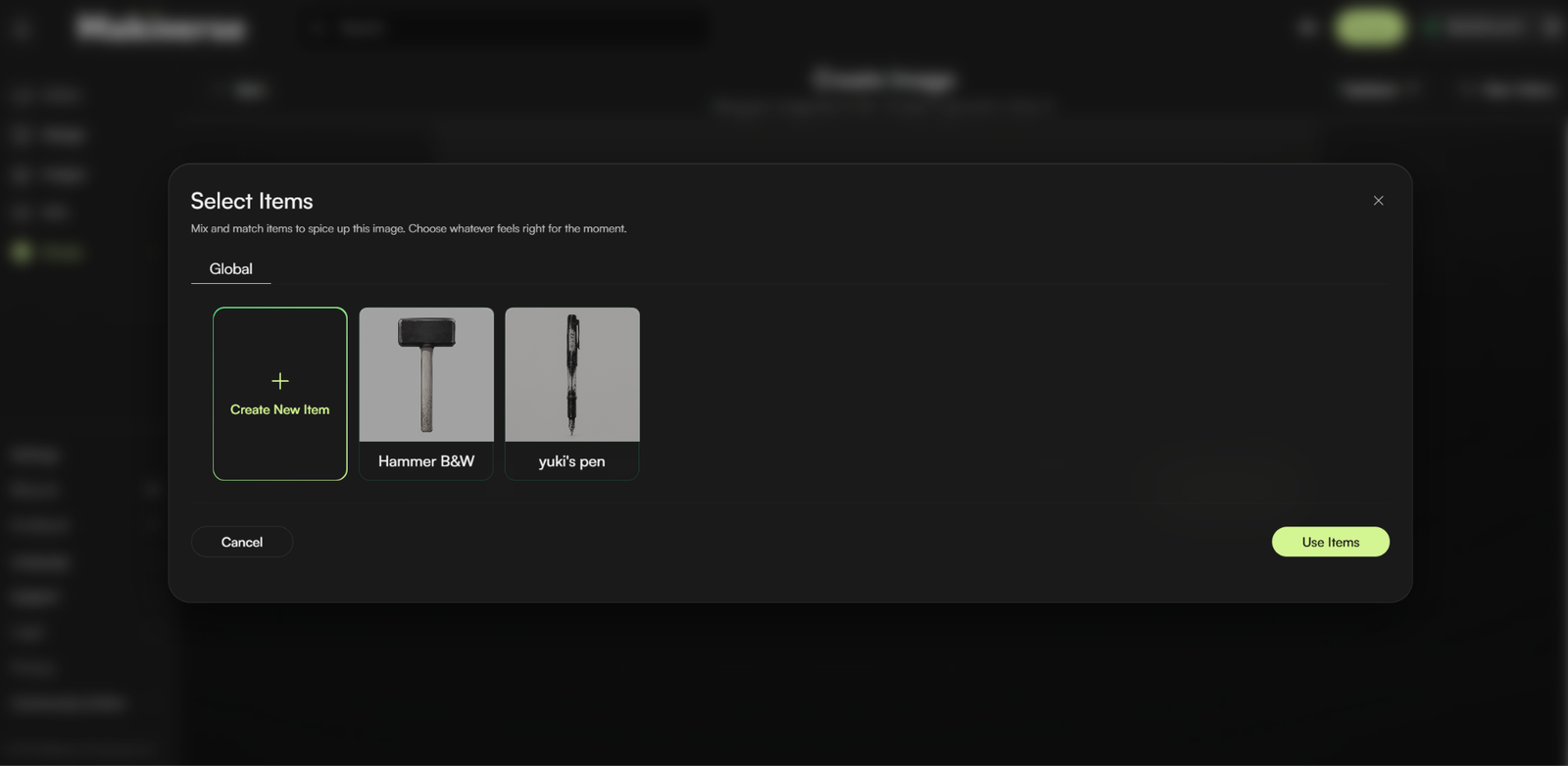
Use Global Items for Props that should remain available throughout the Manga.
This is useful for recurring objects that appear in different scenes or are used by multiple Characters.
For example, if a hammer is important to your story, add it as a Global Item so it can be reused throughout the Chapter.
Step 5: Save and Continue
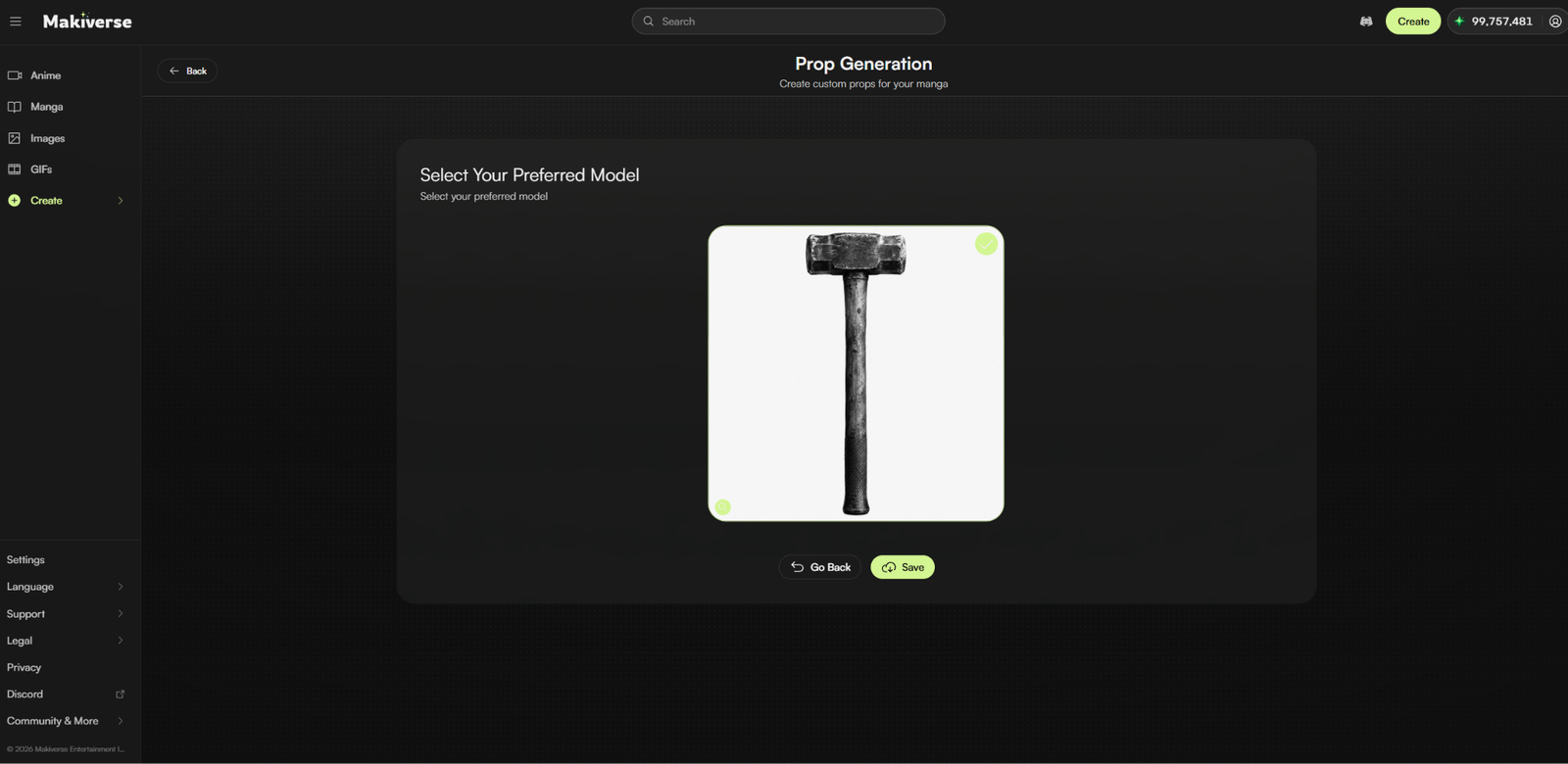
Once your Name, Description, Style, Characters, and Props are ready, click Save and Continue.
You can now start creating your story with the Agent.
Create Your Story with the Agent
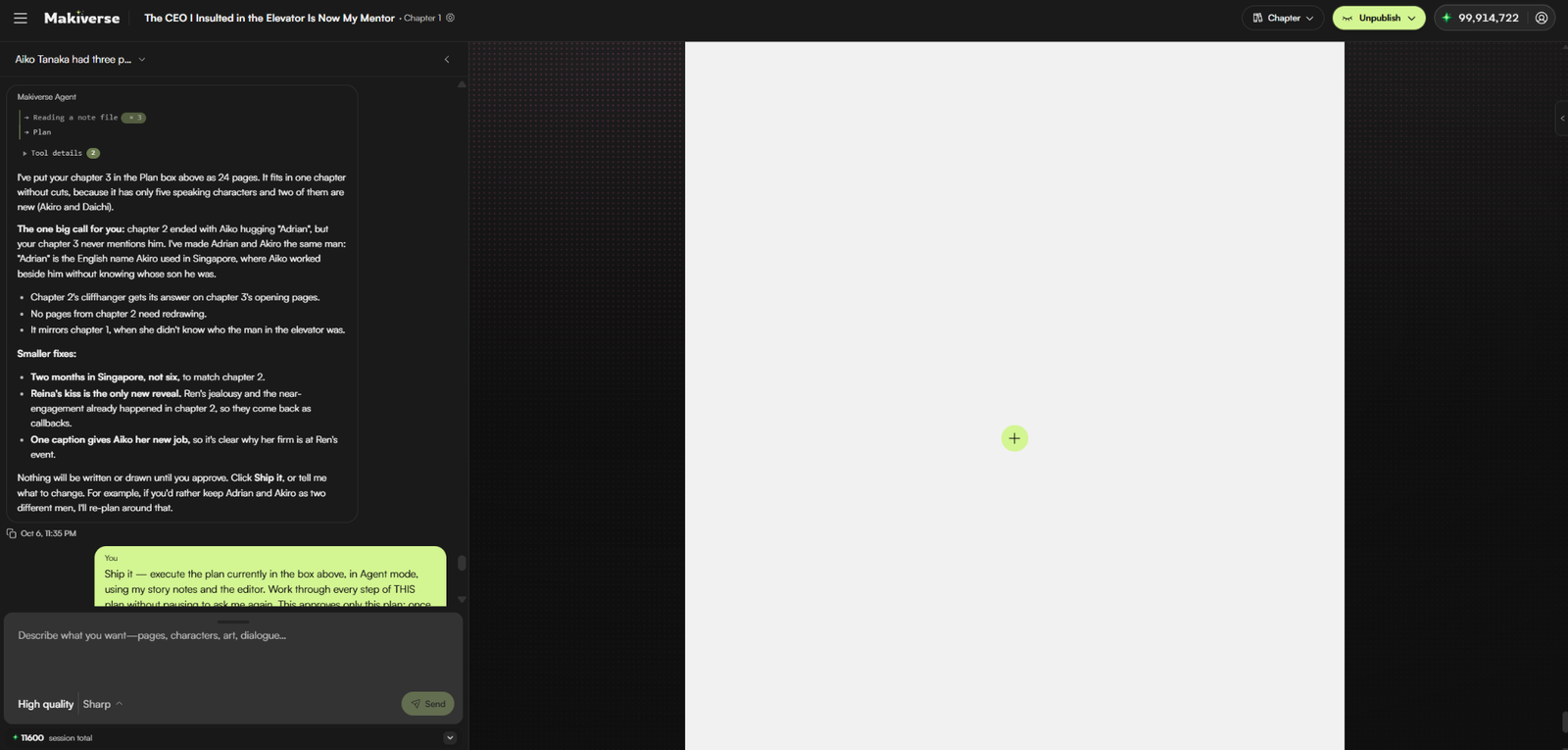
You do not need to plan every detail before working with the Agent.
Start with a simple idea. A few clear bullet points can be enough for the Agent to help develop your story, Characters, locations, Props, and Page structure.
Before generating artwork, ask the Agent to summarize the:
- Story
- Characters
- Locations
- Important Props
- Page structure
- Overall visual direction
Review the summary and request any changes before continuing.
For more control, you can also ask the Agent to generate one Page at a time instead of creating the full Chapter at once.
How to Create Your Story
- Open Manga Creation.
- Start a conversation with the Agent.
- Describe the story you want to create.
- Review the story concept.
- Ask for changes until you are happy with the story.
Before generation begins, you can ask the Agent to adjust:
- Characters
- Settings
- Pacing
- Dialogue
- Plot points
- Page structure
Recommended Instructions Template
Use the following template as a starting point. Fill in as much or as little as you need, or ask the Agent to help expand your idea.
Create a Manga based on the following instructions:
Note: This template is reusable.
Title:
[Enter the title of your Manga.]
Description:
[Describe the main concept, premise, or conflict of your Manga.]
Chapter Length:
[Enter the number of Pages you want, such as 3 Pages, 5 Pages, 10 Pages, or one complete Chapter.]
Genre and Tone:
[Describe the genre and overall mood. For example: comedy, romance, action, horror, drama, fantasy, slice of life, lighthearted, dark, serious, or absurd.]
Main Character:
Name: [Character name]
Personality: [Describe their personality.]
Appearance: [Describe their physical appearance.]
Clothing: [Describe their clothing or outfit.]
Role: [Explain their role in the story.]
Supporting Characters:
[Describe any additional Characters who should appear. Include their names, roles, personalities, appearances, and any important visual details.]
Important Props:
[List any important or recurring Props.]
For each important Prop, include details when relevant:
- Shape
- Size
- Color
- Material
- Condition
- Purpose in the story
Locations:
[Describe the main locations where the story takes place.]
For recurring locations, include details when relevant:
- Room or environment layout
- Furniture placement
- Background objects
- Lighting
- Weather
- Time of day
- Mood
- Important visual landmarks
Story Structure:
Page 1:
[Describe what should happen on Page 1.]
Page 2:
[Describe what should happen on Page 2.]
Page 3:
[Describe what should happen on Page 3.]
[Add additional Pages as needed.]
Writing Instructions:
[Explain how you want the dialogue and narration to be written.]
For example:
- Keep Dialogue short and punchy.
- Use minimal narration.
- Avoid long speech bubbles.
- Use dramatic narration.
- Include comedic reactions.
- Keep the overall tone serious.
Ending:
[Describe how the Manga or Chapter should end. This can include a final story event, punchline, cliffhanger, emotional moment, reveal, or final visual.]
Before generating the Manga, summarize the story, Characters, locations, important Props, Page structure, and overall visual direction for me to review. Do not begin generation until I have reviewed the summary.
Note from the Developer
Manga Maker is still being improved, and some parts of the experience may not always stay perfectly consistent across Pages or Frames.
The Agent may occasionally lose track of details such as:
- Character appearance
- Outfits
- Locations
- Furniture placement
- Important Props
To help improve consistency, include clear reference details in your initial Prompt for important Characters, clothing, locations, and Props.
Ask the Agent to treat these descriptions as fixed references and reuse them in later generations whenever they apply.
In this case, we provided these instructions for our AI Manga Agent.
Generate a 1-chapter comedy manga.
Title:
Jeremy and the Hammer Solution
Description:
Jeremy is a loud, overconfident buffoon who believes every problem in the world can be solved with a hammer. From broken dishes to complicated arguments, he treats every situation like a nail waiting to be hit. Inspired by the quote, “If the only tool you have is a hammer, it is tempting to treat everything as if it were a nail,” this manga follows Jeremy’s ridiculous attempts to fix life with brute force, bad logic, and one very unlucky hammer.
Instructions:
Create a short, funny, self-contained manga chapter that is exactly 3 pages long.
Include both dialogue and narration throughout the chapter.
The story should center around Jeremy repeatedly misunderstanding everyday problems and trying to solve them with a hammer.
Tone:
Comedy, slapstick, absurd, lighthearted, exaggerated manga humor.
Main Character:
Jeremy is an older, stocky man with messy gray hair, thick eyebrows, rough stubble, and a confused but confident expression. He wears an olive-green tweed jacket over a blue-and-white checked shirt. He carries a black and white hammer as his trusted “problem-solving tool.”
Story Structure:
Page 1:
Introduce Jeremy and his “hammer solves everything” philosophy. Establish the comedic premise clearly.
Page 2:
Show 2–3 everyday situations where Jeremy wrongly uses the hammer to solve problems. Each example should become more ridiculous than the last.
Page 3:
Push the final situation to the most absurd level and end with a strong punchline. Jeremy should learn the wrong lesson and remain convinced that the hammer worked.
Possible Scenario Ideas:
- Trying to wash dishes with a hammer
- Trying to fix an argument with a hammer
- Trying to open a jar with a hammer
- Trying to help with paperwork using a hammer
- Trying to repair something that does not need hammering
Visual Instructions:
Use expressive manga faces, exaggerated reactions, impact lines, comedic timing, and clear panel-to-panel storytelling.
Include close-ups of Jeremy’s confident face, the hammer, shocked bystanders, and the aftermath of his terrible decisions.
Use strong visual comedy, and make the hammer feel like an important recurring prop.
Writing Instructions:
Include short, punchy, funny dialogue.
Include narration to help frame the scenes, set up the joke, and reinforce the story’s theme.
Jeremy should speak with complete confidence.
Other characters should react with confusion, disbelief, frustration, or panic.
Ending:
End with a comedic final panel where Jeremy proudly holds up the hammer while everyone else looks exhausted, horrified, or defeated.
The final joke should reinforce the idea that Jeremy treats every problem like a nail.
Jeremy’s physical appearance and costume must stay the same in every panel. The hammer must also look exactly the same every time it appears.
IMPORTANT:
Before proceeding, generate detailed consistency descriptions for:
Jeremy’s appearance and costume
Describe his face, body type, hair, facial features, expression style, clothing, colors, textures, and any distinctive details that should remain consistent across all panels.
The hammer
Describe the hammer’s shape, size, color scheme, material, handle, head, texture, wear marks, and any distinctive details that should remain consistent across all panels.
After the Agent creates the consistency descriptions, use them as the fixed references for the rest of the Manga.
Before generating the full Chapter, review these descriptions and make sure they are reused in each panel where applicable.
The Agent will also provide a summary of the story it plans to generate. Review the summary carefully and request any changes before continuing.
Important: Do not refresh the page while the Agent is working.
Generate Frames and Dialogue
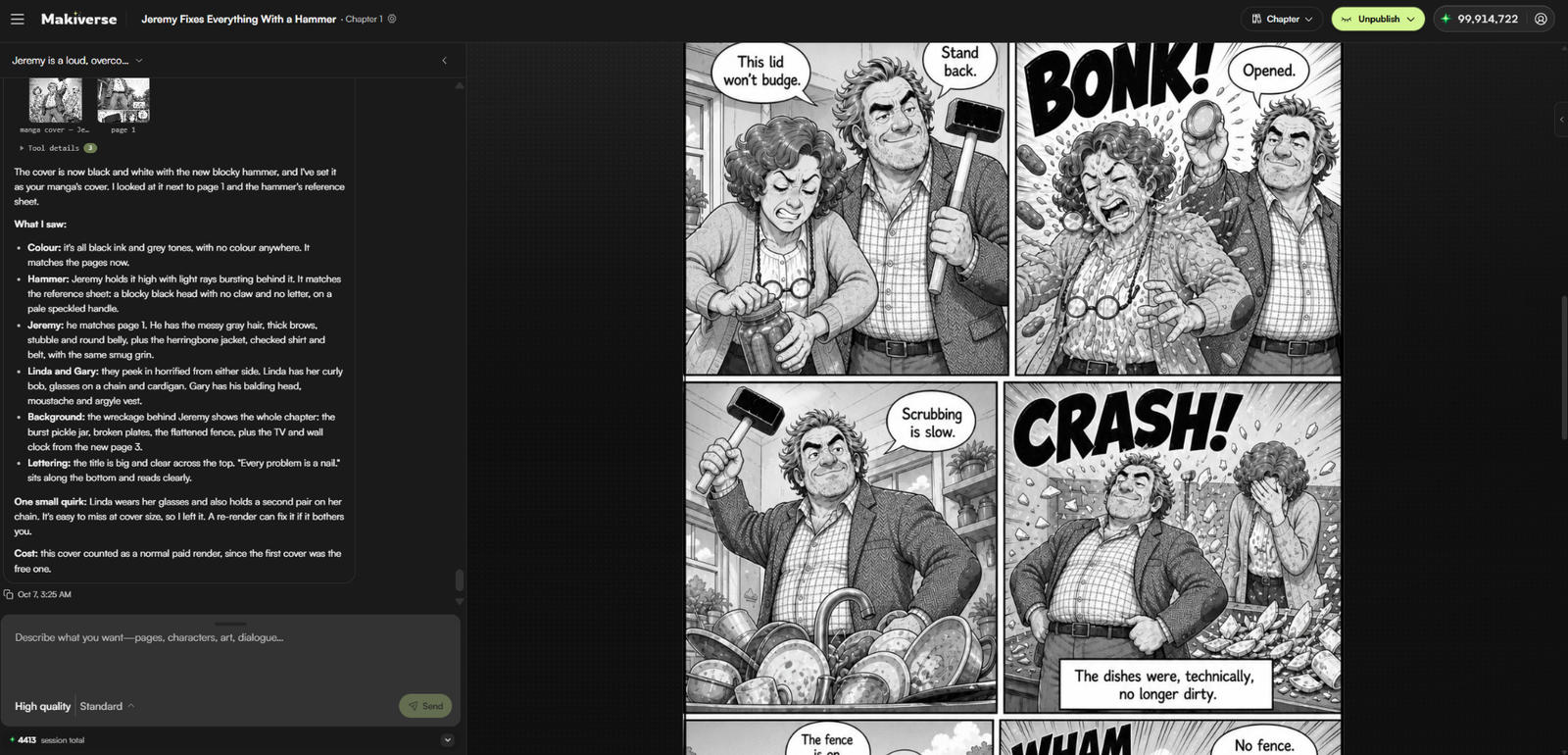
Once your story is ready, the Agent can begin generating the artwork for your Manga.
Frames are the individual Images that make up each Page and Chapter. The Agent creates them using your story, selected Style, Characters, Props, and scene descriptions.
After the artwork is generated, the Agent will begin adding Dialogue, including:
- Speech bubbles
- Narration
- Character conversations
- Other story text
Review each Page carefully before moving on.
Edit Frames and Pages
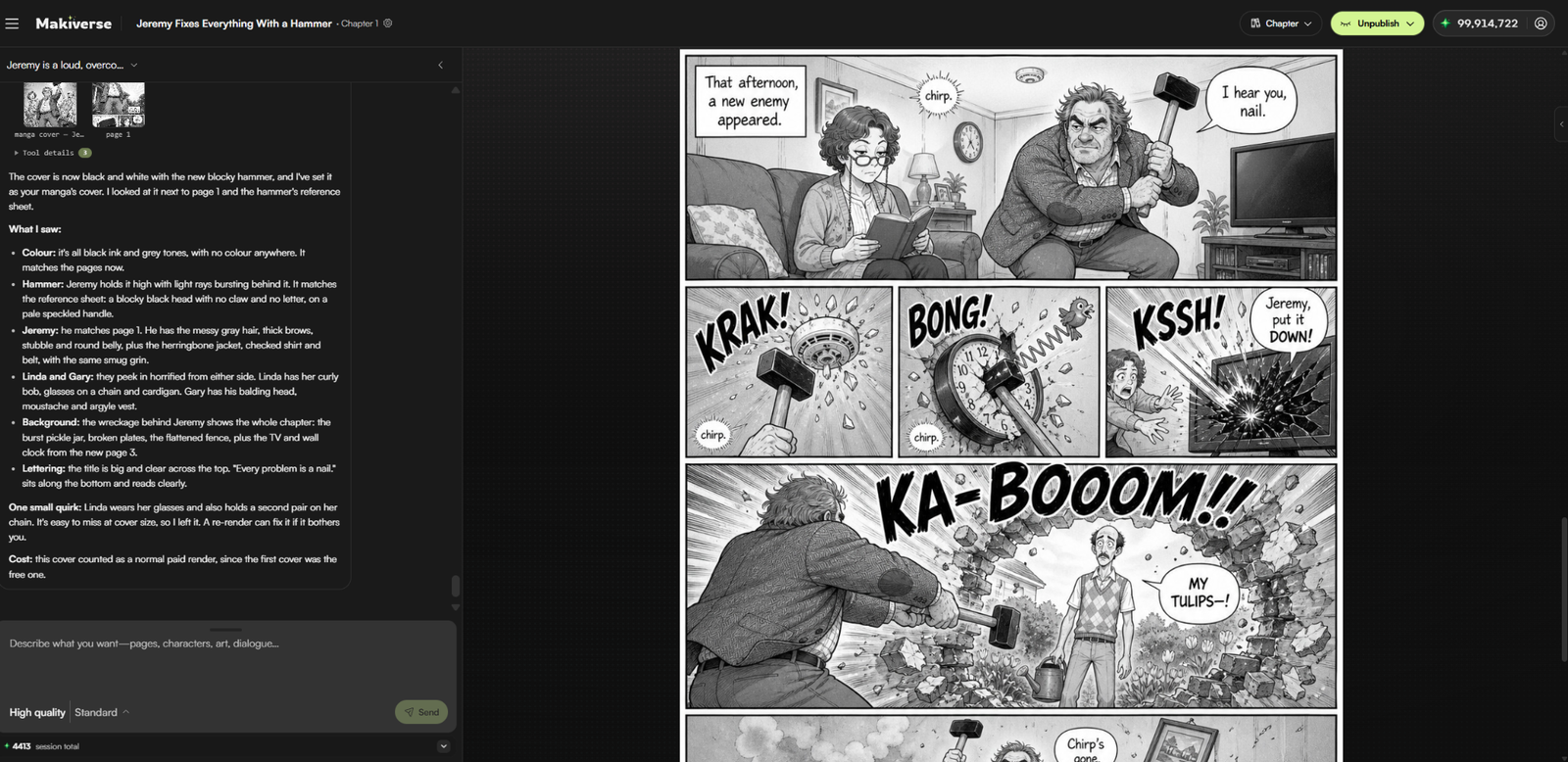
After generation, review your Manga and refine any Frames or Pages that need improvement.
You may want to make changes when:
- A Character looks inconsistent.
- A pose or facial expression does not match the scene.
- Clothing appears incorrect.
- A Prop or environment is missing.
- A Frame does not match the intended story moment.
Editing individual Frames and Pages is a normal part of the creation process and can help you get closer to the result you want.
How to Edit Frames
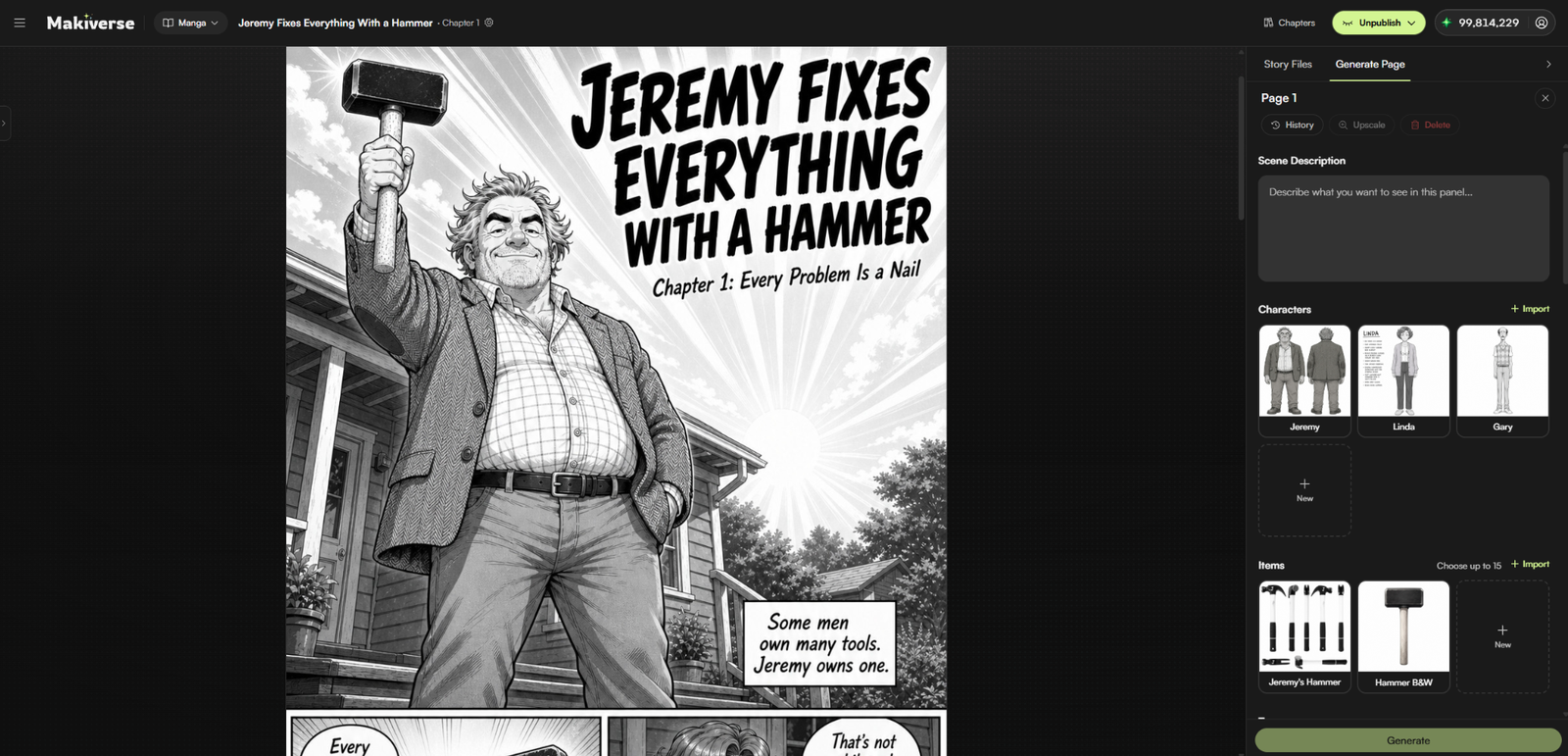
- Review your generated Pages.
- Double-click the Frame you want to improve.
- Adjust the Prompt or generation settings as needed.
- Edit the Dialogue or move speech bubbles if needed.
- Generate the updated result.
- Review the new result.
- Repeat until you are satisfied.
You can continue refining individual Frames before moving on to the next stage.
Regenerate Your Page
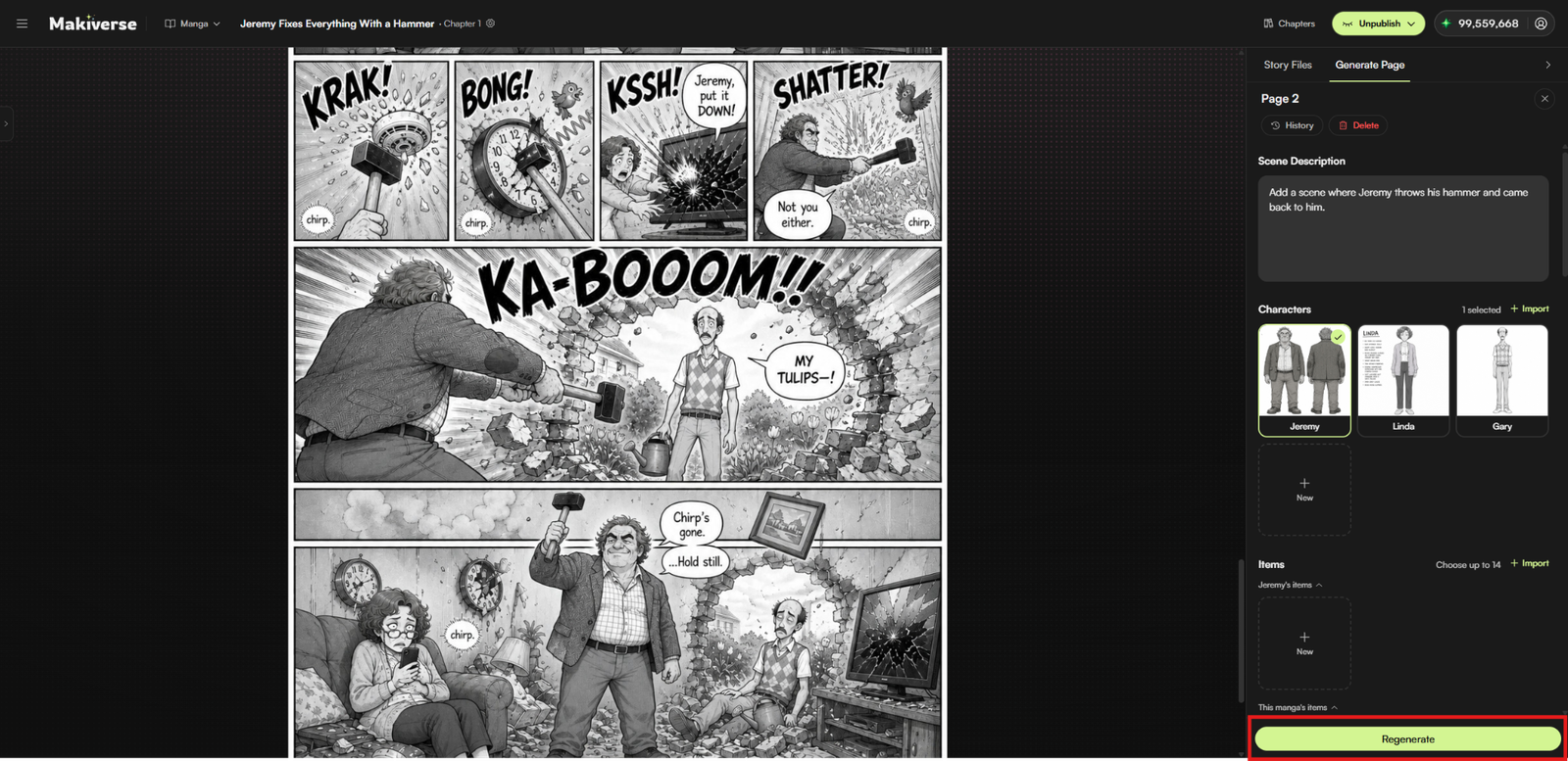
Regenerate lets you create a new version of a Page while keeping your existing Manga setup, Characters, and Items in place. Use it when you want to improve the artwork, correct inconsistencies, or try a different result.
How to Use Regenerate
- Finish reviewing and editing your Frames and Dialogue.
- Select the Page you want to update.
- Review the Page prompt, selected Characters, and Items.
- Make any necessary changes to the prompt or settings.
- Click Regenerate.
- Review the new result.
- Repeat if needed until you are satisfied.
You can use Regenerate whenever a Page needs improvement, such as when:
- A Character looks inconsistent.
- An Item or Prop is incorrect or missing.
- The artwork does not match the intended scene.
- You want to adjust the composition, expressions, or visual details.
For best results, make your prompt and selection changes before clicking Regenerate.
Publish Your Manga
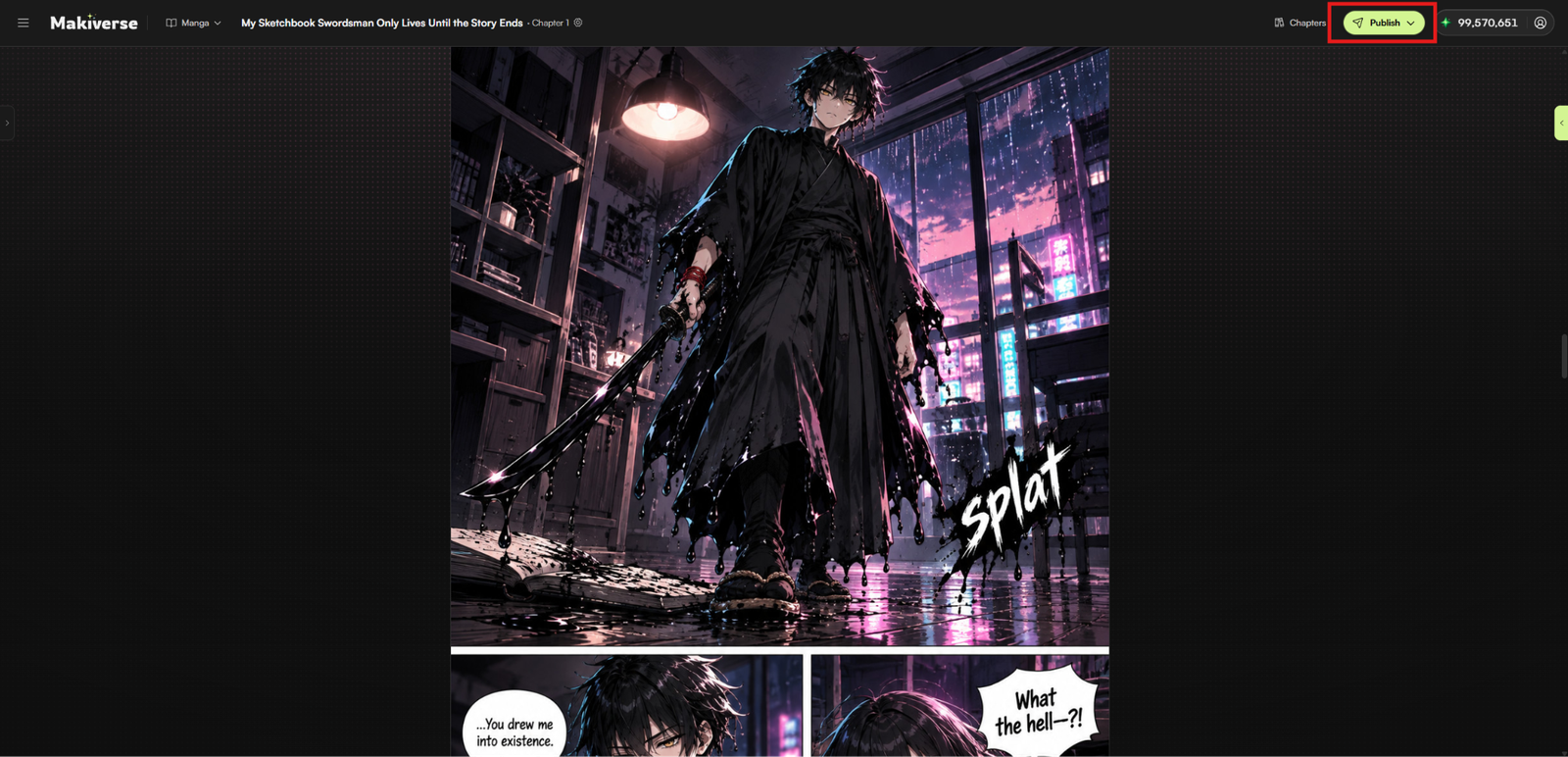
Once your Manga Chapter is complete, you can publish it and share it with the Makiverse community.
Before publishing, review your Chapter to make sure the Pages, Dialogue, and artwork are ready.
When everything looks good, click Publish in the top-right corner of the Manga Maker screen.
Manage Your Saved Manga
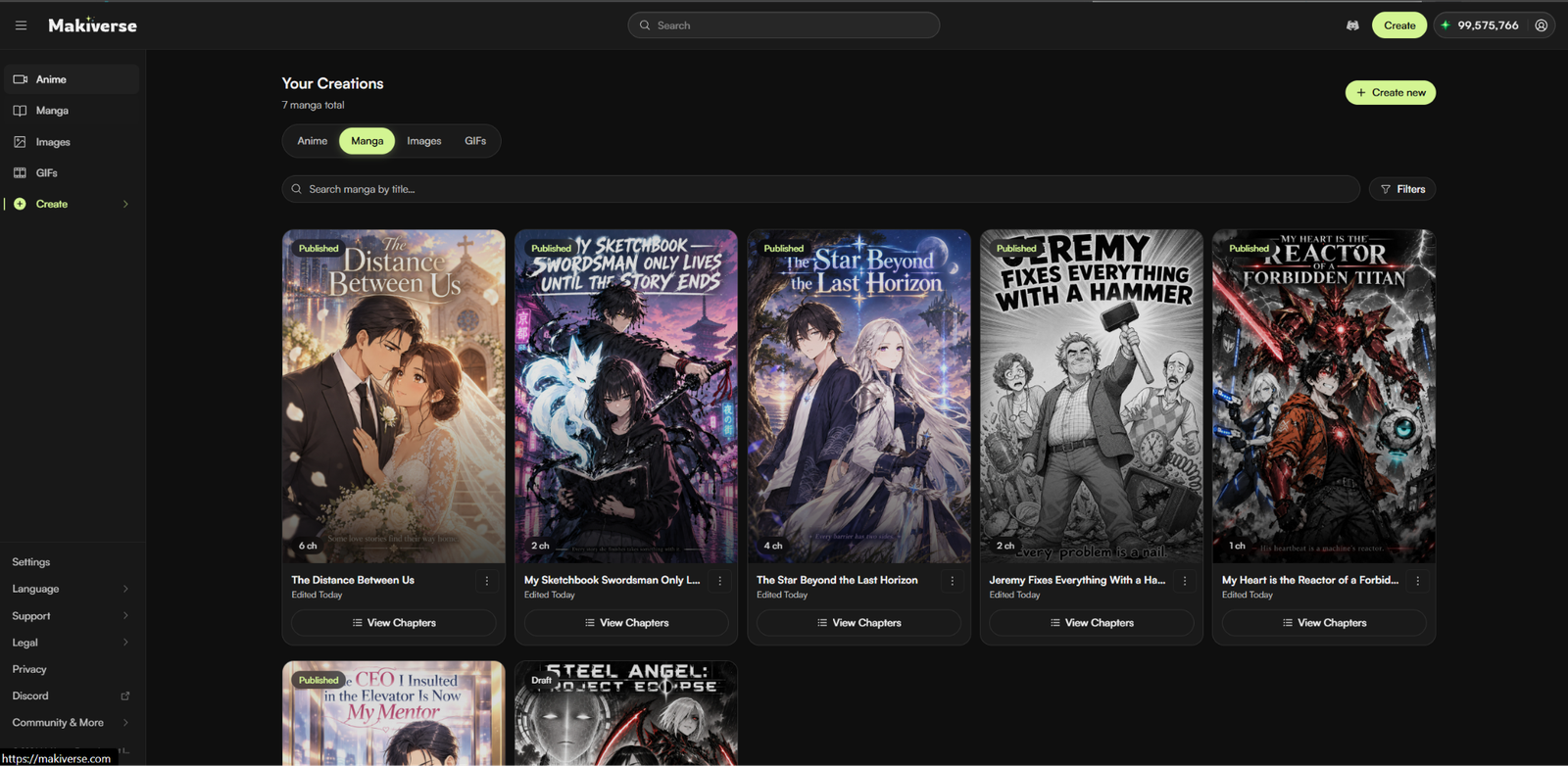
Your Manga creations are saved in your Your Creations, so you can come back to them at any time.
From Your Creations, you can:
- View existing Manga Chapters
- Continue unfinished work
- Edit previous generations
- Create additional Chapters
- Keep your stories organized
For easier organization, keep separate Projects for different stories.
Tips
- Refine your story before generating artwork.
- Use saved Characters to help keep designs consistent across Chapters.
- Review each Frame carefully before moving on.
- Make major edits before finalizing your Manga.
- Generate one Page at a time when you want more control over the result.
Need Help?
If the issue continues, contact Makiverse Support.