Creating Consistent Props
On this page
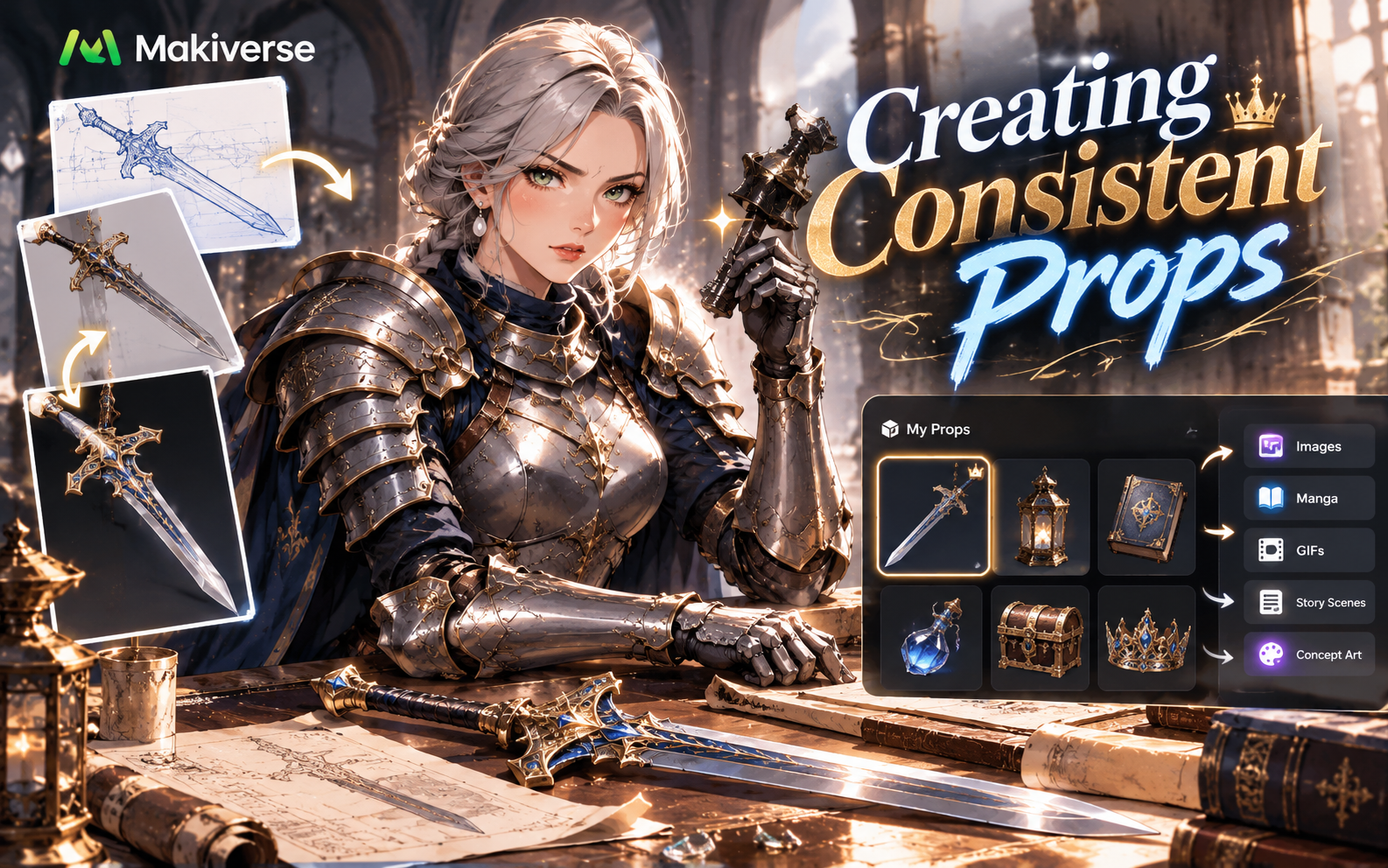
Create Props once, save them, and reuse them across your Makiverse creations.
Consistent Props help you keep important Items—such as weapons, accessories, tools, or story objects—visually recognizable across different scenes and generations.
You can use saved Props in:
- Images
- Manga
- GIFs
- Story scenes
- Character scenes
- Concept art
This is useful when you want the same Item to appear again without having to describe it from scratch each time.
How to Create a Prop
You can create a Prop using a Prompt, a Reference Image, or both.
Use a Prompt when you want to describe a new Prop from scratch. If you already have an Image of the Item you want to create, you can add it as a Reference Image to help guide the result.
Step 1: Open Items
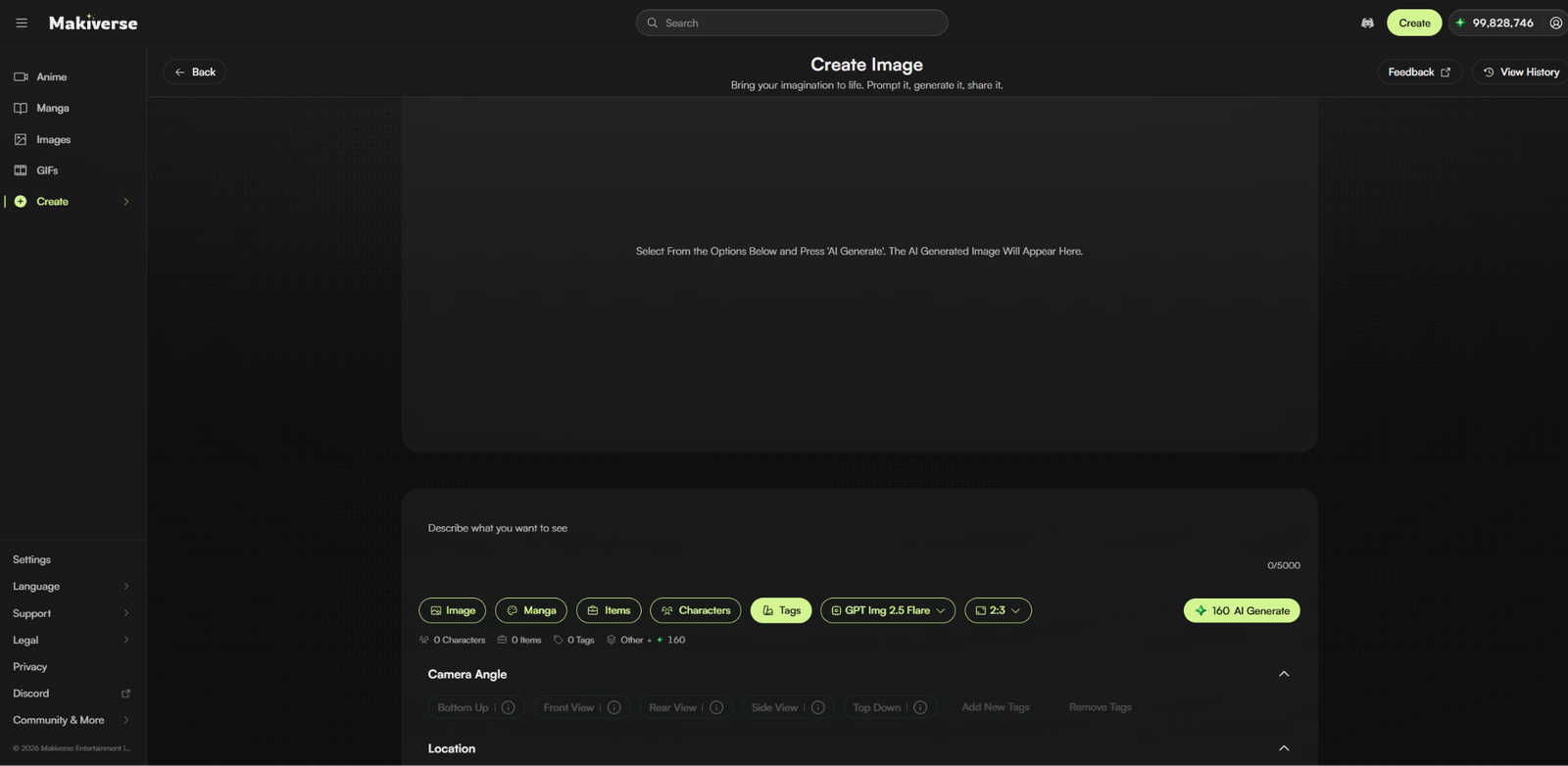
Click Create in the left sidebar.
Then, click Items to open your Items menu.
Step 2: Create a New Item
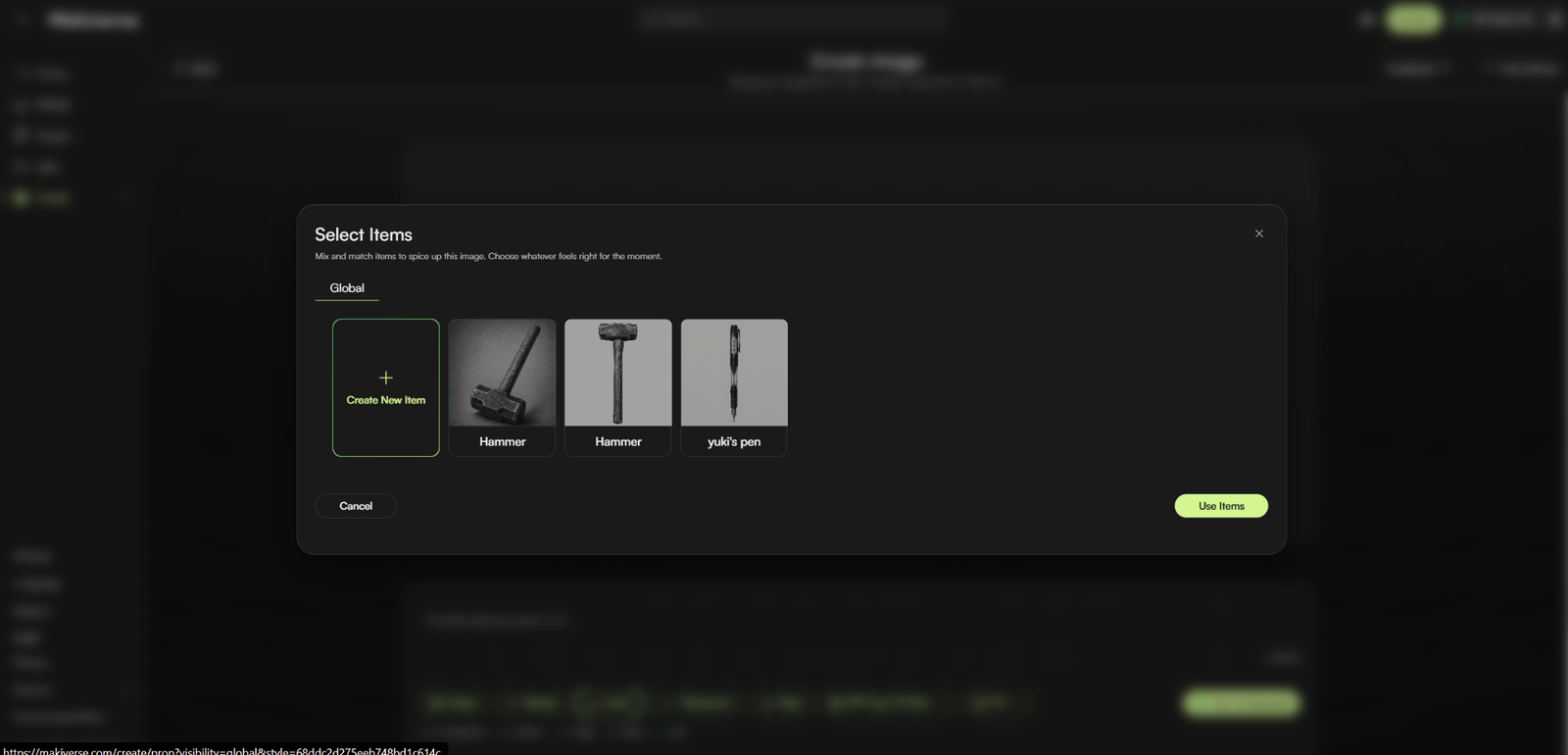
Click Create New Item.
This opens the Prop Generation screen, where you can create and save a new Prop.
Step 3: Add a Name and Prompt
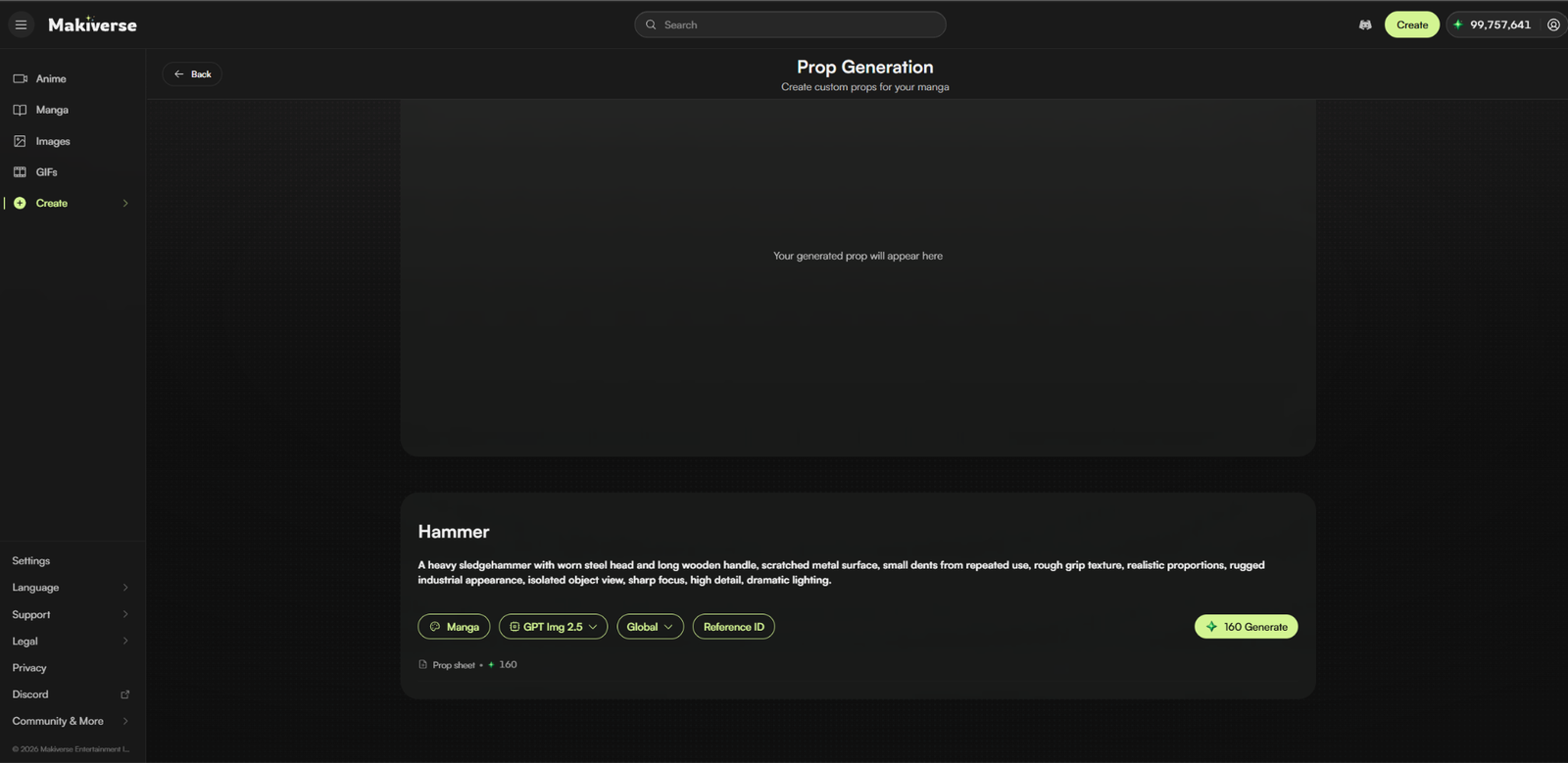
Give your Prop a clear Name, then enter a Prompt describing the Item you want to create.
For better results, include important visual details such as:
- Item type
- Shape
- Material
- Color
- Texture
- Condition
- Style
- Distinctive details or markings
Example Prompt:
A heavy sledgehammer with a worn steel head and long wooden handle, scratched metal surface, small dents from repeated use, rough grip texture, realistic proportions, rugged industrial appearance, isolated object view, sharp focus, high detail, dramatic lighting.
Step 4: Add a Reference Image
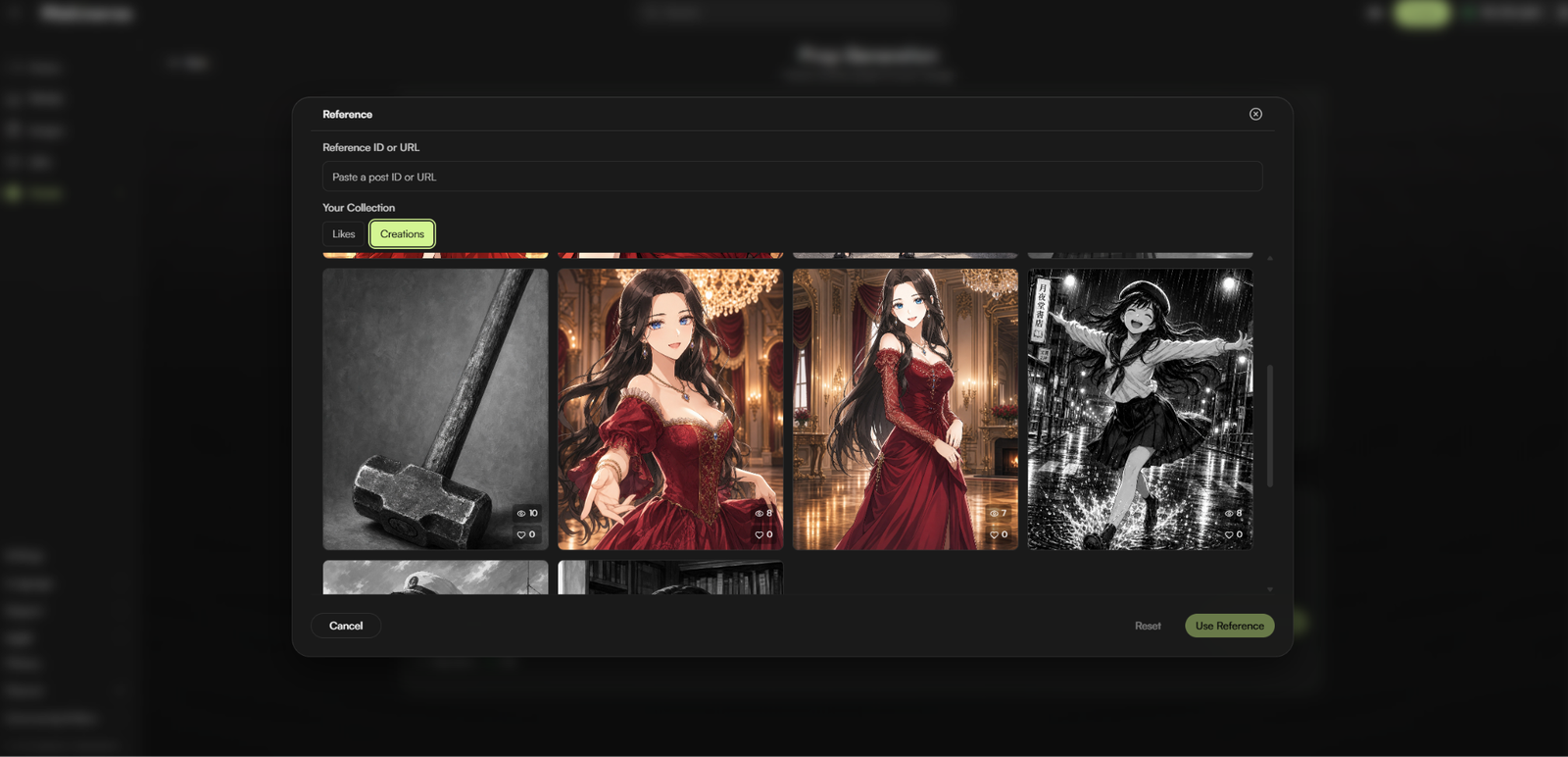
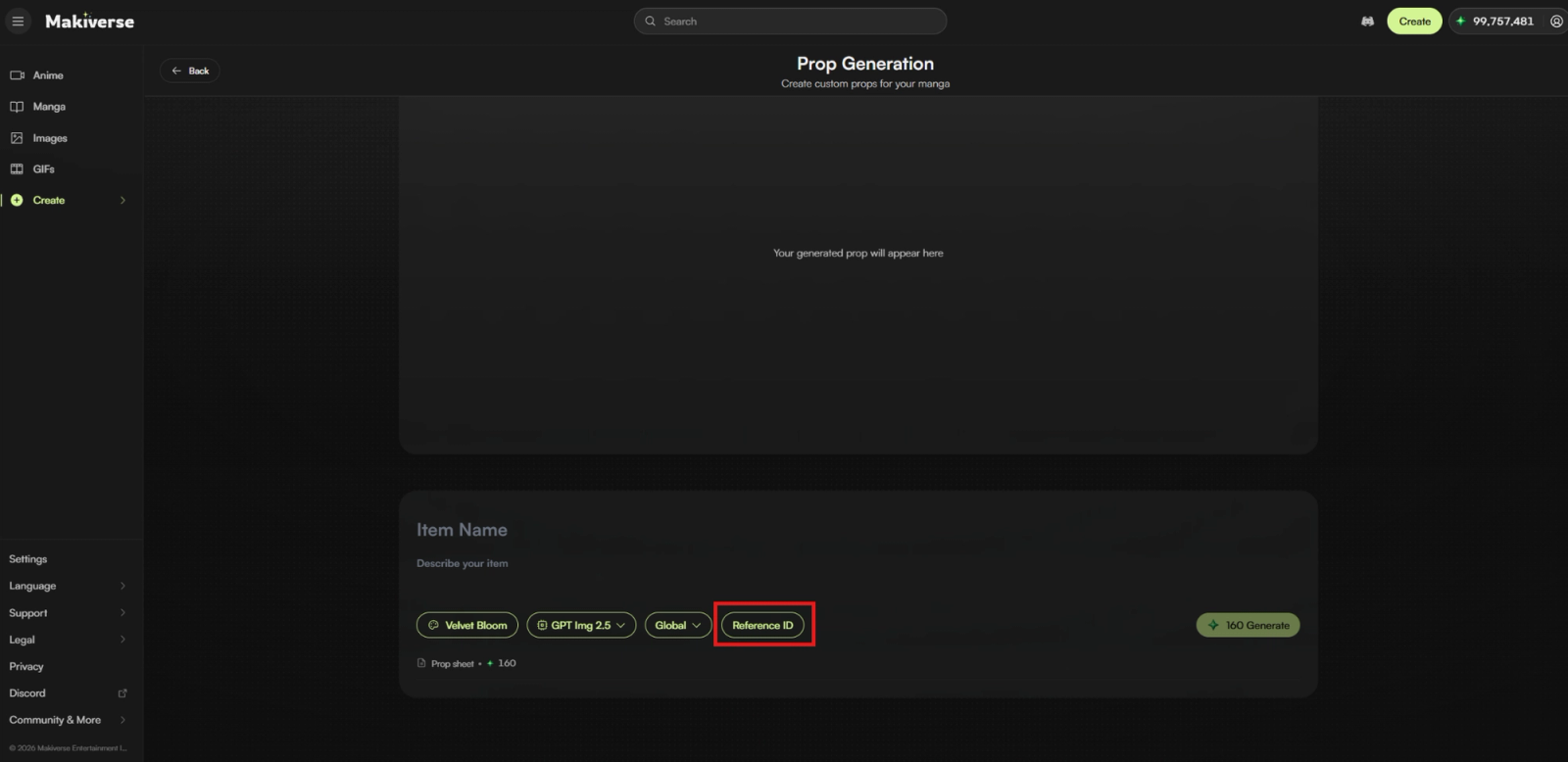
If you already have an Image of the Prop you want to create, you can use it as a visual reference.
Open Reference Image, then choose an Image from your collection or enter a Reference ID or URL, if available.
Click Use Reference to confirm your selection.
Makiverse will use the selected Image as a visual reference for your Prop.
Note: If you do not want to use a Reference Image, you can skip this step.
Step 5: Select a Style
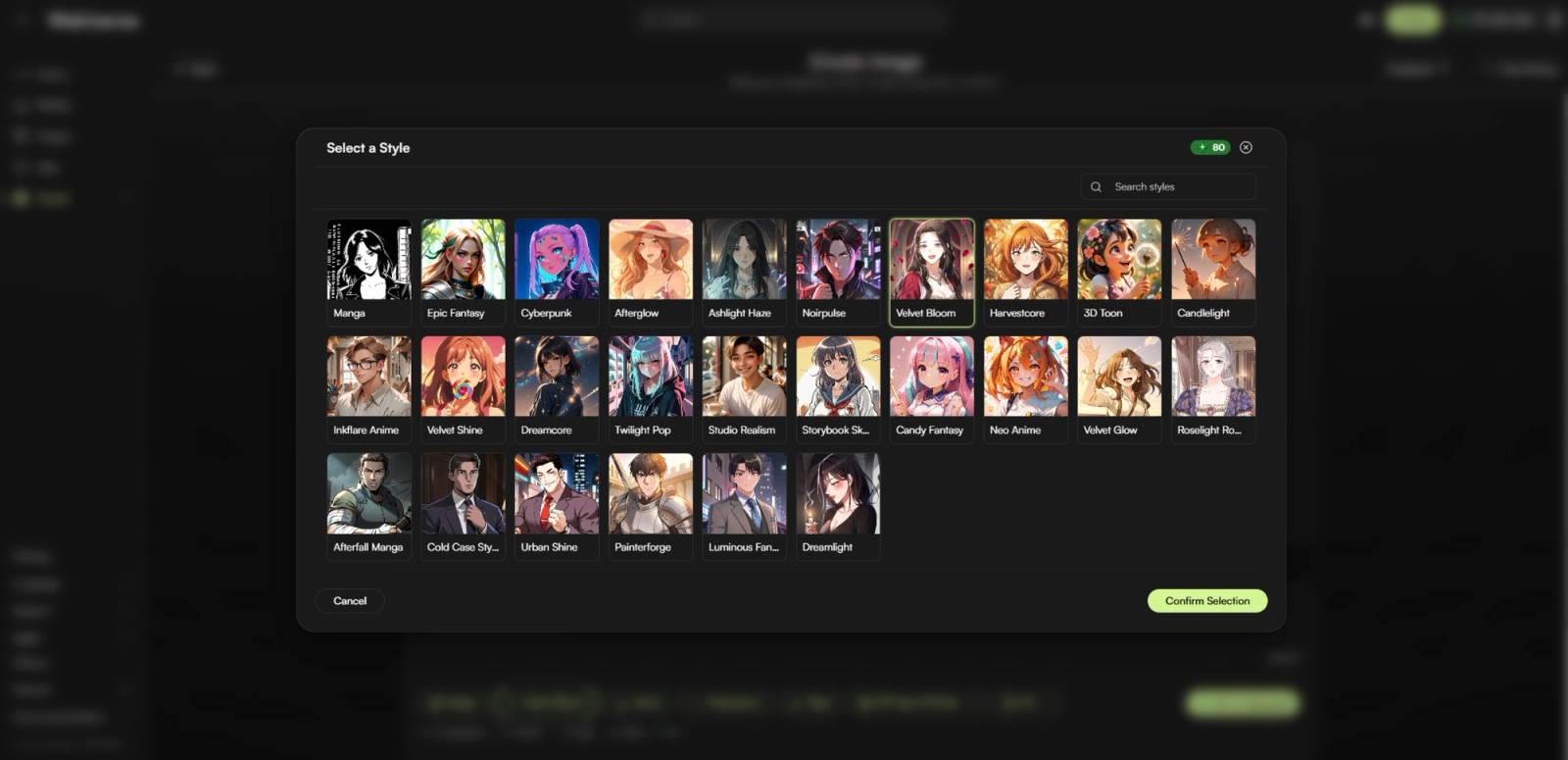
Choose the Style you want for your Prop.
The selected Style helps define the overall look of the Prop and how it will appear in future generations.
For better consistency, choose a Style that matches the Image, Manga, or GIF where you plan to use the Prop.
Step 6: Generate Your Prop
Once your Name, Prompt, Reference Image, and Style are ready, click Generate.
Makiverse will begin creating your Prop.
Step 7: Review and Save Your Prop
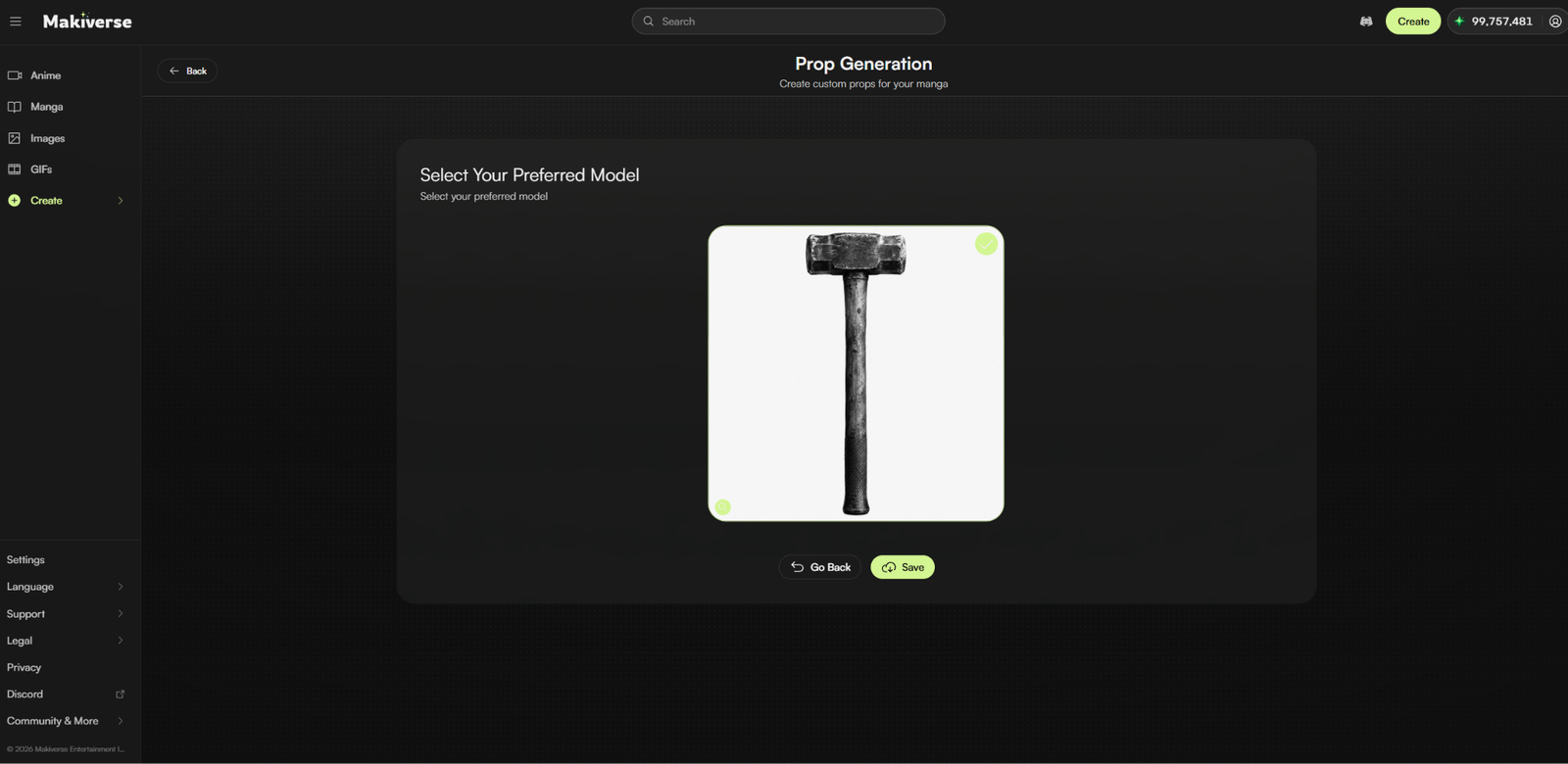
Once generation is complete, review the result.
You can then:
- Click Save to add the Prop to your Items Library.
- Click Go Back if you want to adjust the Prompt or settings and generate a new result.
Click Save when the Prop matches the design you want to keep.
Using Your Saved Prop

Once your Prop is saved, you can reuse it across different generations.
Add the Prop whenever you want the same Item to appear in an Image, Manga scene, GIF, or other creation.
To Use a Saved Prop
- Open a Creation Screen.
- Click Items.
- Select the Prop from your Items Library.
- Click Use Items.
- Add your Prompt and adjust your generation settings.
- Click AI Generate.
Makiverse will use the selected Prop in your generation.
Tips for Better Prop Results
- Keep the Prompt focused. Describe the Prop itself instead of the full scene.
- Include important visual details. Add details such as material, shape, color, texture, and condition when they matter.
- Use a Reference Image when you already have a design. A clear Image can help guide the appearance of the Prop.
- Review the generated Prop before saving. Make sure the result matches the design you want to reuse.
- Match the Style when possible. Using the same Style for the Prop and your final generation can help the Item blend more naturally into the scene.
Need Help?
If your Prop does not look the way you expected, try:
- Adjusting the Prompt
- Making the Prop description more specific
- Using a clearer Reference Image
- Regenerating the Prop
- Using the same Style as your final creation
If the issue continues, contact Makiverse Support for additional help.