Getting Started with Makiverse
On this page
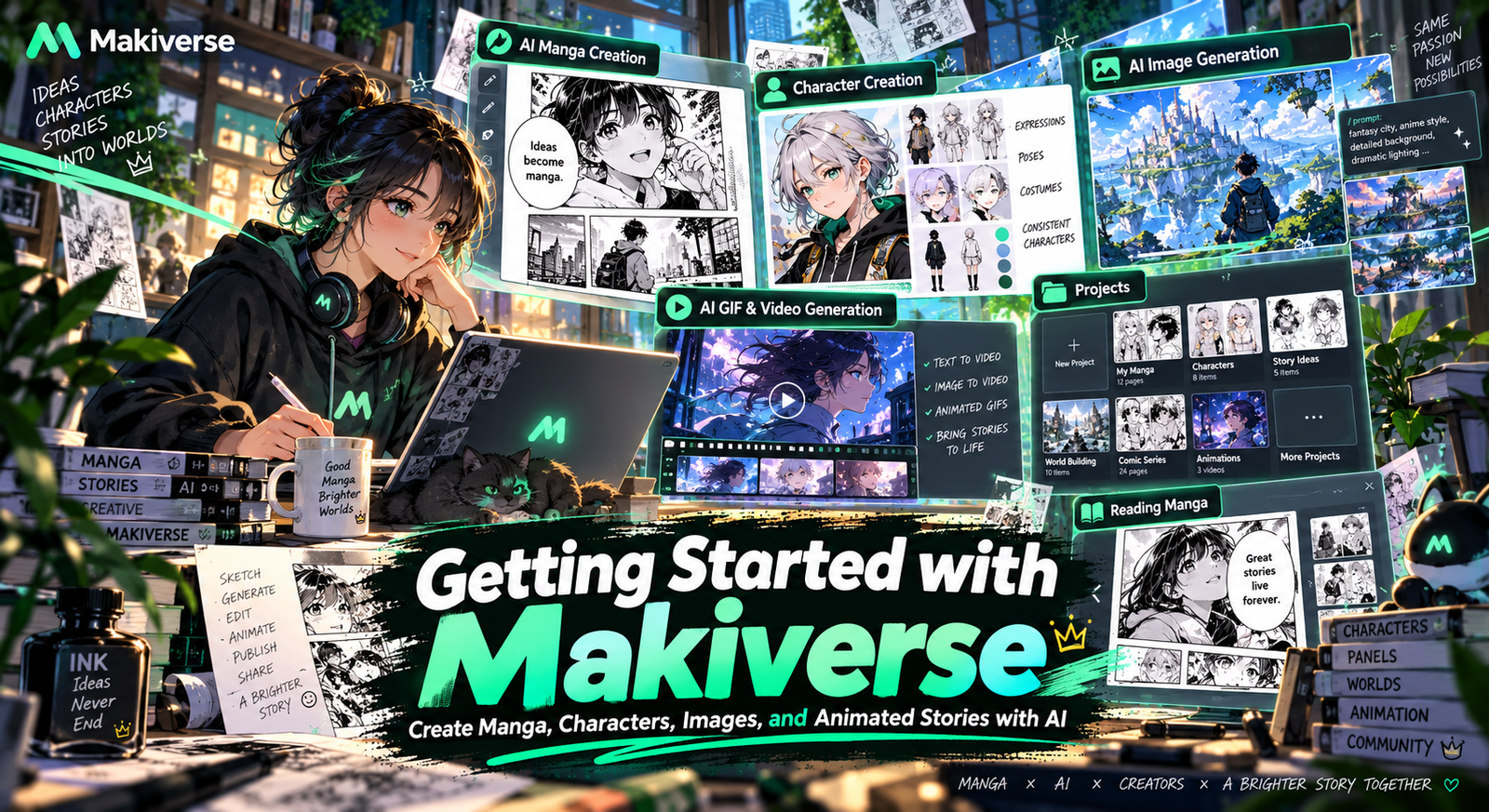
Welcome to Makiverse! 💚
Makiverse is an AI-powered creative platform that helps creators turn ideas into Manga, Anime, GIFs, and Images.
You can use Makiverse to create single Images, animated scenes, reusable Characters, or complete Manga Chapters.
Makiverse combines AI-assisted storytelling, Image generation, Dialogue generation, Character tools, and Manga editing features into one creative workflow.
This guide introduces the core features of Makiverse and helps you decide where to start.
Core Features
Makiverse includes several creation tools depending on what you want to make.
AI Manga Creation
Makiverse includes several creation tools depending on what you want to make.
AI Manga Creation
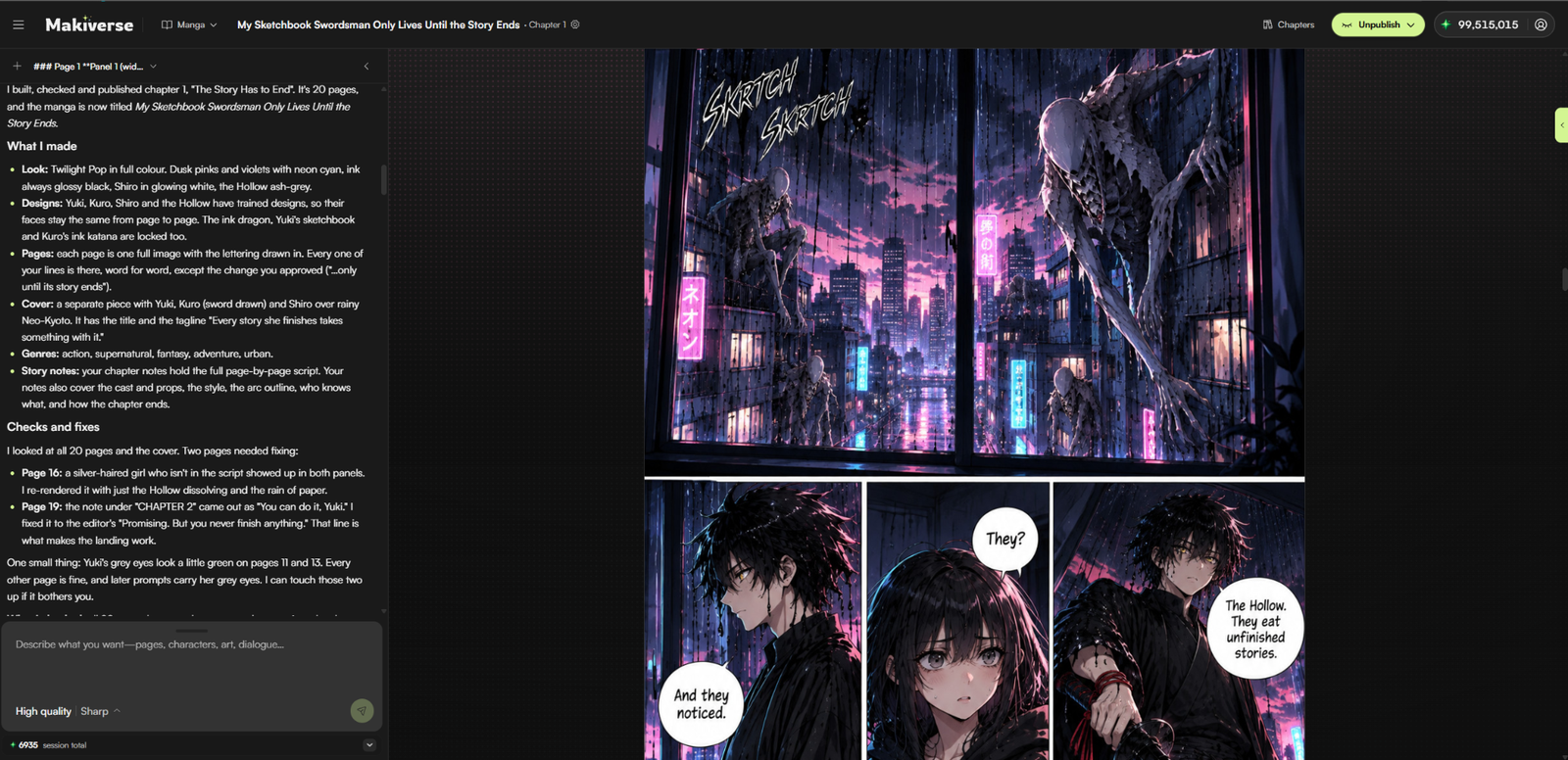
AI Manga Creation helps you create complete Manga Chapters with support from an AI Agent.
The Agent can help you develop story concepts, Character interactions, Frames, and Dialogue before you review, edit, and regenerate your Pages as needed.
You can use AI Manga Creation for:
- Manga Chapters
- Illustrated stories
- Story concepts
- Character interactions
- Dialogue
- Page layouts
- Multi-page stories
Character Creation & Management
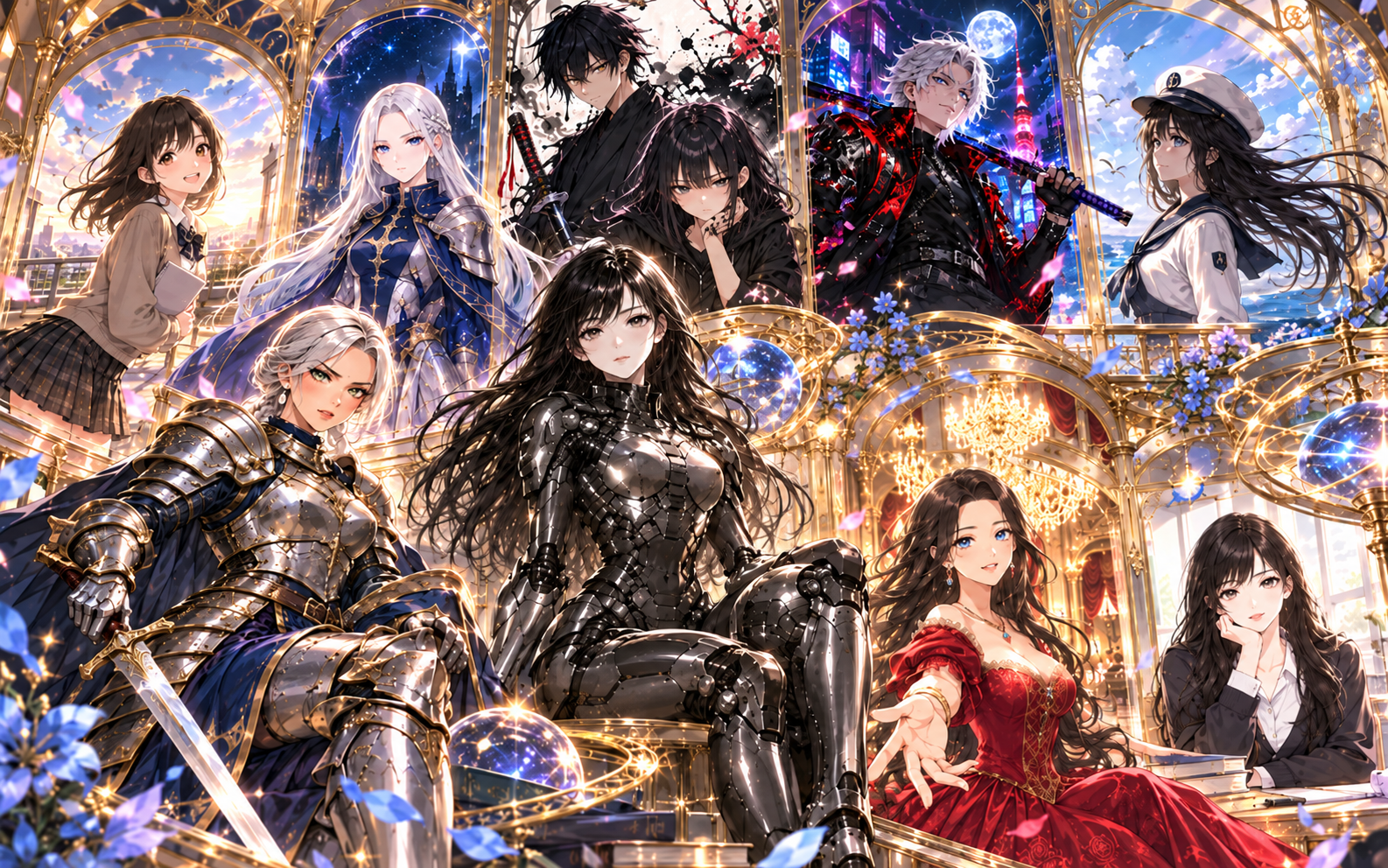
Character Creation lets you create reusable Characters that can be used across different Makiverse creations.
You can save Character appearances, Reference Images, and visual details to help keep the same Character recognizable across different scenes and generations.
You can use Character Creation for:
- Reusable Characters
- Character references
- Story casts
- Manga Characters
- Character portraits
- More consistent Character designs
AI Image Generation
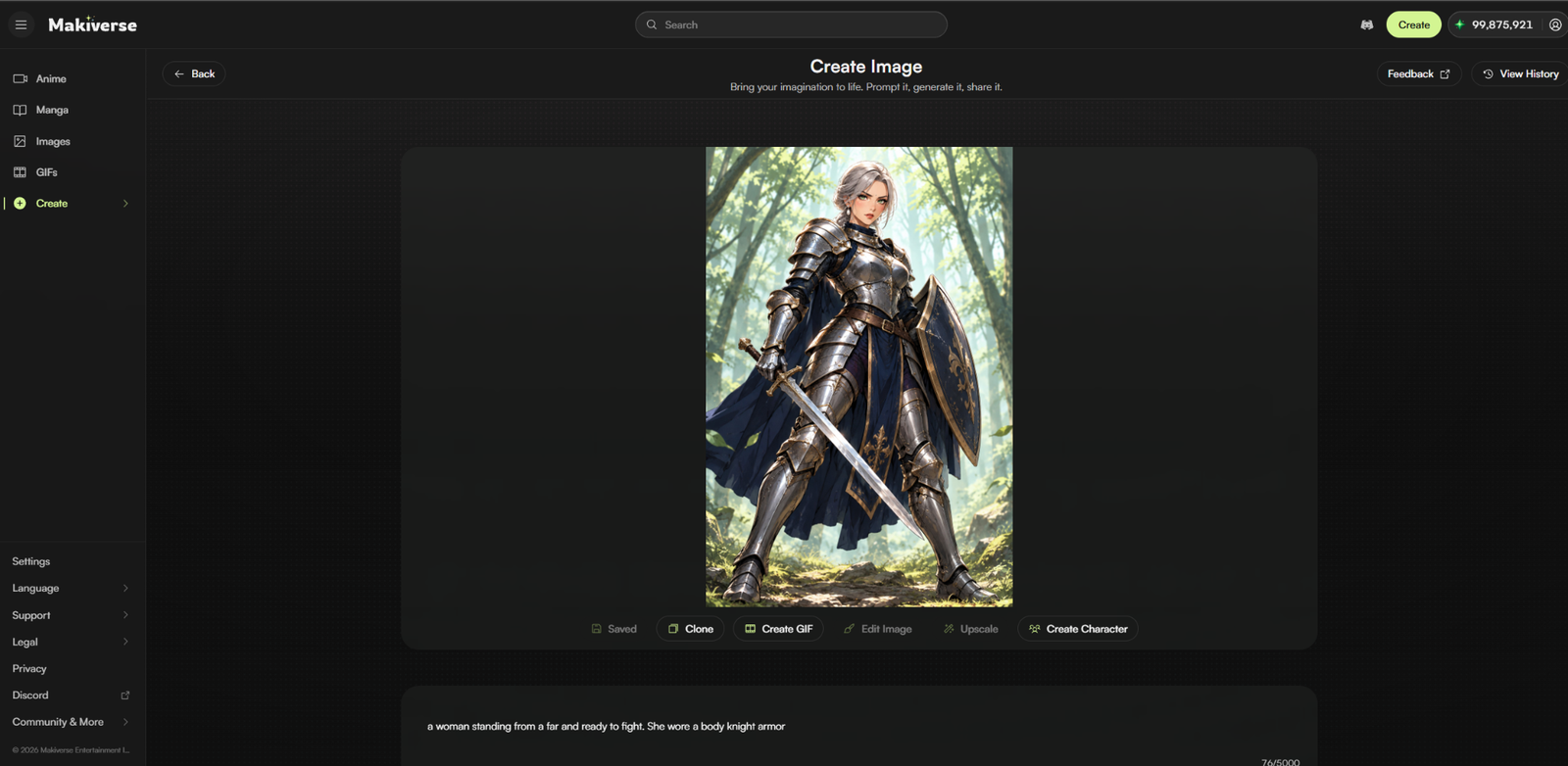
AI Image Generation lets you create artwork using Prompts, Tags, Characters, Items, Styles, and generation settings.
You can use it to create Character illustrations, concept art, backgrounds, Reference Images, cover art, fantasy scenes, and visual ideas for future creations.
You can use AI Image Generation for:
- Character portraits
- Concept art
- Backgrounds
- Cover art
- Reference Images
- Fantasy scenes
- Story visuals
GIF Generation
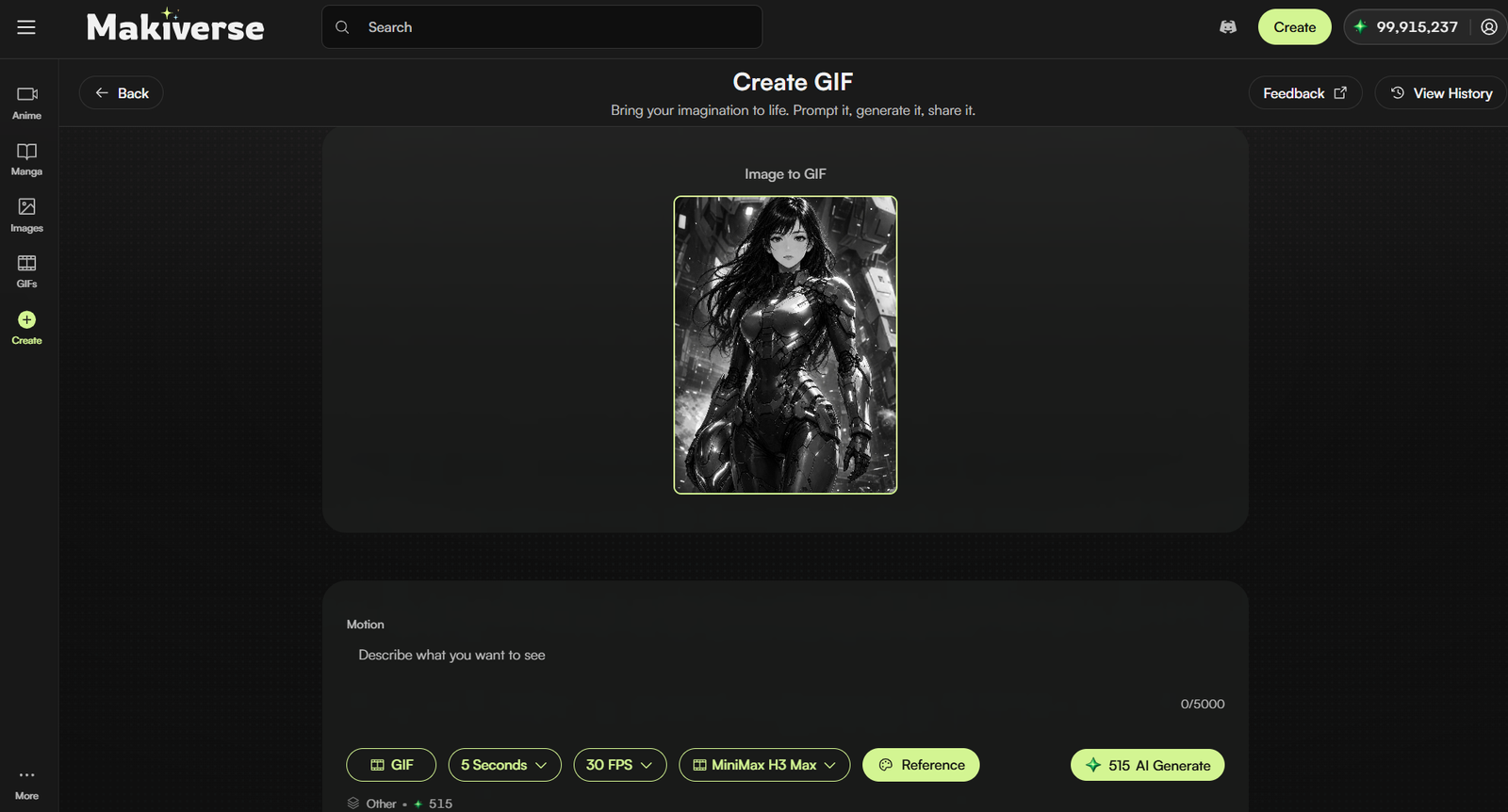
GIF Generation lets you add motion to your Makiverse creations.
You can create a GIF from a Prompt or animate an existing Image.
You can use GIF Generation for:
- Animated scenes
- Character movement
- Manga panel animation
- GIFs
- Story moments
- Existing Images
Anime

Use Anime when you want to create animated story content in Makiverse.
Anime gives you another way to develop Characters, scenes, and story ideas through animation.
Choose How You Want to Create Your Anime
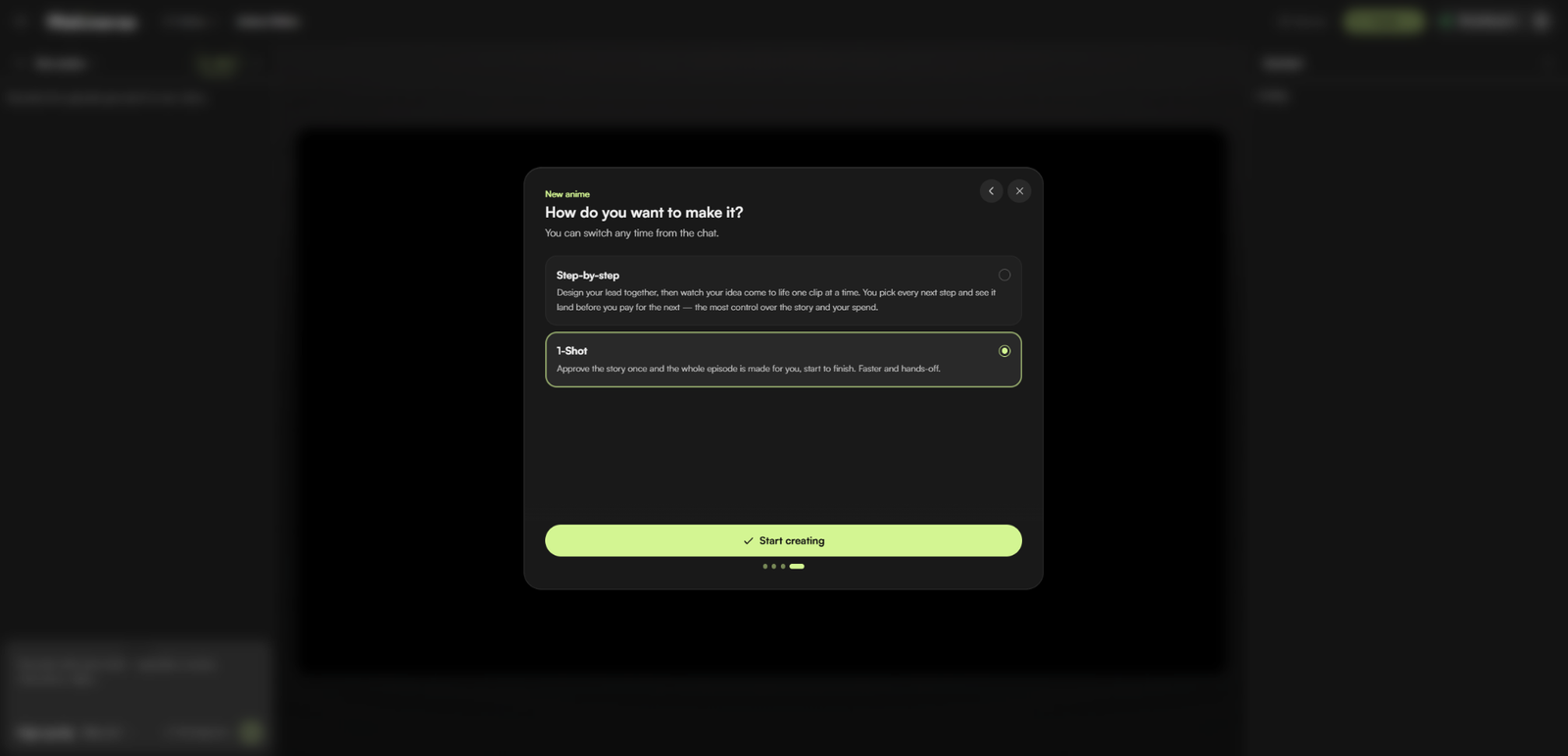
When starting a new Anime, choose how you want Makiverse to build your episode.
You can select:
- Step-by-step — build your Anime one clip at a time, review each step, and decide what happens next before continuing.
- 1-Shot — approve the story once and let Makiverse create the full episode from start to finish.
Note: 1-Shot may not be available for all accounts. If you have not previously purchased Emeralds, the option may be disabled. Purchasing Emeralds can unlock access to 1-Shot.
You can switch between Step-by-step and 1-Shot from the chat as you create.
How to Start
- Open Anime from the navigation menu.
- Start a new Anime creation.
- Add your story or scene idea.
- Choose Step-by-step or 1-Shot.
- Click Start creating.
- Continue building your Anime based on the creation mode you selected.
- Review and refine the result as needed.
Recommended for:
- Animated stories
- Character-driven scenes
- Story sequences
- Anime-style creations
- Scene-based storytelling
Manage Your Saved Manga
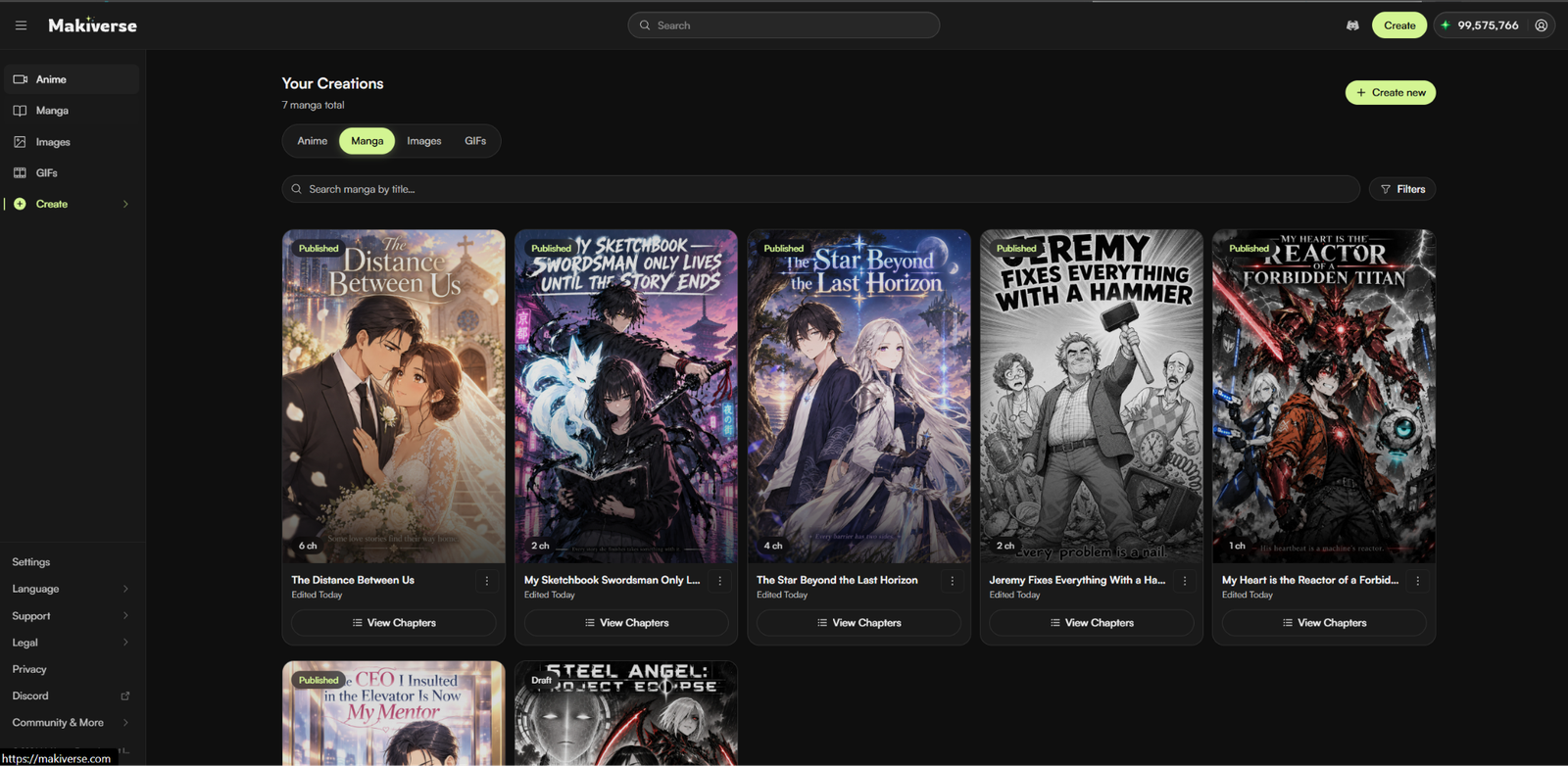
You can view and manage your saved Makiverse creations from Your Creations.
Your saved content is organized by creation type, including:
- Anime
- Manga
- Images
- GIFs
From Your Creations
- Open the creation type you want from the left navigation.
- Go to Your Creations.
- Select the corresponding tab:
- Anime
- Manga
- Images
- GIFs
- Browse your saved creations.
- Select the creation you want to view, continue, or manage.
Depending on the creation type, Your Creations may also let you:
- Search by title
- Filter by Status
- Sort your creations
- View Draft or Published status
- Check publishing progress
- Open Episodes or Chapters
- Continue unfinished work
From Your Profile
You can also view your saved creations from your Profile.
- Click the User Icon in the top-right corner.
- Select Profile.
- Choose Anime, Manga, Images, or GIFs.
- Browse your saved creations.
- Select the creation you want to view.
Where to Start
There are a few different ways to begin using Makiverse.
Choose the option that best matches what you want to create.
Option 1: Read a Manga
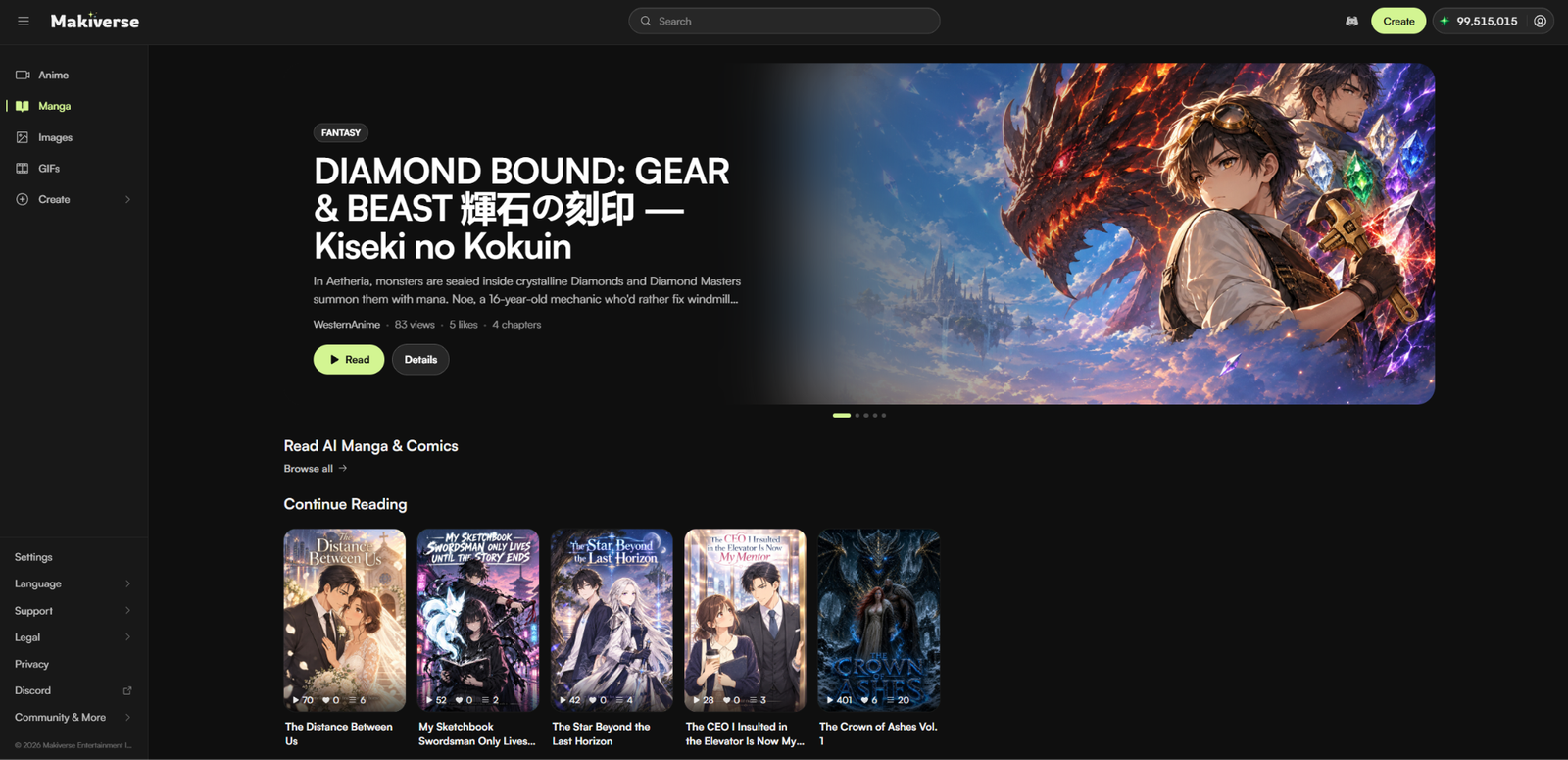
Reading Manga is a great way to explore Makiverse before creating your own story.
You can browse existing Manga to get inspired by other creators, see what is possible with Makiverse, and become more familiar with how Manga Chapters are presented.
This is a good place to start if you want to understand how stories, Characters, Pages, Frames, and visual Styles come together.
Get Inspired by Other Stories
Reading other Manga can help you discover:
- Story ideas
- Character concepts
- Panel layouts
- Dialogue styles
- Visual Styles
See What You Can Create
Browsing completed Manga can help you understand how Characters, scenes, Dialogue, artwork, and story flow come together in a finished Chapter.
Get Familiar with Manga
Reading Manga helps you understand how the platform works before you start creating. You can see how generated images, dialogue, and story flow come together in a finished chapter.
How to Read a Manga
- Open Makiverse.
- Go to Manga.
- Browse the available Manga.
- Select a Manga that interests you.
- Read through the Chapter and explore how the story is presented.
Once you're ready, you can start creating your own Manga.
Option 2: Create an Image
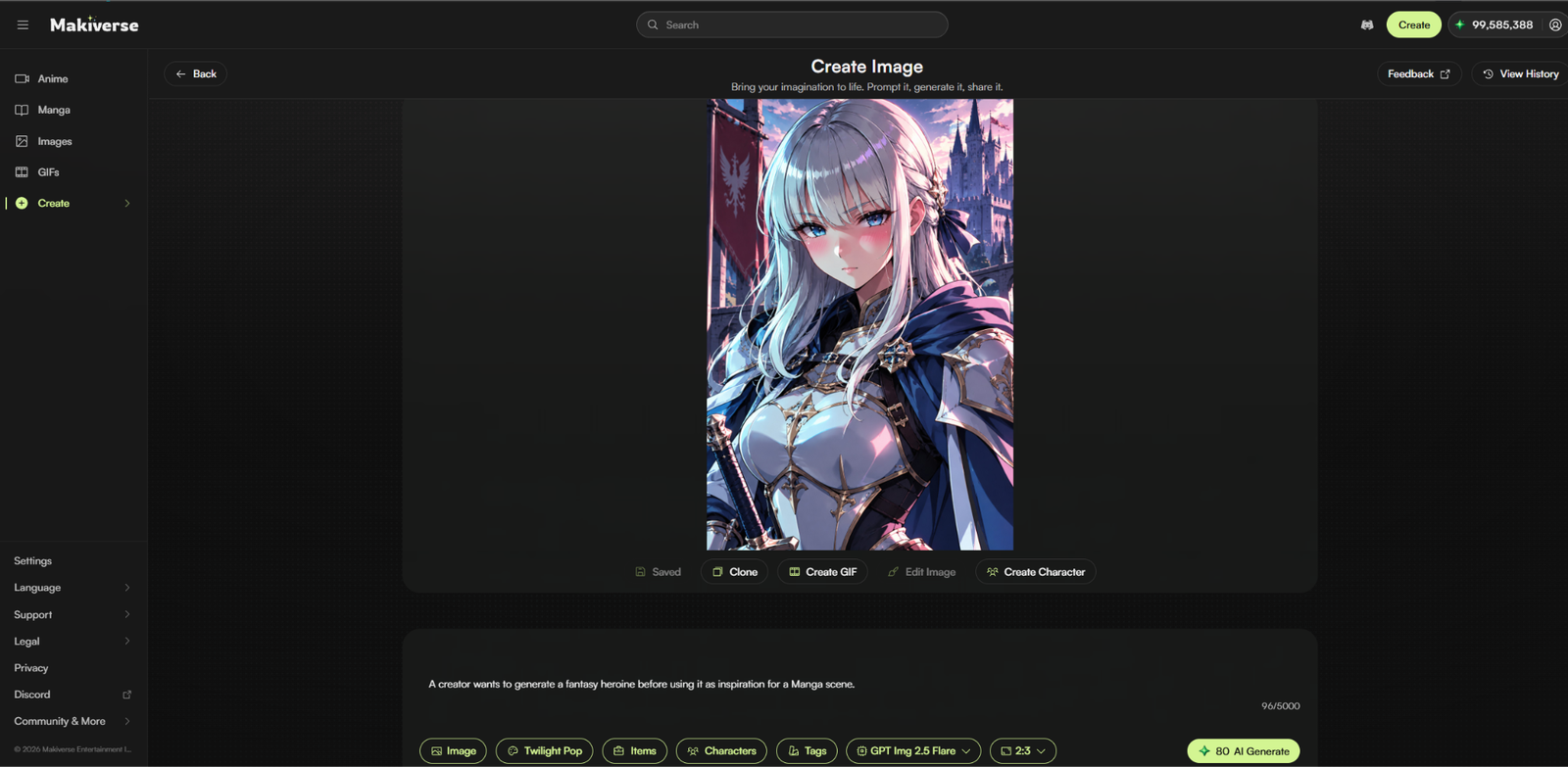
Choose Image Generation when you want to create a single Image or visual idea.
Image Generation is a good starting point if you want to test a Character, create a background, explore a Style, or develop concept art before using it in another creation.
How to Start
- Open Image Generation.
- Select your preferred Style and settings.
- Enter a Prompt describing what you want to create.
- Add Tags if you want to guide the scene more quickly.
- Generate your Image.
- Save the Image or reuse it in another creation.
Recommended for:
- Character art
- Backgrounds
- Concept art
- Cover Images
- Reference Images
- Visual experiments
Example
A creator wants to generate a fantasy heroine before using the Image as inspiration for a Manga scene.
Option 3: Create Animated Content

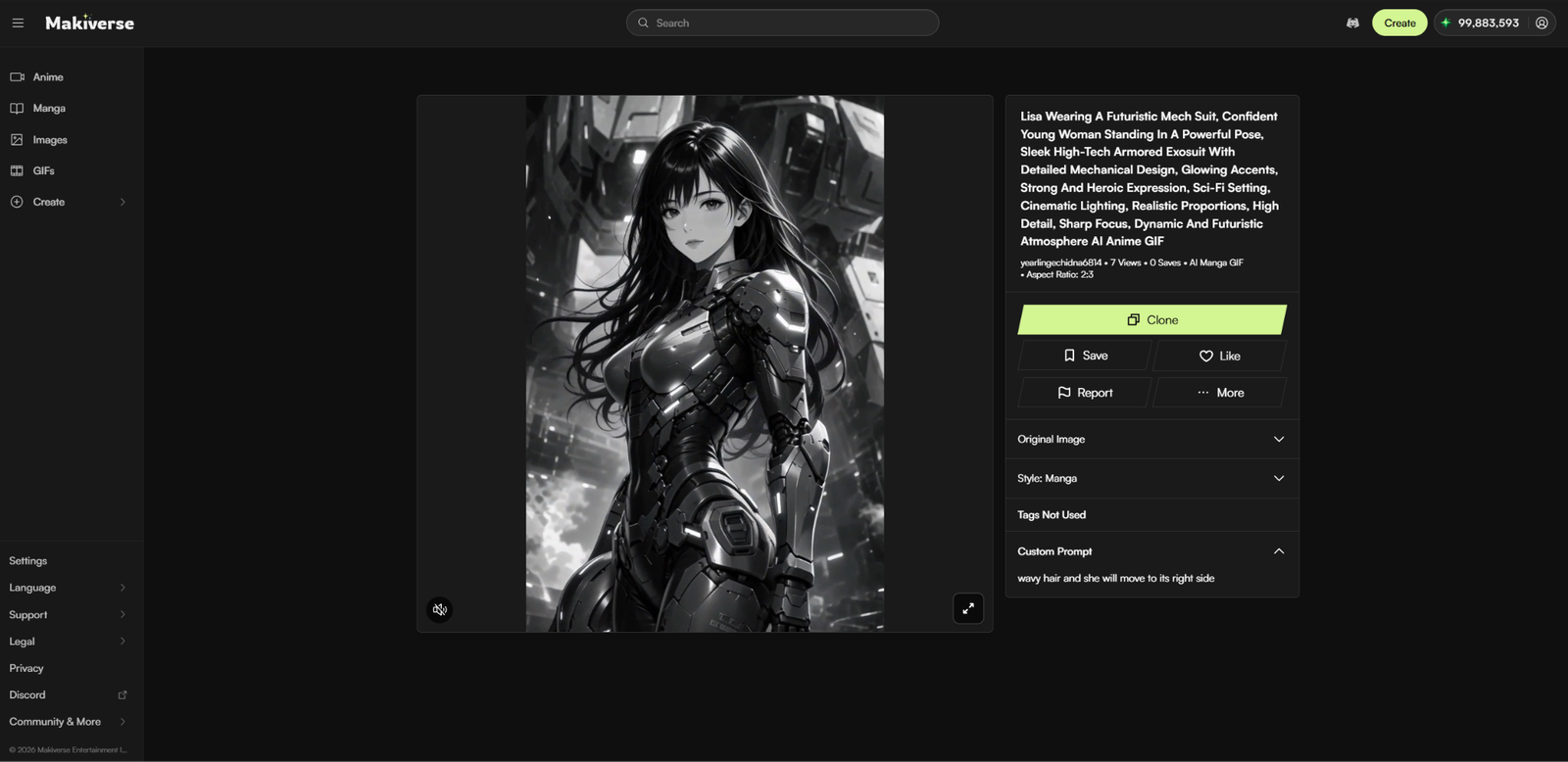
Choose this option if you want to create GIFs.
GIF Generation is useful when you want to animate a scene, add motion to a Character, or turn an existing Image into short animated content.
How to start:
- Open GIF Generation.
- Select an existing Image to animate or generate content from scratch.
- Enter a Prompt describing the scene and motion.
- Add Tags if needed.
- Configure your animation settings.
- Generate your GIF.
- Save or share your result.
Recommended for:
- Animated Characters
- Moving scenes
- GIFs
- Social media content
- Manga panel animation
Example:
She moves gently, her long hair flowing in the wind as the camera slowly zooms in. Smooth, cinematic motion.
Option 4: Create a Manga
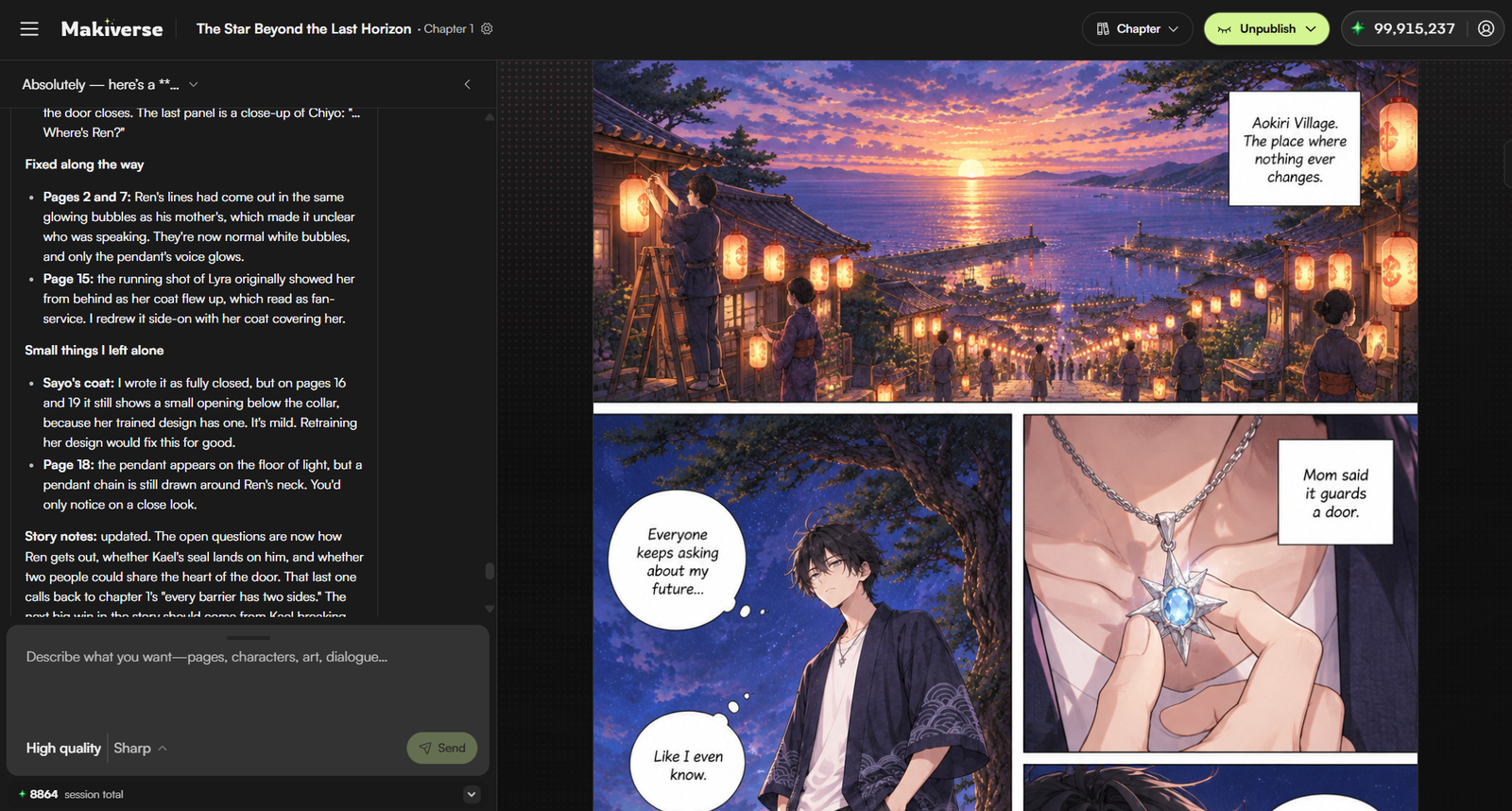
Choose this option if you want to create a full Manga Chapter or Comic-style story.
How to start:
- Open Manga Creation.
- Ask the Agent to help develop a story concept.
- Generate your Frames and Dialogue.
- Refine Pages as needed.
- Run Polish to improve the final results.
- Publish or share your completed Manga Chapter.
Recommended for:
- Storytelling
- Manga Chapters
- Comic scenes
- Dialogue-based creations
- Multi-page projects
Example:
Create a short fantasy Manga about a guy who discovers a hidden portal beneath their village.
Emeralds & Billing
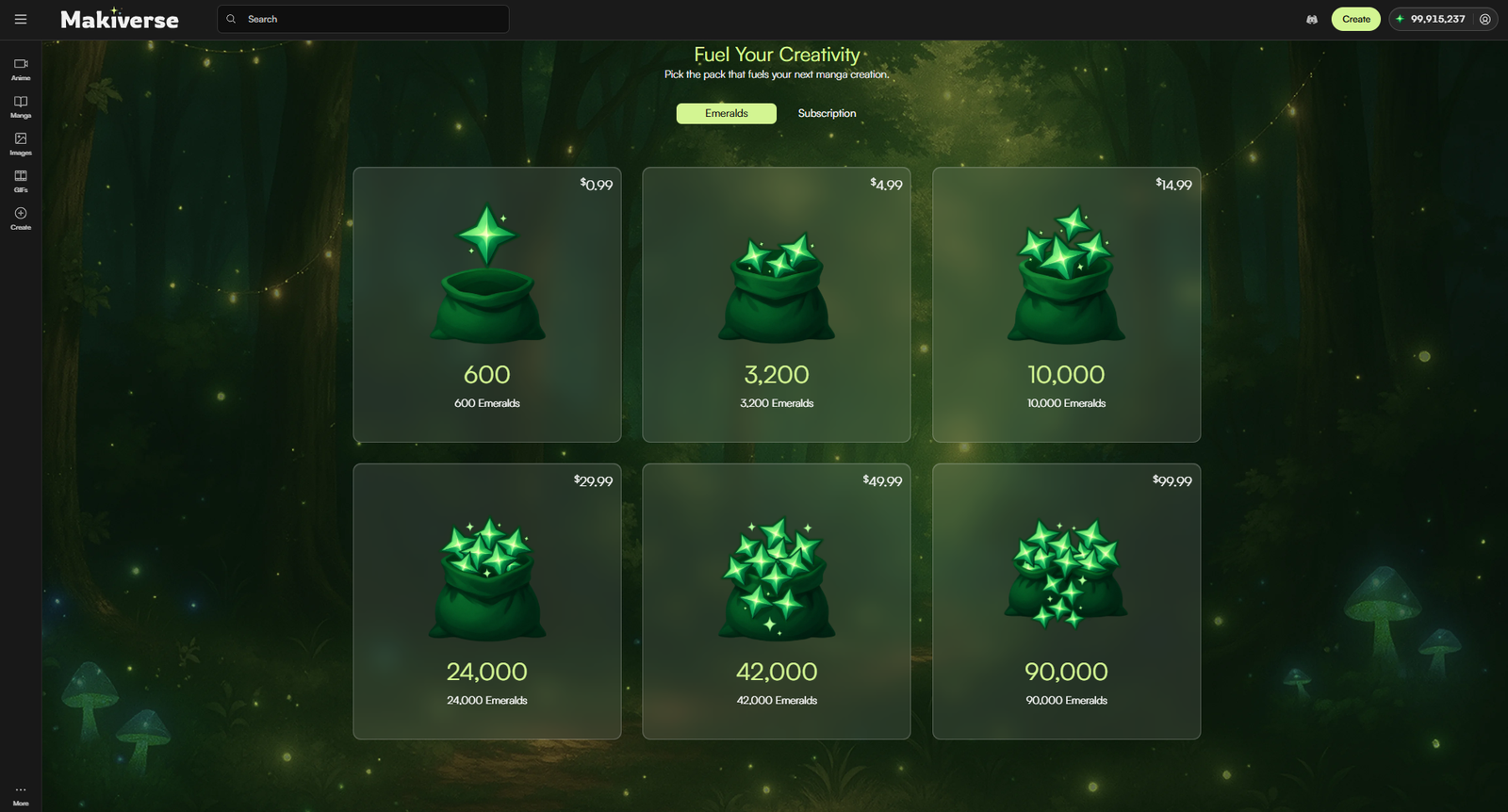
Emeralds are Makiverse's in-app currency.
Creating content may use Emeralds depending on the feature, generation settings, and tools you select.
The number of Emeralds required can vary based on factors such as:
- Generation type
- Selected settings
- AI model or engine
- Animation options
- Characters or Items
- Additional generation features
Before generating, check the displayed Emerald cost so you know how much the creation will use.
Need Help?
If you run into a problem, visit the Help Center for guides and troubleshooting information.
You can also use Makiverse’s support and community channels for help with:
- Generation issues
- Prompts and Tags
- Character consistency
- Manga creation
- GIFs
- Feature questions
If the issue continues, contact Makiverse Support for additional help.
You can also join the Discord Community to report bugs, share feedback, suggest new features, and connect with other creators.