How to Upgrade or Downgrade Your Makiverse Plan
On this page
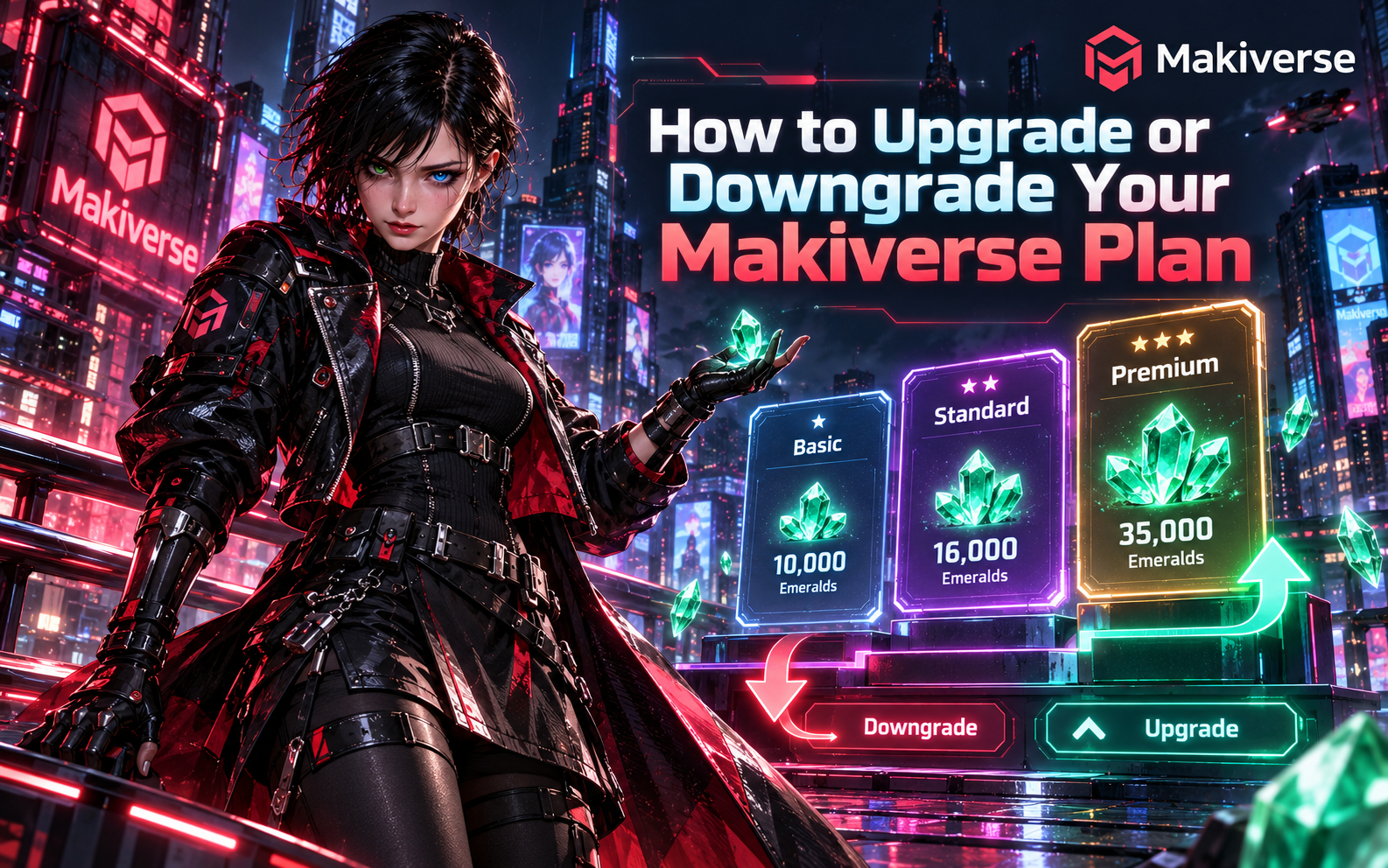
You can change your Makiverse subscription plan from your account.
Upgrades take effect right away, while downgrades take effect on your next renewal date.
This guide explains how to change your plan and what to expect after upgrading or downgrading.
Makiverse Plans
Makiverse offers different subscription plans based on the number of Emeralds you need each month.
| Plan | Monthly Price | Emeralds per Month |
|---|---|---|
| Basic | $9.99 | 10,000 |
| Standard | $14.99 | 16,000 |
| Premium | $29.99 | 35,000 |
Choose the plan that best fits how often you create and how many Emeralds you expect to use.
How to Change Your Plan
Step 1: Open Settings
Log in to your Makiverse account.
Click your User Icon in the top-right corner, then select Settings.
Step 2: Open Manage Subscription
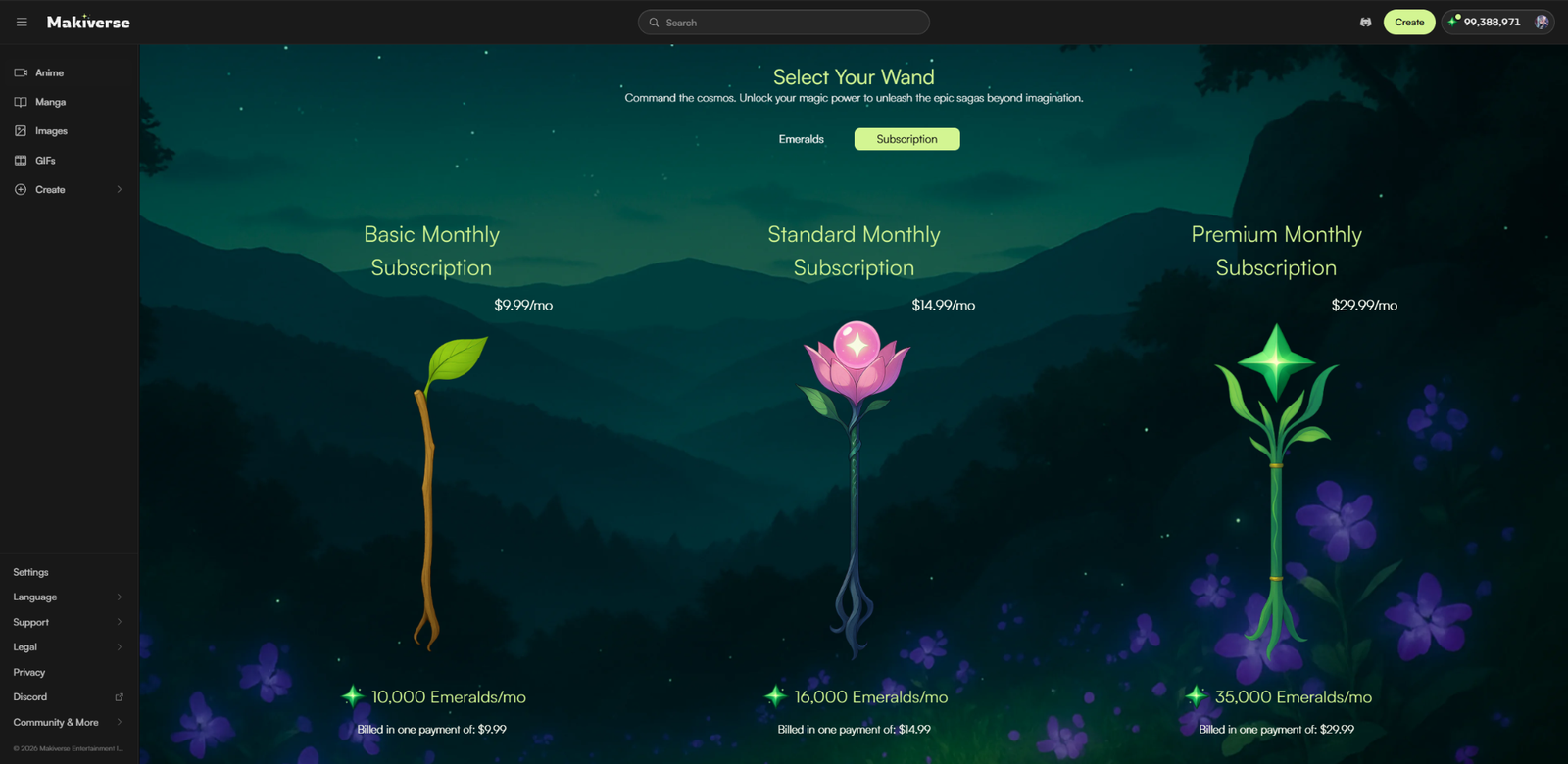
Scroll to Manage Subscription.
Click Manage, then select Upgrade Plan.
You can also open the Store and select the plan you want.
Step 3: Choose Your New Plan
You will be taken to the billing page.
Select the plan you want to switch to.
Step 4: Review and Confirm
Review the plan details and any charges shown.
Confirm the change to update your subscription.
When You Upgrade
Your new plan starts immediately.
You are charged only for the difference between your current plan and your new plan for the rest of the current billing period.
Any unused value from your current plan is applied toward the upgrade.
You also receive the additional Emeralds for the remaining part of your billing period.
Example
If you upgrade from Basic to Premium halfway through your billing period, you may receive about half of the difference in monthly Emeralds.
Your renewal date stays the same.
On your next renewal date, you will be charged the full price of your new plan and receive the full monthly Emerald amount.
When You Downgrade
A downgrade does not take effect immediately.
Your current plan stays active until your next renewal date, so you can continue using the benefits you already paid for.
On your next renewal date:
- Your account switches to the lower plan
- You are charged the new plan price
- You receive the Emerald amount included with the new plan
You can also change your plan again before the renewal date if needed.
Canceling Your Subscription
If you want to cancel instead of changing plans:
- Go to Settings.
- Scroll to Manage Subscription.
- Click Manage.
- Select Cancel Subscription.
- Follow the on-screen steps to confirm.
Your subscription remains active until the end of the billing period you already paid for.
Any remaining Emeralds in your balance will stay in your account.
Tips for Changing Your Plan
- Review the plan details before confirming
Check the price and Emerald amount before changing your subscription. - Remember that upgrades start right away
Upgrades are applied immediately and may include a prorated charge. - Downgrades start at renewal
Your current plan stays active until your next renewal date. - Check your subscription after making changes
Return to Manage Subscription to confirm that your new plan or scheduled change is shown correctly.
Need Help?
If you cannot change your plan or something does not look right, contact Makiverse Support.
When submitting your request, include:
- Your Makiverse account email
- Your current plan
- The plan you are trying to switch to
- A screenshot of the subscription or billing screen, if available
- Any error message you received