How to Cancel Your Makiverse Subscription
On this page
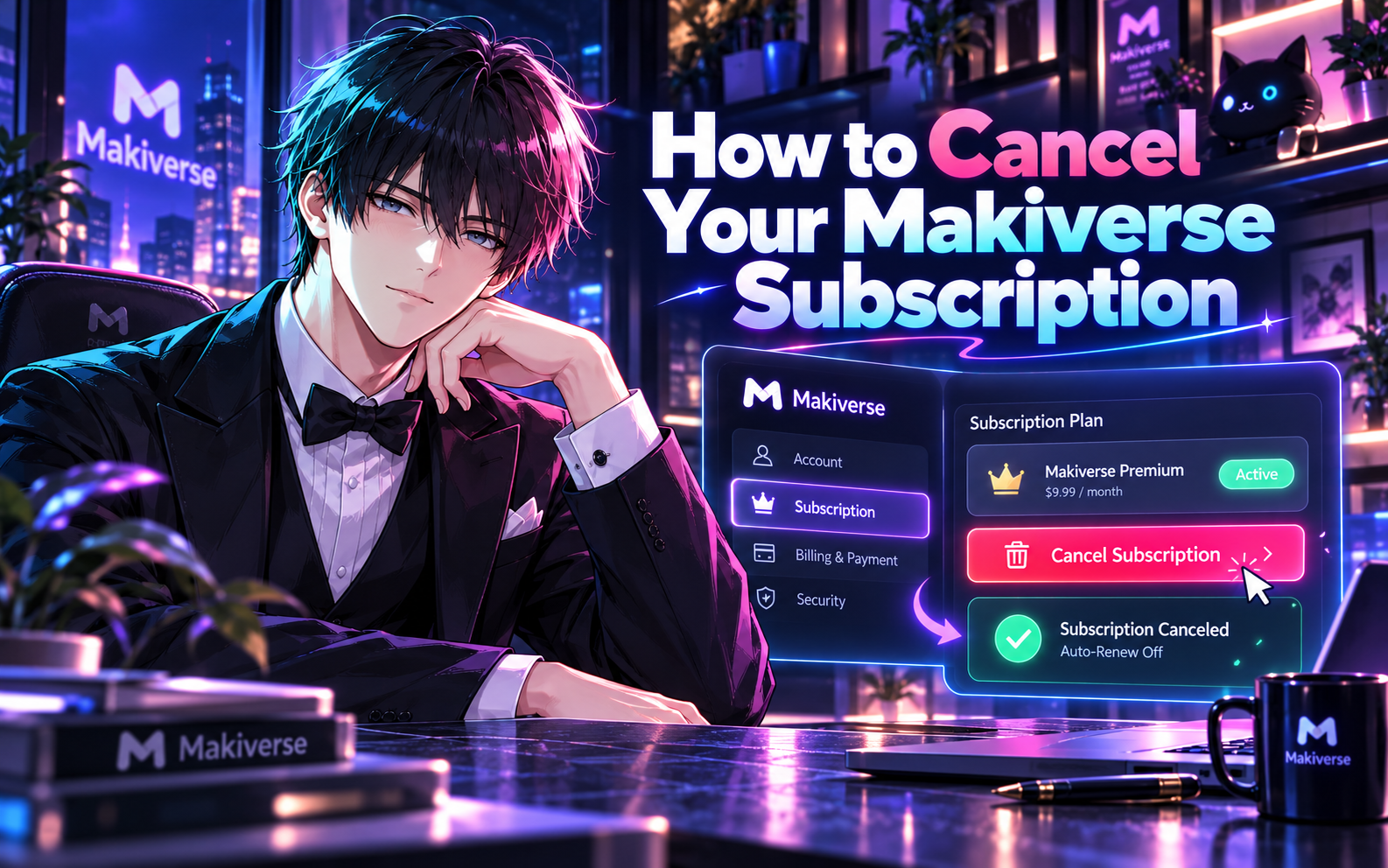
You can cancel your Makiverse subscription from your account without contacting Support.
Canceling your subscription stops future charges. Your subscription will stay active until the end of the billing period you already paid for.
This guide shows you how to cancel your subscription and confirm that automatic renewal has been turned off.
How to Cancel Your Subscription
Step 1: Open Settings
Log in to your Makiverse account.
Click your User Icon in the top-right corner, then select Settings.
Step 2: Open Manage Subscription
Scroll to Manage Subscription.
Click Manage to view your subscription options.
Step 3: Cancel Your Subscription
Select Cancel Subscription.
Follow the on-screen steps to confirm the cancellation.
Step 4: Check Your Subscription Status
After canceling, return to Manage Subscription.
Make sure your subscription shows as canceled or that automatic renewal has been turned off.
Another Way to Manage Your Subscription
If your payment receipt or subscription email includes a Manage Subscription or Manage Billing link, you may also be able to manage your subscription through the billing portal.
Step 1: Open Your Payment Email
Open the payment receipt or subscription confirmation email you received when you subscribed.
Step 2: Open the Billing Portal
Look for a Manage Subscription or Manage Billing link.
Click the link to open the billing portal.
Step 3: Cancel Your Subscription
Open your active subscription and select Cancel Subscription.
Follow the on-screen steps to confirm.
Step 4: Confirm the Cancellation
Check that your subscription is marked as canceled or that automatic renewal is turned off.
After You Cancel
Your subscription will stay active until the end of the current billing period.
After that, it will no longer renew automatically.
Any remaining Emeralds in your balance will stay in your account.
Canceling your subscription does not automatically request a refund for previous charges.
Tips for Canceling Your Subscription
- Use the correct account
Make sure you are signed in to the Makiverse account linked to your subscription. - Cancel before your renewal date
Cancel before your next billing date if you do not want your subscription to renew. - Check your subscription status
Return to Manage Subscription after canceling to confirm the change. - Save your confirmation
Keep any cancellation confirmation or email for your records.
Need Help?
If you cannot cancel your subscription or the cancellation does not work, contact Makiverse Support.
When submitting your request, include:
- Your Makiverse account email
- A short description of the issue
- A screenshot of the subscription or billing screen, if available
- Any error message you received