How to Create GIF
On this page
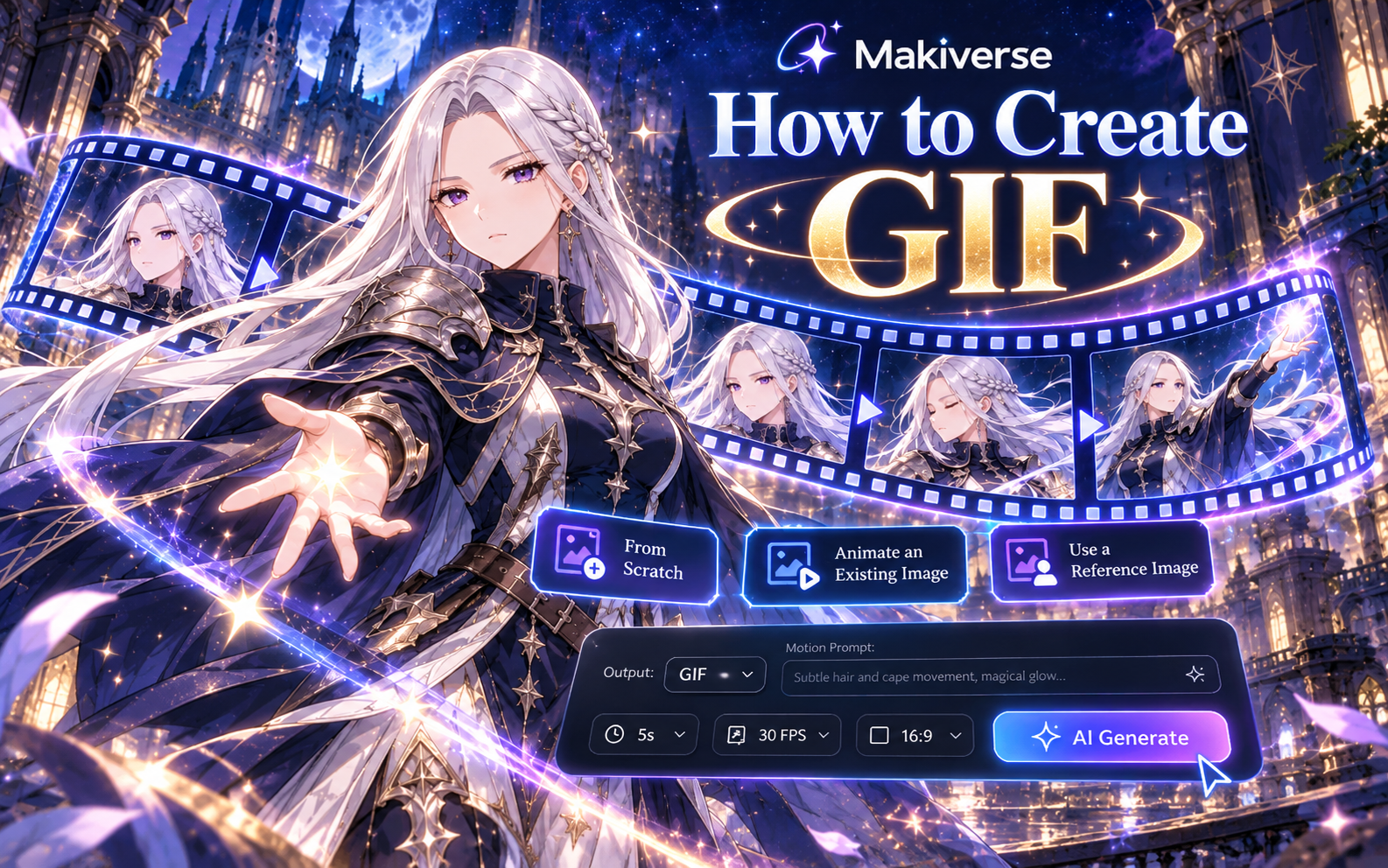
GIF Generation lets you turn images into short animations in Makiverse.
You can create a GIF from a new Prompt, animate a newly generated Image, or use one of your existing Images as the starting point.
GIFs are useful for adding motion to:
- Characters
- Scenes
- Manga panels
- Story moments
- Existing Images
This guide walks you through the GIF creation process and how to adjust your generation settings before creating the final result.
How to Create a GIF
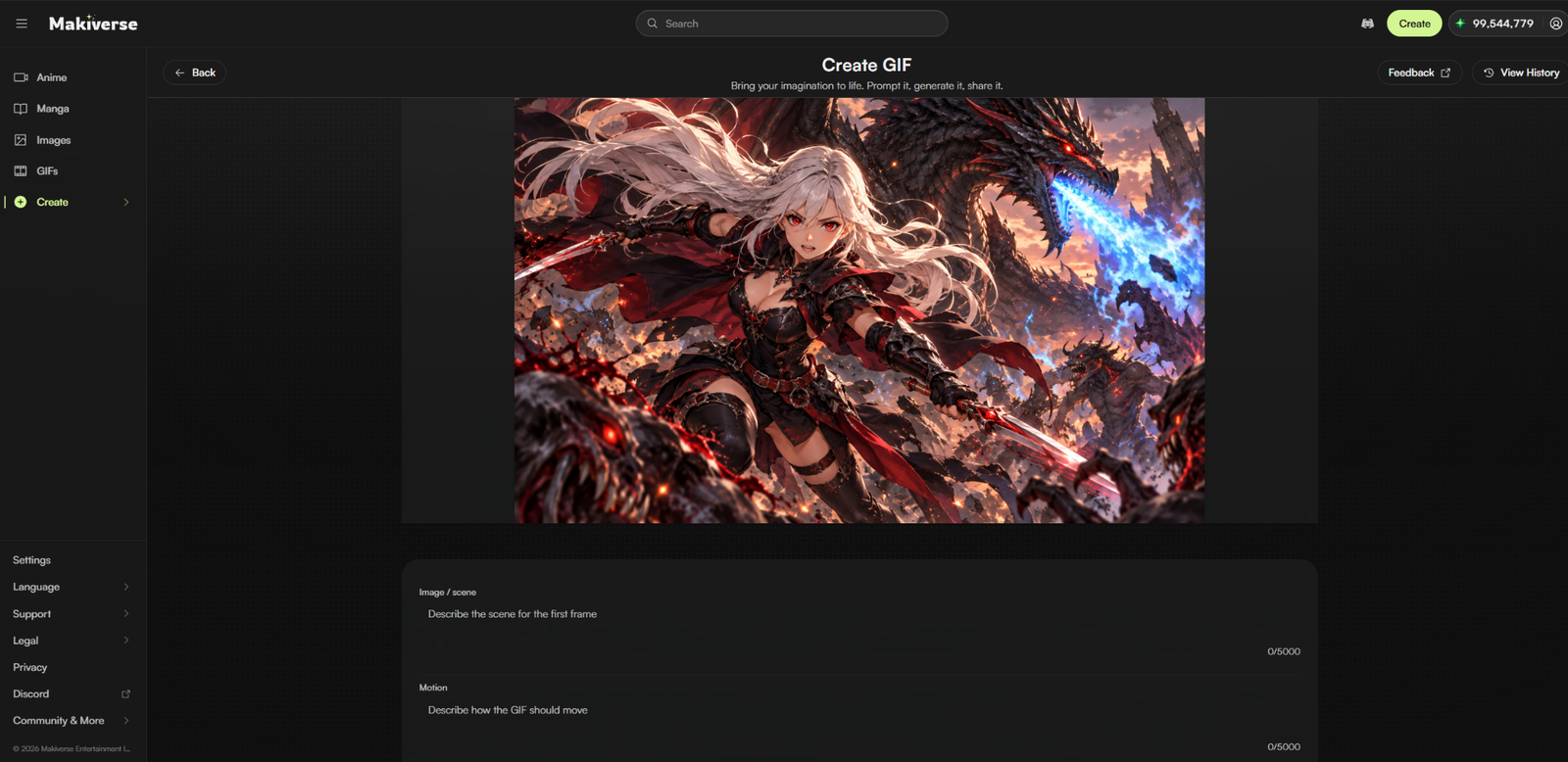
You can start your GIF in several ways:
- Create a new starting Image from a Prompt
- Animate a newly generated Image
- Use an existing Image as a Reference Image
- Use a previously saved Image
Once you have your starting Image, the rest of the GIF generation process uses the same settings.
Step 1: Choose Your Starting Image
Choose how you want to begin your GIF.
Create from a Prompt
Open GIF Generation and enter your Image/Scene Prompt.
Makiverse will use your Prompt and generation settings to create the starting Image.
Animate a Newly Generated Image
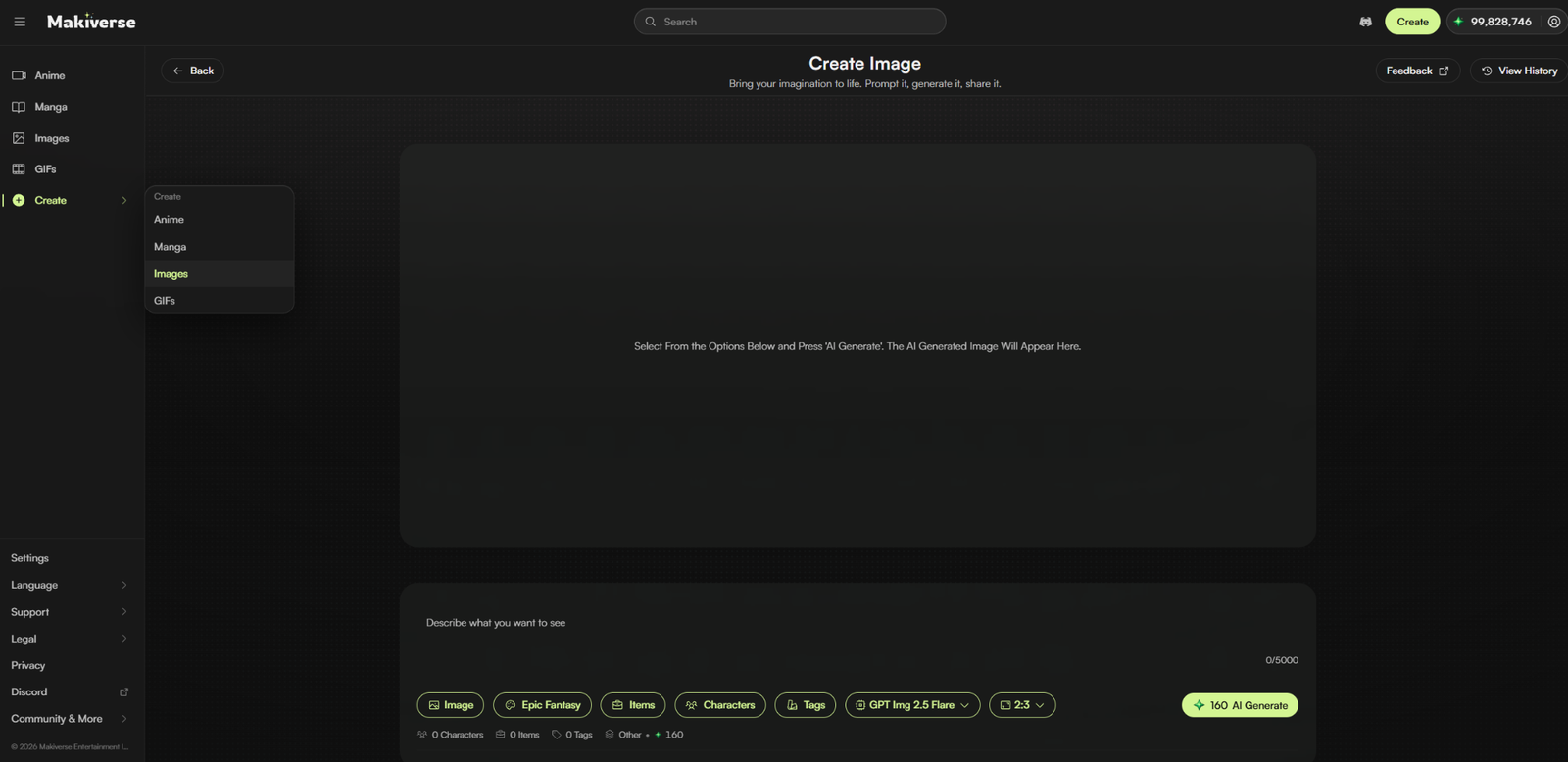
- Generate an Image.
- Once the Image is ready, click Create GIF.
- Continue with your GIF settings.
Use a Reference Image
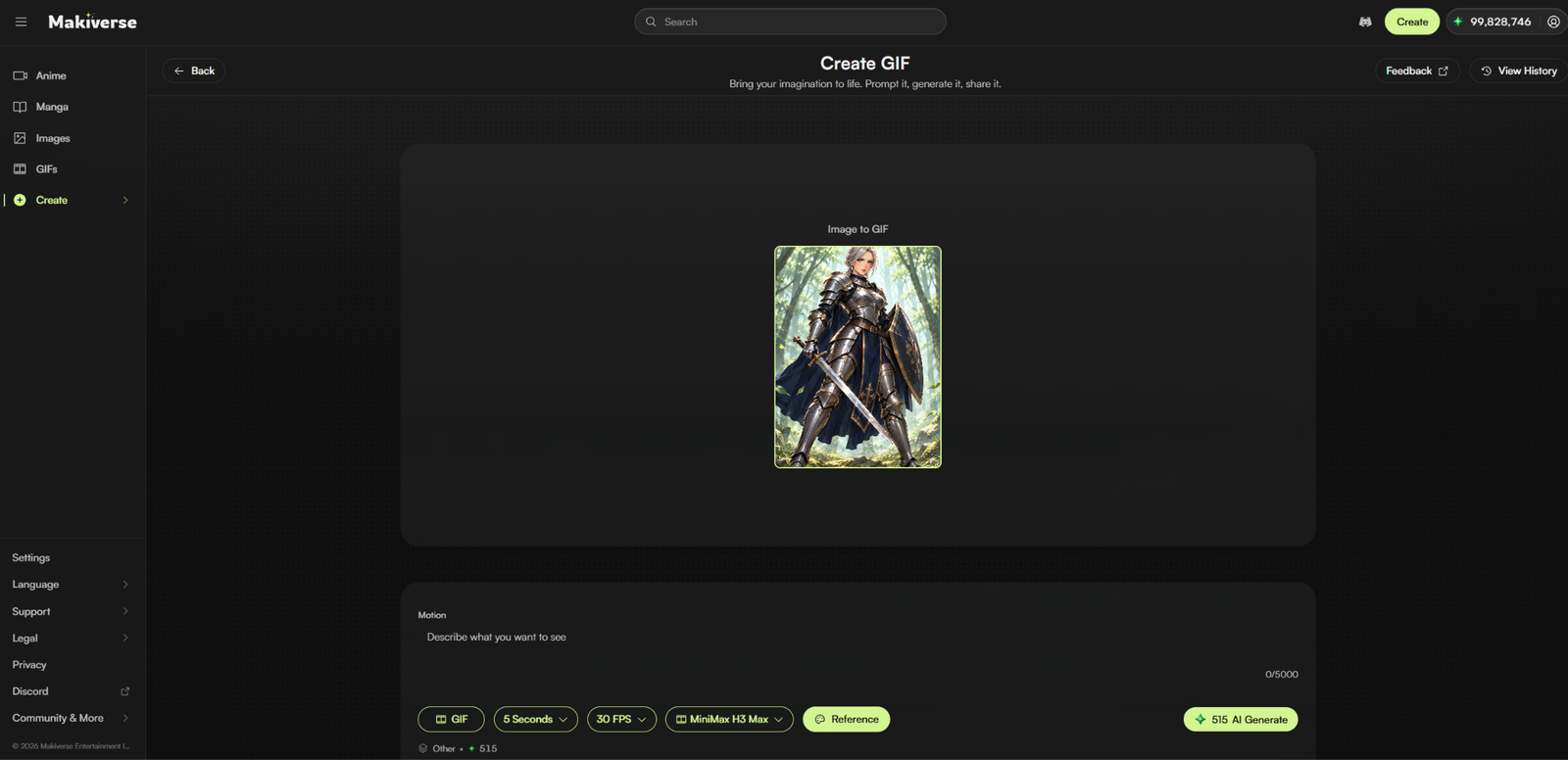
- Open GIF Generation.
- Open the Reference menu.
- Select one of your existing Images, or enter the Image ID in Reference URL.
- Confirm your selection.
Use a Previously Saved Image
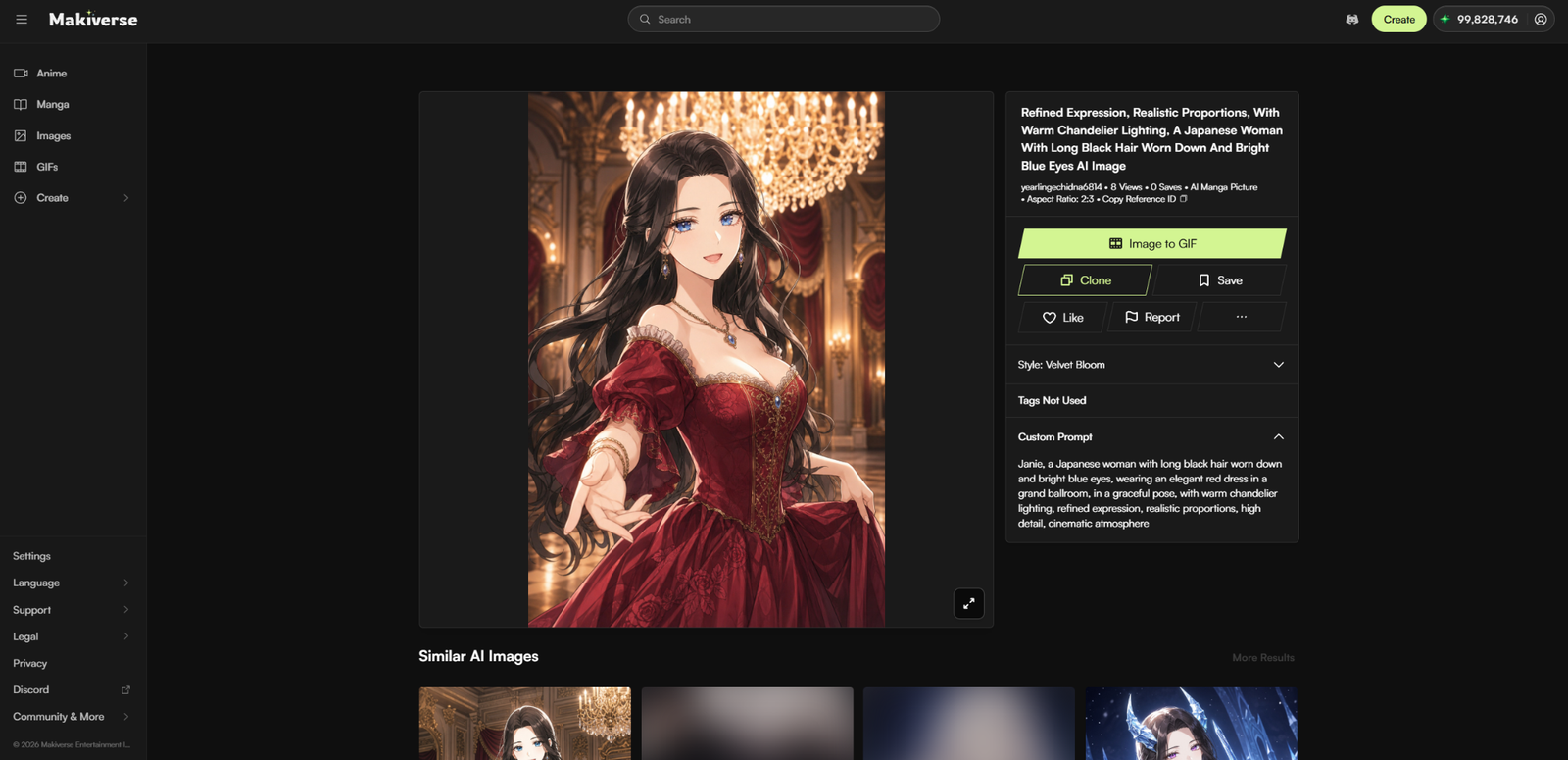
- Click the User Icon in the top-right corner.
- Open your User Profile.
- Select an Image from your saved creations.
- Click Image to GIF.
Note: Only your own creations can be used as Reference Images.
Step 2: Set Output to GIF
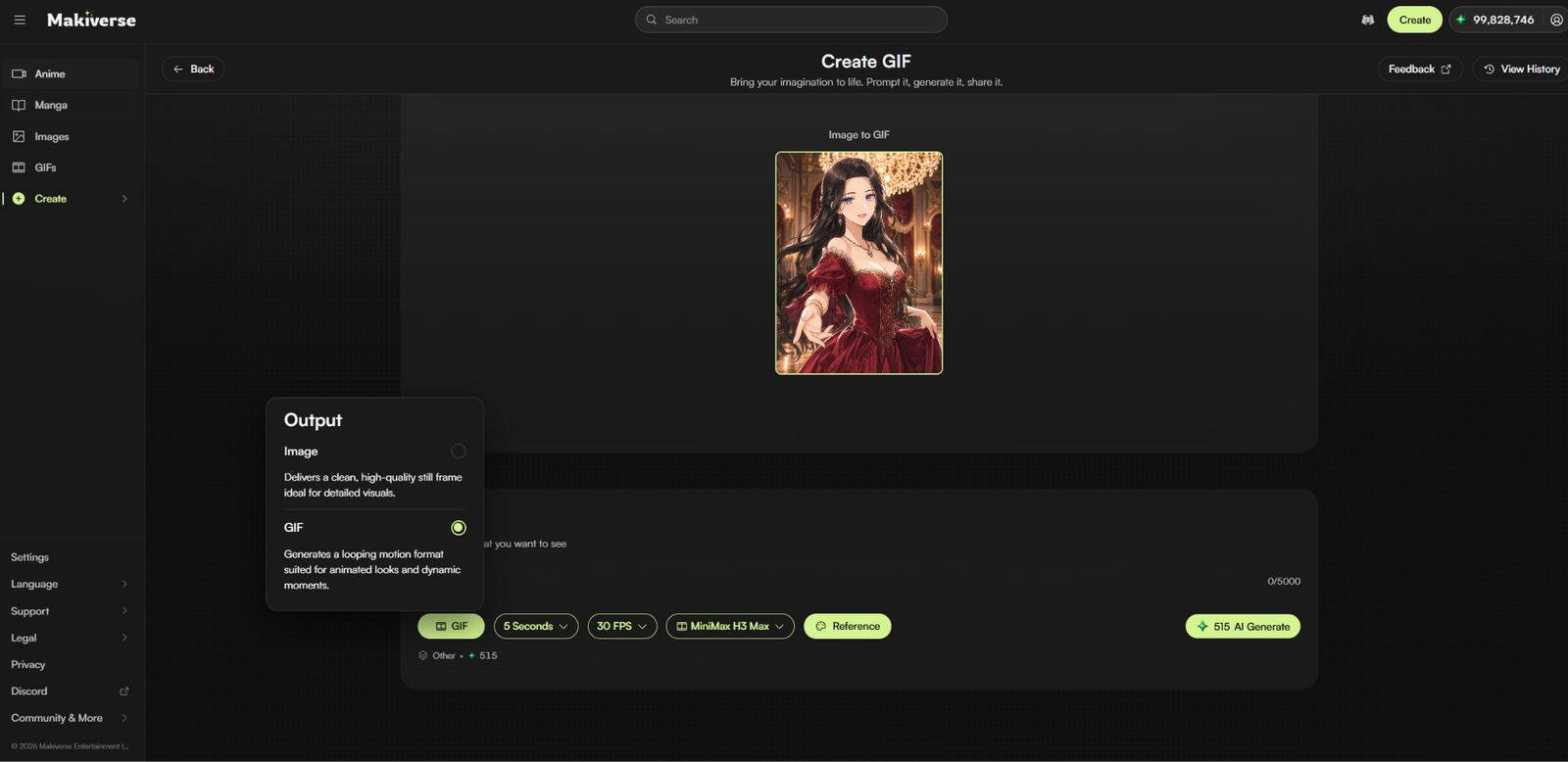
Make sure the Output is set to GIF.
This tells Makiverse to create an animated GIF instead of a still image.
Step 3: Enter Your Prompts
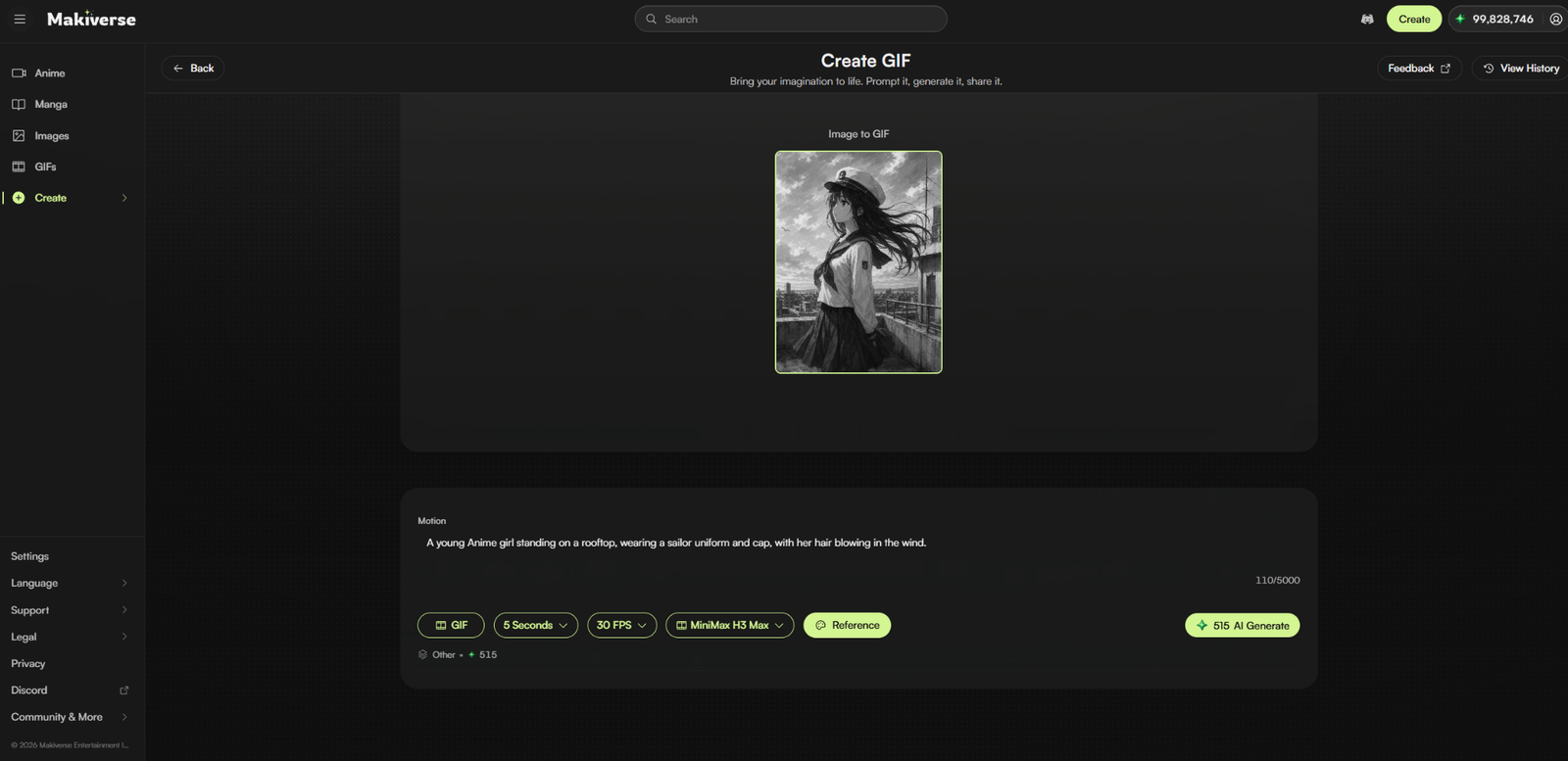
Describe both what you want to see and how you want it to move.
Use the Image/Scene Prompt to describe the starting Image.
Use the Motion Prompt to describe the movement or animation.
Example
Image/Scene Prompt:
A young Anime girl standing on a rooftop, wearing a sailor uniform and cap, with her hair blowing in the wind.
Motion Prompt:
She looks at the viewer and smiles.
If you are using an existing Image, focus on the Motion Prompt to describe how you want the Image to move.
Step 4: Select a Style
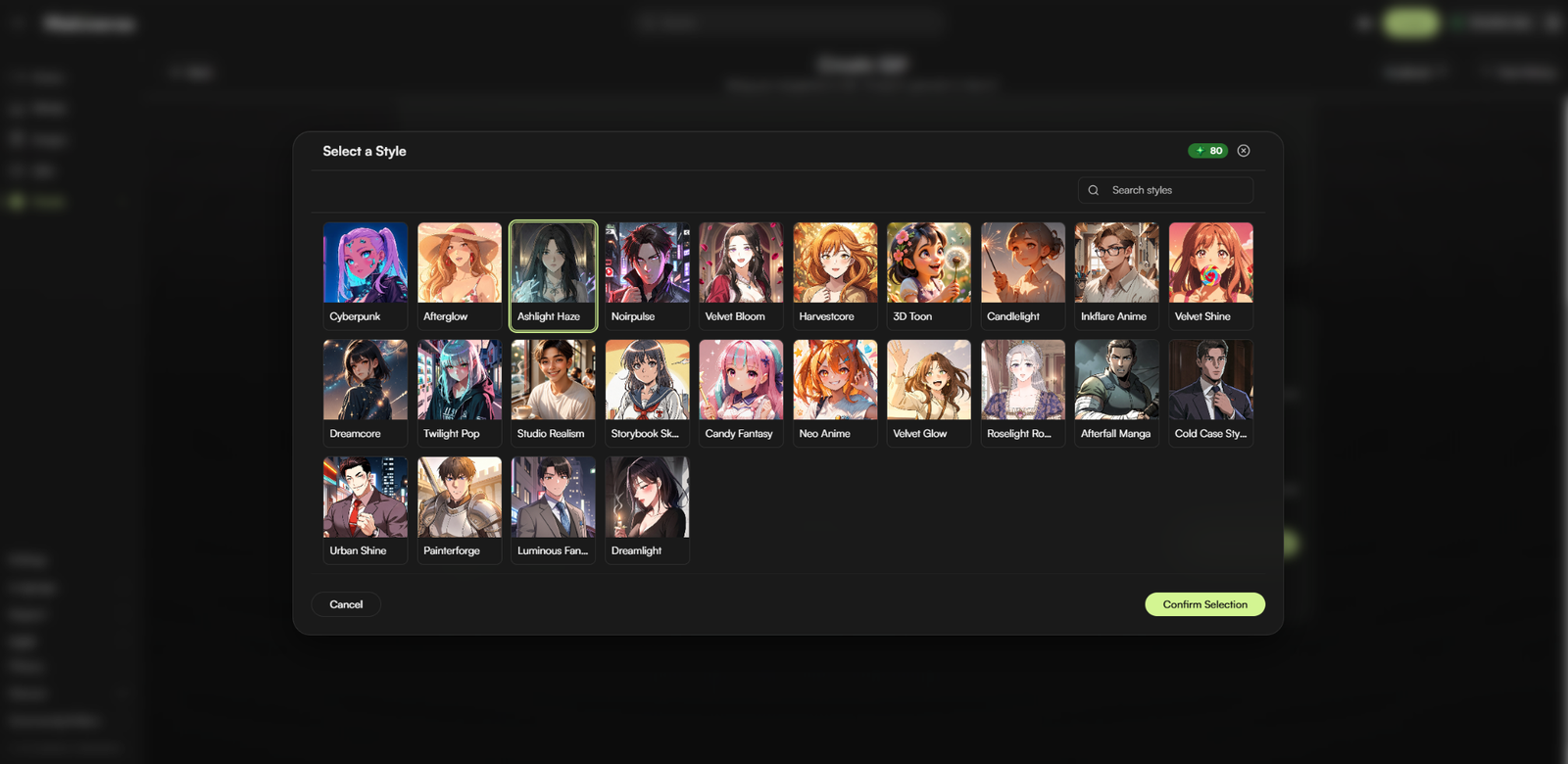
Choose the Style you want for your GIF.
The selected Style helps define the overall look and artistic direction of the result.
Once you have chosen a Style, click Confirm Selection.
Step 5: Select GIF Length
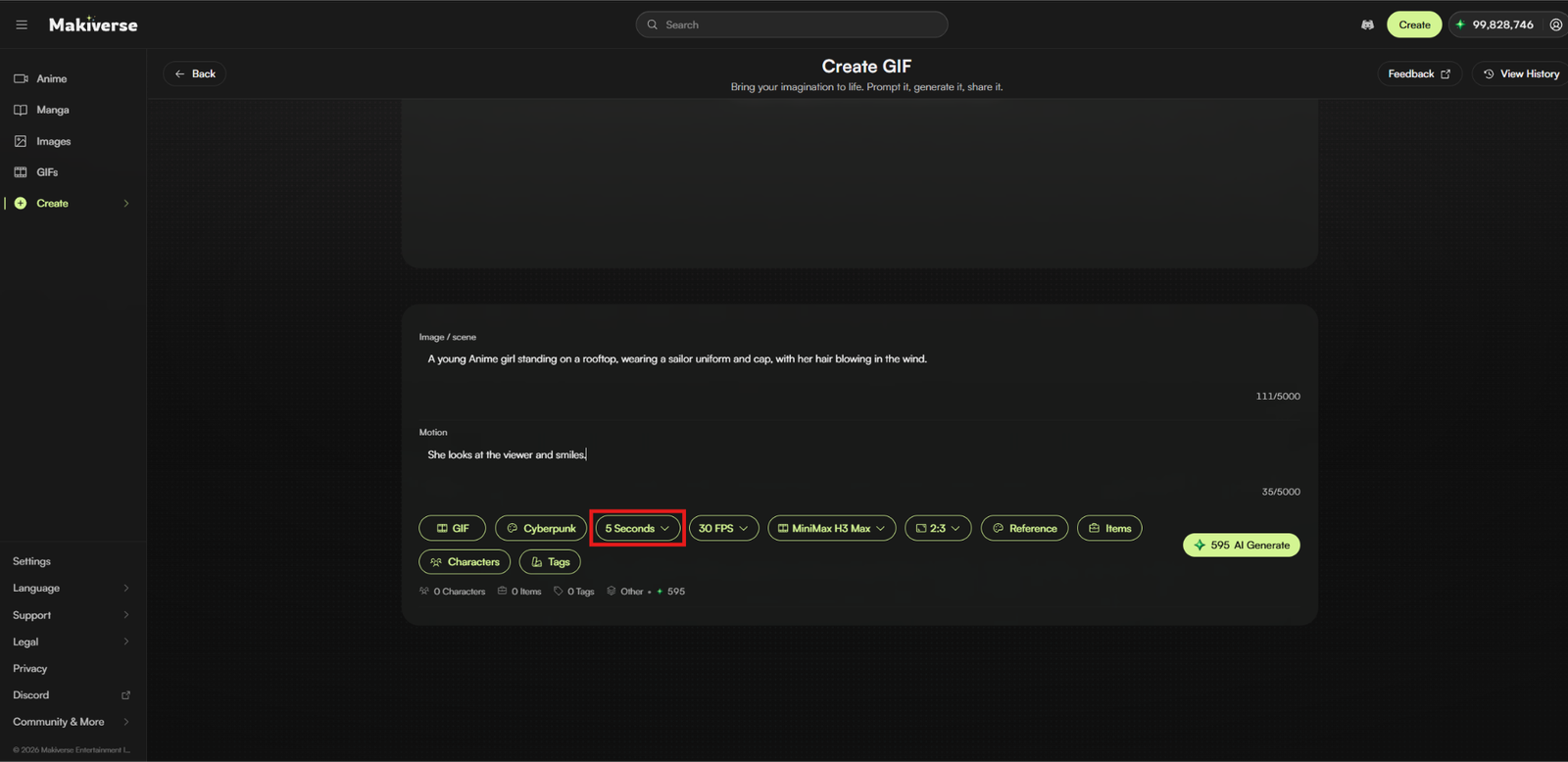
Choose how long you want your GIF to run.
The default GIF length is 5 seconds.
Additional duration options may be available as Makiverse adds new generation options.
Step 6: Select Framerate
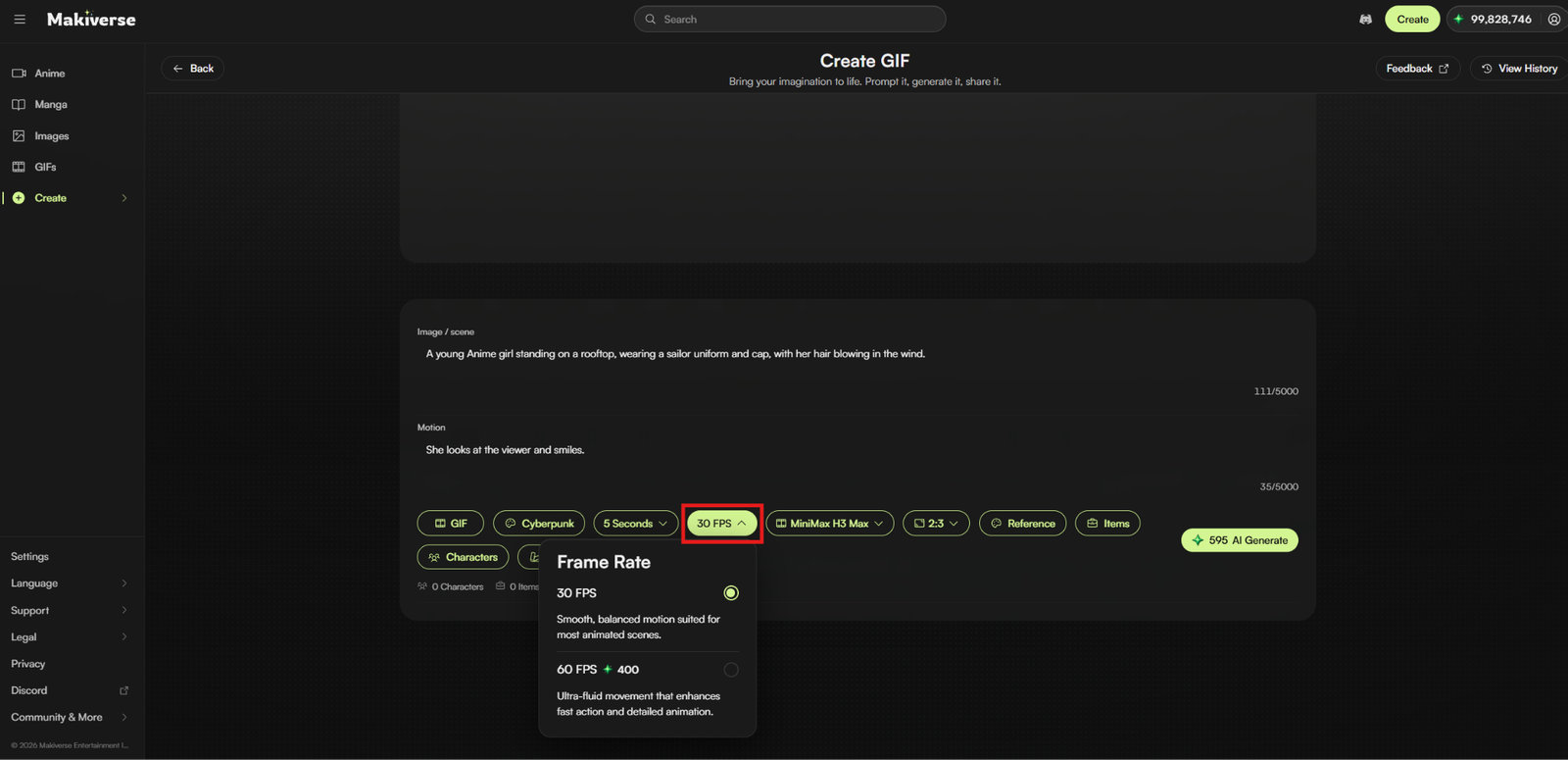
Choose the Framerate (FPS) for your GIF.
FPS, or Frames Per Second, controls how smooth the animation appears.
Available options may include:
- 30 FPS — available at no additional cost
- 60 FPS — creates smoother motion and costs 400 Emeralds
Choose the option that best matches the motion you want.
Step 7: Select an Aspect Ratio
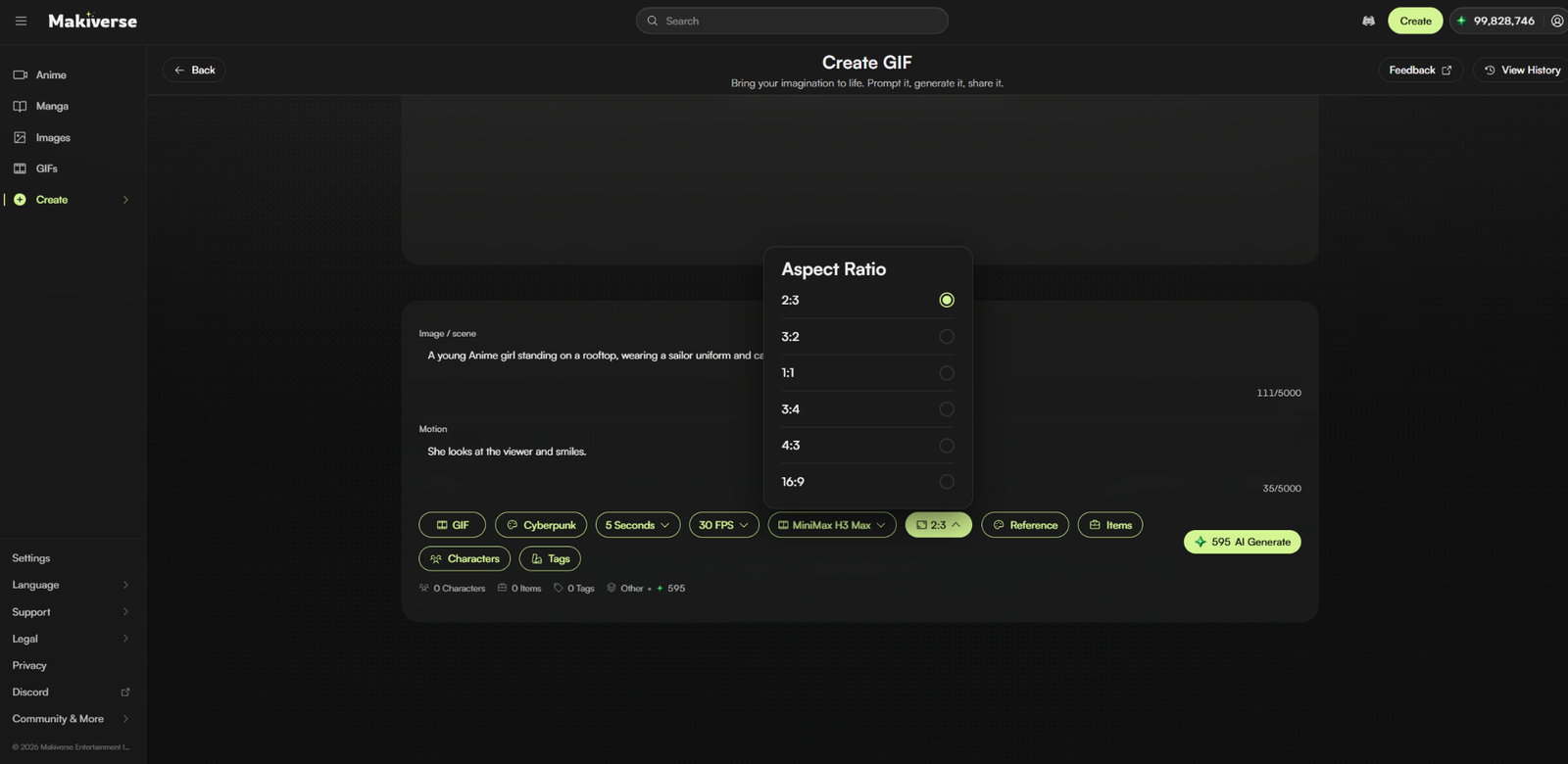
Choose the Aspect Ratio for your GIF.
The Aspect Ratio controls the shape of the final result, such as:
- Square
- Portrait
- Landscape
Select the option that best fits how you plan to use your GIF.
Step 8: Select Items
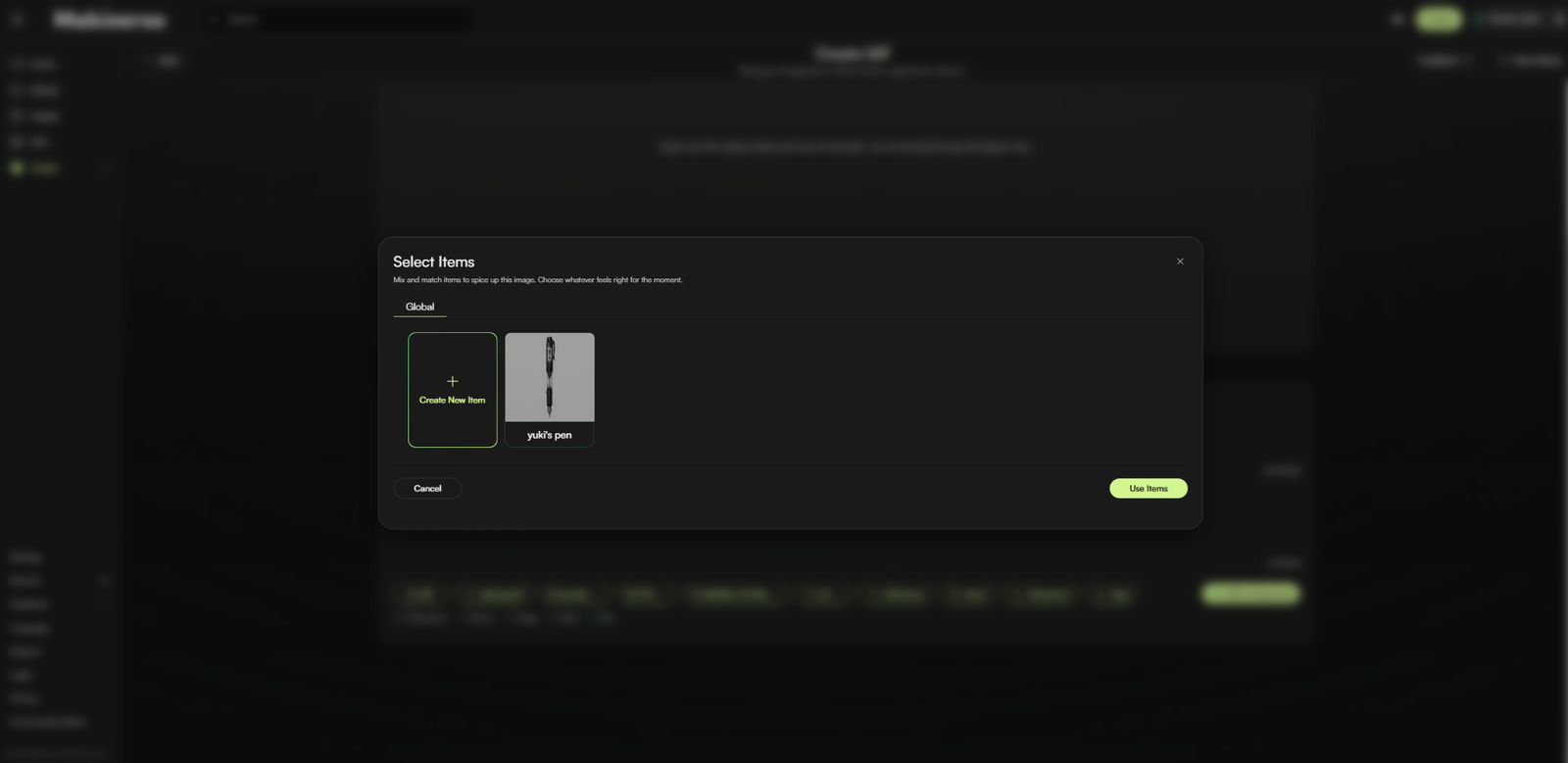
Use Items to add saved Props, accessories, or objects to your GIF.
This is useful when you want the same Item to appear across your Images, Manga, and GIFs.
Step 9: Select Characters
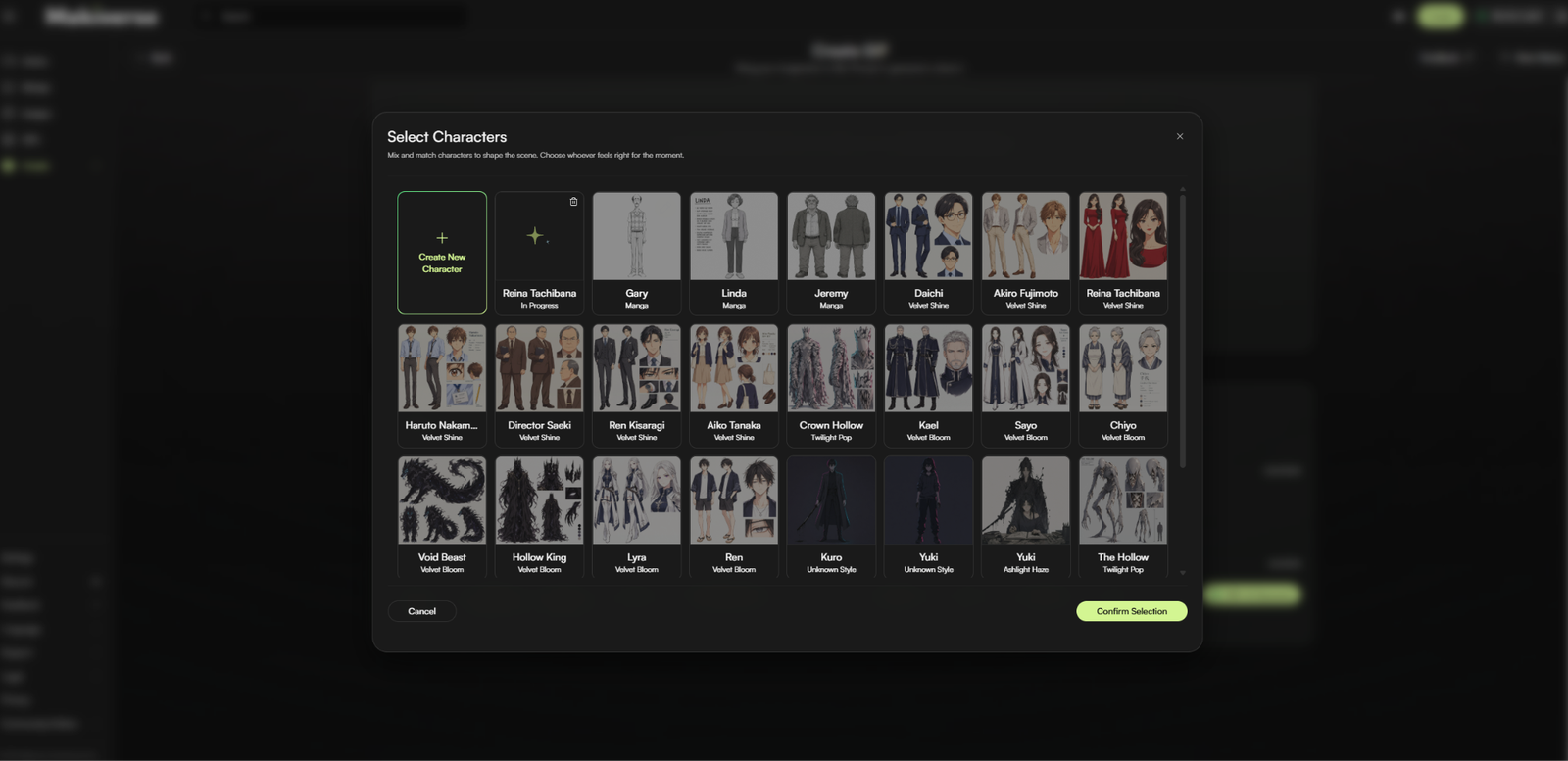
Use Characters to add saved Characters to your GIF.
Saved Characters can help keep the same Character design more consistent across Images, Manga scenes, and GIFs.
Step 10: Select Tags
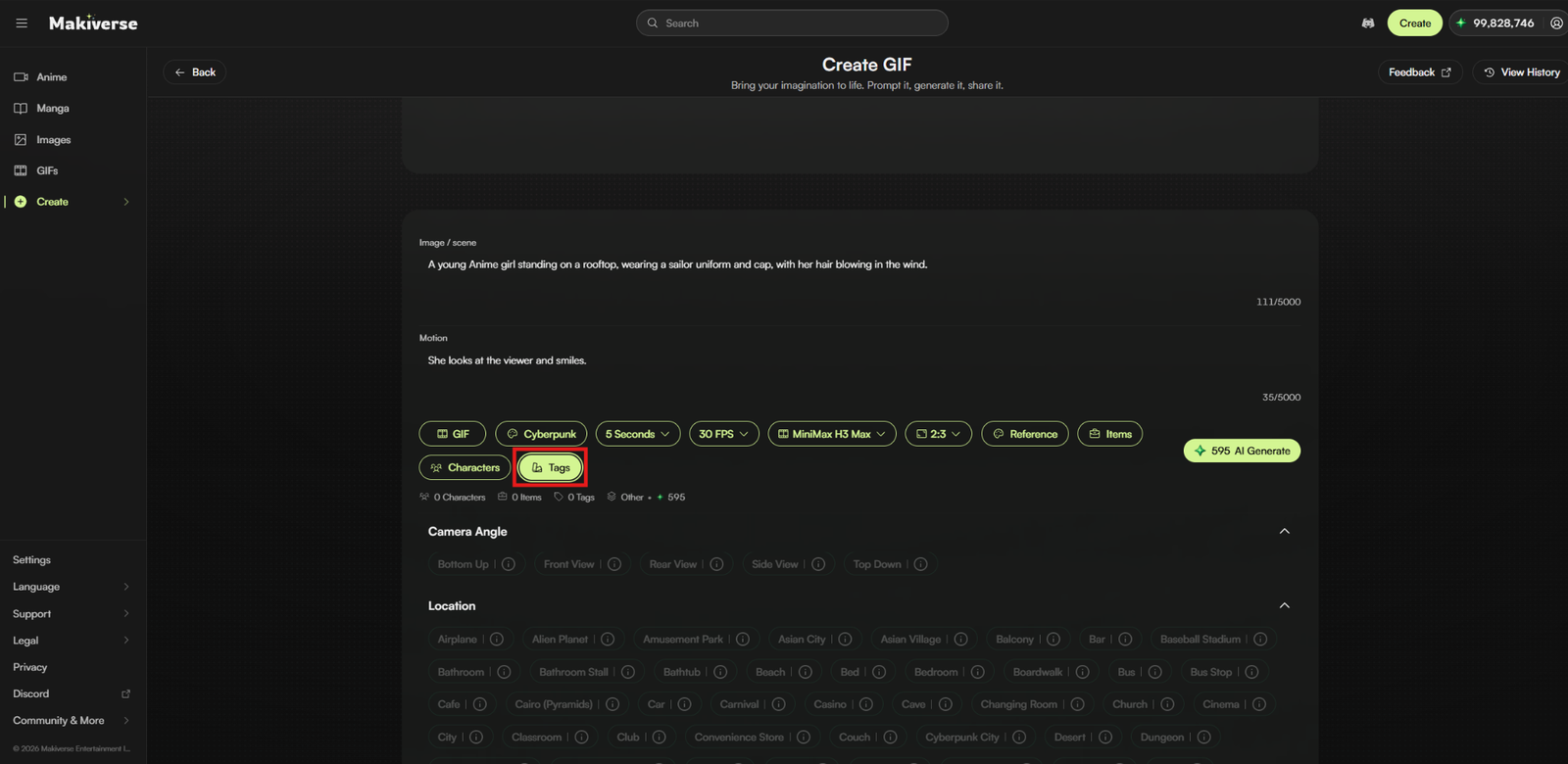
Use Tags to quickly add visual details to your GIF.
Tags can help guide elements such as:
- Location
- Camera angle
- Lighting
- Action
- Weather
- Time of day
You can use Tags on their own or together with a Prompt.
Step 11: Generate Your GIF
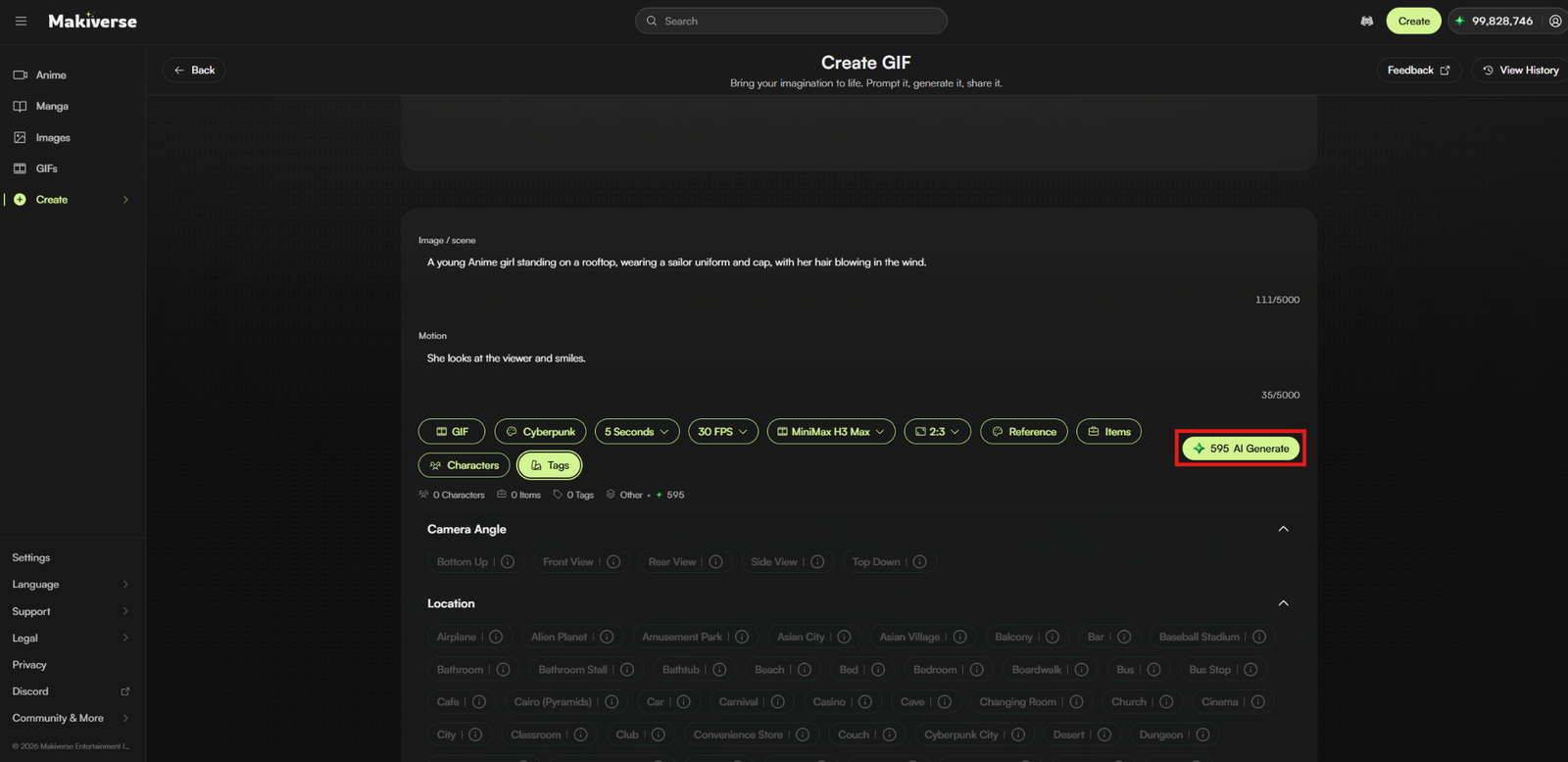
Once your Prompts and settings are ready, click AI Generate.
Makiverse will begin creating your GIF.
When generation is complete, review the result in the preview area.
Tips for Better GIF Results
- Be specific about Character actions and movement.
- Describe camera movement when it matters.
- Use an existing Image when you want a more consistent starting point.
- Start with a simple motion when testing an idea.
- Use saved Characters and Items when you want more consistency across Images, Manga, and GIFs.
- Review your Style, GIF Length, FPS, and Aspect Ratio before generating.
Need Help?
If your GIF does not look the way you expected, try:
- Adjusting your Prompt
- Using a clearer starting Image
- Making the Motion Prompt more specific
- Choosing more focused Tags
- Simplifying the movement
- Trying another generation
Start with a simple idea, review the result, and refine your Prompt or settings as needed.
If the issue continues, contact Makiverse Support.